
Hardware · 21 September, 2026
Choosing an SSD for Your Computer: Performance, Durability, and How to Avoid Wasted Spending
SSDs have become an almost mandatory component in a modern computer. Compared with mechanical hard drives, SSDs help the operating system boot faster, make software respond almost instantly, and allow data copying to proceed more smoothly in many situations. However, the increasingly diverse SSD market has also made choosing one less straightforward. Two products with […]
SSDs have become an almost mandatory component in a modern computer. Compared with mechanical hard drives, SSDs help the operating system boot faster, make software respond almost instantly, and allow data copying to proceed more smoothly in many situations. However, the increasingly diverse SSD market has also made choosing one less straightforward. Two products with the same capacity can differ significantly in connection standard, flash memory, cache, ability to sustain speed, and durability.
Many people usually look only at the sequential read speed printed on the packaging. This is a useful indicator, but it is not enough to determine whether an SSD is suitable. Office computers, gaming PCs, video-editing machines, and systems that continuously store data have very different requirements. Choosing the right SSD is therefore a matter of balancing performance, stability, temperature, capacity, and budget rather than pursuing the highest specifications.
First, determine what work the SSD will be used for
An SSD used as an operating-system drive typically has to handle many small tasks, such as opening applications, loading libraries, updating software, and accessing configuration files. In this case, random responsiveness and latency have more practical significance than maximum sequential read speed. An SSD with a very high advertised speed may not produce a noticeable difference if the computer is mainly used for web browsing, working with documents, and online meetings.
By contrast, a computer that frequently handles video editing, large image files, source-code compilation, or virtual machines will generate continuous read and write loads. Users in this group need to pay attention to the ability to sustain performance after the high-speed cache has been exhausted. A drive may achieve very high speeds in a short benchmark, but slow down considerably when it has to write a large amount of data. This difference directly affects the time required to export videos, copy project libraries, or create backups.
For gaming computers, an SSD shortens loading times and makes it more convenient to install many games. However, not every game fully takes advantage of the speed of high-end SSDs. Capacity and the ability to maintain stable temperatures are often more worth considering than choosing the product with the highest specifications in its segment.
Check the connection standard before focusing on speed
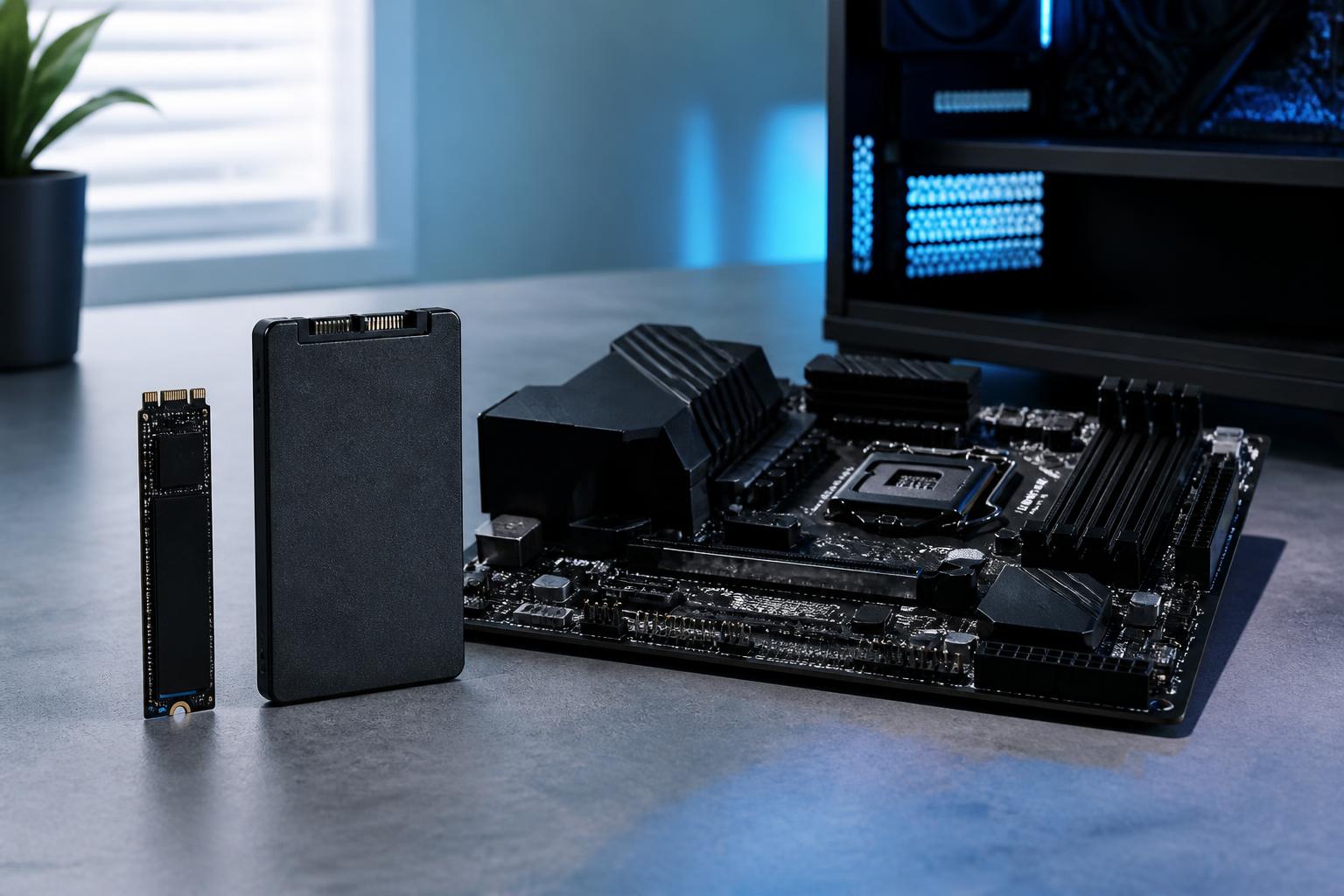
Common SSDs today may use the SATA or NVMe interface. SATA SSDs typically have a design similar to that of 2.5-inch drives and are limited by the bandwidth of the SATA interface. Although they do not reach the speeds of NVMe models, they remain a reasonable choice for upgrading an old computer, replacing a mechanical hard drive, or adding a stable secondary storage drive.
NVMe SSDs typically use an M.2 slot on the motherboard and a PCI Express interface. However, the M.2 form factor does not mean that all M.2 drives use the same operating standard. An M.2 slot may support SATA, NVMe, or only one of the two types. In addition, the number of PCI Express lanes and the interface generation supported by the motherboard also affect real-world performance. Therefore, before buying, check the technical documentation for the motherboard or laptop to determine which SSD types are compatible.
Compatibility is not limited to whether the drive fits the slot. Some laptops use SSDs that are shorter than the common type used in desktop computers, while some motherboards require the removal of a heatsink or expansion card to install a drive. Some systems also share bandwidth between an M.2 slot and SATA ports, causing certain ports to be disabled when an SSD is installed. Carefully reading the hardware manual before buying will help avoid situations in which the new drive is not detected, operates below its proper speed, or disables another connection port.
Do not judge an SSD solely by its maximum read and write speeds
Sequential speed represents the ability to continuously read or write large files. This is an important specification when working with video, raw photos, large project files, or high-capacity backups. Even so, everyday tasks often involve many small files located in different places. In such cases, latency, the number of input/output operations, and random-access performance may be more important.
It is also necessary to distinguish short-term speed from sustained performance. Many SSDs use a fast cache area to accelerate initial write operations. When this cache becomes full, speed may drop to a level consistent with the characteristics of the flash memory inside. This is not necessarily a defect, but buyers need to understand it in order to choose the right product for their workload. Someone who copies only a few gigabytes of data at a time may not notice this limitation, while someone who frequently writes hundreds of gigabytes will feel it clearly.
Reliable reviews often test SSDs under multiple conditions: when the drive is empty, when it is nearly full, after long write cycles, and at different temperatures. Users should prioritize data that reflects sustained performance rather than looking only at the highest result in a short test. This is a more accurate way to evaluate real-world experience.
Flash memory and the meaning of endurance
SSDs store data in flash memory cells. The way bits are organized in each cell affects storage density, cost, performance, and write-erase endurance. Within the same product line, a higher-capacity version may sometimes perform better because it has more memory chips to process data in parallel. However, this should not be regarded as an absolute rule, because the controller design and management software also play important roles.
Endurance is typically expressed by manufacturers as the total amount of data that can be written over the designed service life or as a warranty period accompanied by specific conditions. This figure is useful for comparing products in the same category, but it is not a promise that the drive will fail immediately after reaching the threshold. Conversely, a high rating is no substitute for backups. An SSD may experience controller failure, firmware errors, sudden power loss, or component damage outside the usual write-erase pattern.
Home computers used for office work generally do not generate an especially large amount of written data. In professional environments, where temporary data, databases, virtual machines, or video projects are written and erased continuously, it is advisable to prioritize SSD models with clear endurance specifications and suitable protection mechanisms. If the data is important, using a highly durable SSD without a backup copy is still an unsafe strategy.
Temperature and free space directly affect the drive
High-performance NVMe SSDs can generate considerable heat when operating continuously. When the temperature exceeds the design threshold, the controller may automatically reduce speed to protect the components. This phenomenon is commonly called thermal throttling, and it explains why a drive may achieve very good results in a short test but run more slowly when copying data for a long period.
Desktop computers generally have an advantage in airflow and can use an M.2 heatsink supplied with the motherboard. With laptops, limited space means that replacing an SSD requires more careful consideration. Do not arbitrarily attach additional thermal material if it increases the thickness or puts pressure on the laptop cover. The important thing is to ensure that the SSD is installed in the correct position, makes suitable contact with the existing cooling solution, and is not blocked by cables or other components.
An SSD should also not be kept nearly full for long periods. When some free space remains, the controller has more room to distribute data, consolidate memory blocks, and maintain performance. The amount of free space needed depends on each product’s design and usage pattern, but retaining a reasonable reserve is always better than letting the drive reach its full-capacity limit. Users should monitor capacity over time, especially when they frequently install games, store photo libraries, or download large project files.
What capacity is appropriate?
A low-capacity drive may be sufficient for the operating system and a few basic applications, but it can quickly become cramped after multiple updates. When the drive is nearly full, file management becomes inconvenient and performance may be affected in some situations. Therefore, do not choose only enough capacity for the first day; consider the rate at which data will grow over several years.
Office users may consider using an SSD as the system drive and storing infrequently used files on another device. Gamers should account for the size of their game library, downloadable content, and update files. Content creators may need a fast SSD for active projects combined with another drive for long-term storage. This arrangement both helps optimize costs and avoids using a single drive for every purpose.
Firmware, warranty, and backups should not be overlooked
Firmware controls how an SSD communicates with the system and manages its flash memory. A manufacturer that provides tools for checking drive health, updating firmware, monitoring temperature, and performing secure erasure will make device management more convenient for users. Before buying, check whether the product has official support software and whether that tool is compatible with the operating system in use.
Warranty coverage is a practical criterion, especially for SSDs used for important work. Read the warranty conditions regarding duration, total written data, return and replacement procedures, and the requirement to retain the purchase receipt. Do not buy products from unclear sources simply because they are inexpensive, since it may be difficult to verify the condition of the memory, how long it was previously used, or the level of support available if a problem occurs.
Finally, no SSD choice eliminates the need for backups. Important data should have at least one copy on another device or in another location, and that copy should be periodically tested for recoverability. An SSD can make a computer faster, but it should not be the only place where data exists.
How to make a balanced decision
A sensible SSD-selection process begins by identifying the computer’s slot and connection standard. Next, users should estimate the required capacity, the amount of reading and writing performed each day, sustained-performance requirements, and cooling conditions. Only then should they compare the price, endurance, support software, and warranty policies of compatible products.
For most personal computers, an SSD with stable performance, ample capacity, and a clear source generally offers better value than a high-end model whose capabilities are not fully utilized. Professional users may need to invest more in endurance, sustained speed, and data-protection mechanisms. Choosing an SSD based on actual workloads rather than the most prominent number in an advertisement will help make the system fast, durable, and less likely to incur replacement costs later.