


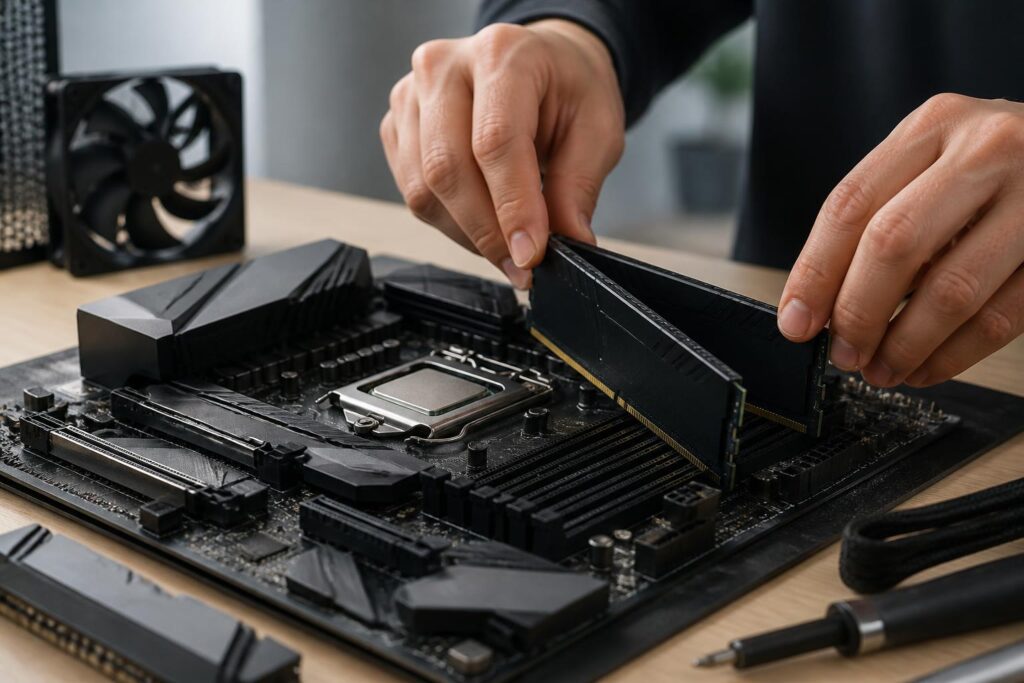
In a computer, RAM often receives less attention than the processor, graphics card, or storage drive. However, it is the component that determines how many tasks the machine can handle at the same time while remaining responsive and stable. When there is not enough RAM, the operating system must frequently move temporary data to the storage drive, making it sluggish to open applications, switch between windows, and process large files. Conversely, installing too much RAM or choosing memory with specifications far beyond actual needs may not provide a proportionate benefit.
Therefore, choosing RAM should begin with actual usage patterns rather than simply pursuing the highest capacity or speed. A suitable configuration needs to balance capacity, memory standard, compatibility with the motherboard and processor, the number of RAM sticks, and room for future upgrades.
RAM capacity determines multitasking ability
Capacity is the easiest factor to understand, but it is also often assessed too simplistically. RAM does not make a computer faster in every situation. Its primary role is to provide space where the operating system, applications, and data currently being processed can coexist. When this space is sufficient, the computer can keep more applications ready without having to continually retrieve data from the storage drive.
For basic needs such as web browsing, working with documents, online learning, and using office applications, a moderate amount of RAM can work well if the user does not open too many demanding programs at once. A computer used for study or office work should be evaluated based on the number of browser tabs, communication applications, work software, and the user’s habit of switching between them. Someone who regularly keeps dozens of tabs open, edits large spreadsheets, or works with many windows will need more RAM than someone who uses each application separately.
For gaming, RAM requirements also depend on the game, resolution, background applications, and the overall system configuration. RAM cannot replace a graphics card or processor, but insufficient memory can cause slow loading, stuttering when moving between areas, or reduced stability when playing and streaming at the same time. Computers used for photo editing, video production, large-scale programming projects, running virtual machines, or processing data must also take into account file sizes and the number of specialized applications open simultaneously.
The important thing is to distinguish between “enough for use” and “capacity that can be utilized.” If the memory remains largely unused most of the time, adding more RAM is unlikely to produce a noticeable change. Conversely, if the system regularly uses nearly all available memory, increasing capacity usually provides more practical benefits than switching to a RAM kit with higher speed.
The RAM standard must match the platform
RAM is not a component that can be installed arbitrarily in every motherboard. Different generations of memory have different slot shapes, contact-pin layouts, and electrical characteristics. Therefore, a RAM stick from a newer generation is not automatically compatible with an older motherboard, even if the two look quite similar externally.
When upgrading, users need to check the motherboard or computer documentation to determine which RAM standard the platform supports. For desktops and laptops, memory limitations also depend on the manufacturer’s specific design. Laptops usually use smaller modules than desktop computers, while some thin-and-light devices have integrated memory that cannot be replaced.
If the entire platform is being replaced, the processor, motherboard, and RAM should be selected as a unified package. Users should not buy RAM first and then search for a compatible motherboard, as this can narrow the available choices or create component replacement costs. For a computer that is operating reliably, upgrading with the existing standard is generally simpler and less risky than changing multiple components at the same time.
Two RAM sticks are often more practical than one
Many computer platforms support multi-channel memory access. When two compatible RAM sticks are installed in the correct slots, the system can use memory bandwidth more efficiently than with a single stick of the same total capacity. The actual improvement depends on the application, processor, and platform design, but a two-stick configuration is often worth considering when building a new computer.
This does not mean that two RAM sticks are always better in every situation. A computer with only two memory slots may need to leave one slot empty to allow for a future upgrade, while a motherboard with more slots makes expansion easier. Users should also consult the motherboard manual to determine the appropriate slots when using two or more sticks. Installing them in the wrong slots can prevent the system from achieving the optimal memory-channel configuration.
When combining different RAM sticks, the computer may automatically operate using the lower common specifications, or in some cases encounter boot failures and instability. Compatibility depends not only on capacity but also on the RAM standard, speed, voltage, module type, and the design of each memory stick. Therefore, a RAM kit sold as a matched pair is generally easier to manage than combining sticks purchased separately at different times.
Speed and latency should not be considered separately
RAM speed is often discussed in terms of its data-transfer specification, but this figure reflects only part of its performance. Latency also affects how long the memory takes to respond to a request. Comparing two RAM kits based solely on speed can lead to inaccurate conclusions if latency and platform compatibility are ignored.
In ordinary tasks, the difference between RAM kits with similar specifications is often smaller than the difference caused by insufficient capacity or running an incorrect channel configuration. A RAM kit with extremely high speed that must be reduced because the motherboard or processor does not fully support it will not provide the value advertised on the packaging. The published speed may also be a level that must be enabled through a memory configuration in the firmware, rather than a speed the computer will always run at automatically.
For general users, a sensible priority is usually to choose a speed that the platform supports reliably, then consider latency and price. Technical users or those seeking to optimize performance can investigate memory configurations in greater depth, but they should make changes step by step and check stability after each one. A system that is slightly faster but frequently causes application errors is less useful than one with lower specifications that operates reliably.
The memory configuration should be checked after installation
After installing RAM, users should not look only at whether the computer starts up. The system may recognize the full capacity while running at the default speed, failing to enable the correct multi-channel mode, or recognizing only part of the memory. Users should check the information in the operating system and firmware to confirm the total capacity, operating speed, and number of detected sticks.
If an enhanced speed configuration is enabled, its stability should be monitored during use. Warning signs may include unexpected restarts, applications closing suddenly, errors while extracting files, blue screens, or an inability to boot after changing the settings. When problems occur, users should return the configuration to its default level, check that the RAM sticks are properly seated, and update the firmware if this is appropriate according to the manufacturer’s instructions.
Testing the memory with specialized tools is also valuable, especially for a newly assembled computer or a system that has previously experienced difficult-to-diagnose errors. If an error is detected, users should test each stick and each slot to identify the cause. They should not immediately conclude that the RAM kit is defective, because the problem may come from a slot, incompatible settings, poor contact, or another component in the system.
Consider upgrade potential before buying
A computer used for several years may face new demands: heavier software, more browser tabs, newer games, or the need to work with multiple sets of data simultaneously. Therefore, the number of empty RAM slots and the platform’s maximum memory limit are details that should be checked from the outset. A motherboard with flexible upgrade options can help users extend the computer’s useful life without replacing the entire system.
However, leaving a slot empty is not always the optimal choice. If a user buys one high-capacity stick with the intention of adding a second stick later, they must accept the possibility that sticks from different production batches or with different specifications may not operate optimally when paired. Buying a kit containing compatible sticks from the beginning usually reduces this risk, although it may result in a higher initial cost.
Choose RAM according to your needs, not advertising
RAM should be viewed as part of the overall system, not as an independent component in a race for specifications. An office computer needs stability and the ability to run multiple applications; a gaming computer needs balance among memory, the processor, and the graphics card; a content-creation computer should prioritize capacity if it regularly handles large files; while a workstation or virtual-machine system may need considerably more RAM depending on the scale of the workload.
Before buying, users should record the platform they currently have, the RAM standard, the number of empty slots, the current capacity, and signs of insufficient memory during use. Only then should they compare RAM kits based on compatibility, capacity, the speed supported by the platform, warranty policy, and price. This approach helps avoid paying extra for specifications that are difficult to utilize or buying memory that cannot be used as expected.
Good RAM is not necessarily the kit with the highest speed or the most striking design. It is memory with suitable capacity that operates reliably with the platform, is installed in the correct configuration, and continues to meet needs for a reasonable period. By properly understanding RAM’s role, users can upgrade their computers more effectively, reduce compatibility problems, and allocate their budgets more accurately to the components that truly make a difference.
