


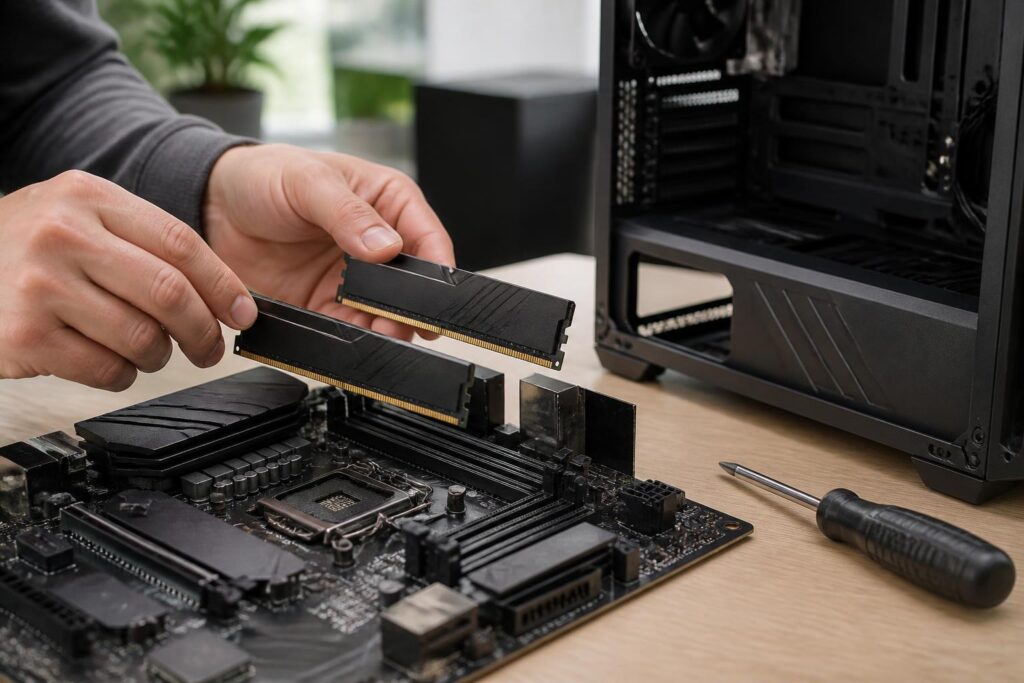
RAM is one of the components commonly mentioned when a computer starts to slow down, especially when opening many browser tabs, editing images, working with large spreadsheets, or running multiple applications at the same time. However, upgrading RAM is not as simple as buying a high-capacity module and installing it in the computer. If users choose the wrong memory standard, the wrong type of module, or fail to check the motherboard’s limitations, they may not achieve the desired results and could even encounter boot errors.
Unlike storage drives, RAM is temporary memory used for data and programs that are currently in use. When the computer is powered off, the data in RAM is lost. Even so, the memory’s fast access speed helps the operating system and software work more flexibly. A system with an appropriate amount of RAM can generally switch between tasks more smoothly, reduce the need to use virtual memory on the storage drive, and provide a more responsive experience during everyday work.
Understand RAM’s Role Before Upgrading
RAM capacity determines how much data a computer can keep ready for processing at the same time. When there is still free capacity, users can open a browser, office software, communication applications, and specialized tools with fewer slowdowns caused by insufficient memory. When RAM is nearly full, the operating system usually has to move some data to virtual memory on the storage drive. This process can make switching between windows or reopening applications take longer.
However, adding RAM does not always increase processing speed proportionally. If the computer is limited by the processor, graphics card, storage drive, or temperature, installing more memory will address only part of the problem. For example, an office computer that runs only light tasks may not show a noticeable difference after moving from an already sufficient capacity to a higher one. By contrast, a computer that frequently uses a browser with many tabs, content-creation software, or a programming environment may benefit significantly from additional RAM.
Determine Your Actual Usage Needs
The first step is to observe how the computer is used instead of choosing capacity based on advertising or someone else’s configuration. Users who mainly write documents, read materials, attend online meetings, and use several lightweight applications should focus on a balanced configuration. For this group, the important thing is to have enough RAM for the operating system and commonly used software while still retaining some free capacity when additional tasks are opened.
Requirements will be higher if the work involves photo editing, video production, technical design, data analysis, or running virtual machines. Specialized applications often keep large amounts of data in memory for faster operation, so insufficient RAM can easily show up as sluggish response, choppy transitions, or waiting when opening large projects. Gamers also need to consider the capacity used collectively by the game, the operating system, and background programs. Memory that is just sufficient for a game but leaves no room for other applications can result in an unstable experience.
On Windows, users can open Task Manager to view memory usage while carrying out familiar tasks. They should not look at only a single point in time. Observe usage while opening multiple applications, switching between windows, and performing the heaviest tasks of the day. If memory usage is consistently very high, an upgrade is more justified. Even so, high usage is not always a sign of a problem, because the operating system may use unused RAM as cache memory. Slowdowns, stuttering, or long waiting times should also be considered when making a decision.
Check the RAM Standard and Device Type
Desktop computer RAM and laptop RAM usually come in different module formats. Desktop computers use larger modules, while laptops generally use more compact modules. These two types cannot be directly substituted for one another simply because they share the same memory standard name. Before buying, users need to determine precisely whether the device is a desktop computer, laptop, or all-in-one computer.
The RAM standard is another factor that must be checked. Different memory generations have different contact designs and electrical characteristics, so a module from a newer generation cannot be installed in a motherboard that supports only an older generation. The standard name usually appears in the motherboard documentation, the computer’s technical specifications, or configuration-checking software. Users should not rely solely on the appearance of the RAM stick, because many modules look similar but are not compatible.
With laptops, some models have RAM soldered directly onto the motherboard and can be upgraded only partially, or cannot be replaced at all. Other models have expansion slots but are limited by their slim design, maximum capacity, or the module configurations supported by the manufacturer. Therefore, consulting the technical documentation for the exact model is an important step before placing an order.
Do Not Overlook the Motherboard and Number of Slots
Each motherboard has its own limits regarding maximum RAM capacity, number of slots, and supported module types. A computer may have an empty slot, but that does not guarantee it will accept every memory capacity available on the market. These limits depend on the motherboard, processor, firmware version, and the way the manufacturer designed the system.
If a computer is currently using two RAM sticks and all slots are occupied, increasing capacity may require replacing both sticks with larger modules. If an empty slot remains, adding a compatible stick can save money, but the ability to operate in sync must still be considered. A system using modules with significantly different specifications may have to run at the lower level or may develop instability.
Information about the number of slots and supported capacity can be found in the motherboard manual, on the manufacturer’s support page, or through configuration-checking tools. When consulting documentation, users need to match the exact motherboard model and device version. Confusing versions with similar names can lead to choosing the wrong memory limit.
Two RAM Sticks and the Benefits of Dual-Channel Configuration
Many systems can use dual-channel mode when two suitable modules are installed. This arrangement allows the memory controller to access data through two channels instead of just one under supported conditions. The actual improvement depends on the processor, applications, and overall configuration, but using a kit containing modules sold together generally helps reduce the risk of mismatched components.
Users should not install modules arbitrarily in adjacent slots if the motherboard documentation specifies particular positions for a two-stick configuration. Many motherboards require modules to be placed in slots separated from each other to activate the correct mode. The user manual usually includes a diagram, while some motherboards print the designations directly on the surface. When the computer does not recognize the full capacity after installation, the slot positions are among the first things to check.
Two RAM sticks with the same capacity and specifications are generally easier to balance than combining several different modules. However, similarity in product names does not absolutely guarantee that all memory will operate identically. If sticks are purchased separately at different times, users should carefully check the specifications and be prepared to test the system after installation.
Speed, Latency, and Stability
RAM speed is a factor worth considering, but it should not be treated as the only criterion. A module with higher specifications may not run at its maximum level if the motherboard or processor does not support it. In many cases, the system will automatically adjust to a safer level. This is not necessarily an error; it is how the computer ensures bootability and compatibility.
Some configurations allow users to enable performance profiles stored in the firmware. Users should change this setting only after understanding what the motherboard supports and checking stability through real-world tasks. High speed that frequently causes freezes, automatic restarts, or data errors is not as valuable as a lower configuration that remains stable. For computers used for important work, stability should take priority over specifications on paper.
In addition to speed, latency also affects the memory’s response time. However, comparing latency is meaningful only when the modules use the same standard and are considered within the context of a specific system. Ordinary users do not need to pursue small differences if doing so increases costs or reduces compatibility.
Installation and Post-Upgrade Testing Procedure
Before installing RAM, shut down the computer completely, disconnect the power, and wait a short while so the system is no longer operating. The person performing the installation should avoid touching the metal contacts on the module and should place the component on a clean, static-free surface. The locking latches on the slot should be opened properly, after which the notch on the RAM should be aligned with the corresponding position in the slot. Do not use force when the module has not been aligned correctly.
After installation, check whether the latches on both sides have locked into the correct position. If the computer does not start, turn off the power and check the module, slot position, and compatibility again. In some cases, the system needs additional time to recognize the memory during the first boot. Once the computer has entered the operating system, check the recognized capacity and monitor its operation during everyday tasks.
To assess stability, users can run suitable memory-testing tools or use the computer in situations that have previously caused errors. If a blue screen appears, applications close unexpectedly, data becomes corrupted, or the computer restarts on its own, do not ignore it. Try reinstalling the modules, test each module separately, and return the memory settings to their defaults if they were previously changed in the firmware.
Upgrade Thoughtfully to Avoid Waste
Buying the largest RAM capacity possible is not necessarily the most reasonable choice. Users should balance their current needs, future upgrade potential, and the budget allocated to the entire system. If the computer is old and is also limited by its processor or storage drive, investing too much in RAM may not produce proportional benefits. Conversely, if the motherboard has empty slots and the system is clearly short on memory, a moderate upgrade may extend the device’s useful life.
It is also important to distinguish RAM from a graphics card’s memory. Adding system RAM does not directly increase the capacity of dedicated graphics memory. On computers with integrated graphics, the graphics processor may share part of the system RAM, but the effect also depends on the platform design and specific configuration. This is why users should identify the actual cause of slow performance before buying components.
Upgrading RAM is a relatively easy change to make, but good results depend on the checks performed before and after installation. Identifying the right needs, checking the memory standard, comparing the motherboard’s limits, prioritizing compatible modules, and testing stability will help minimize the cost of mistakes. When chosen appropriately, RAM not only improves multitasking capability but also helps the system maintain a more stable working experience over a longer period.
