


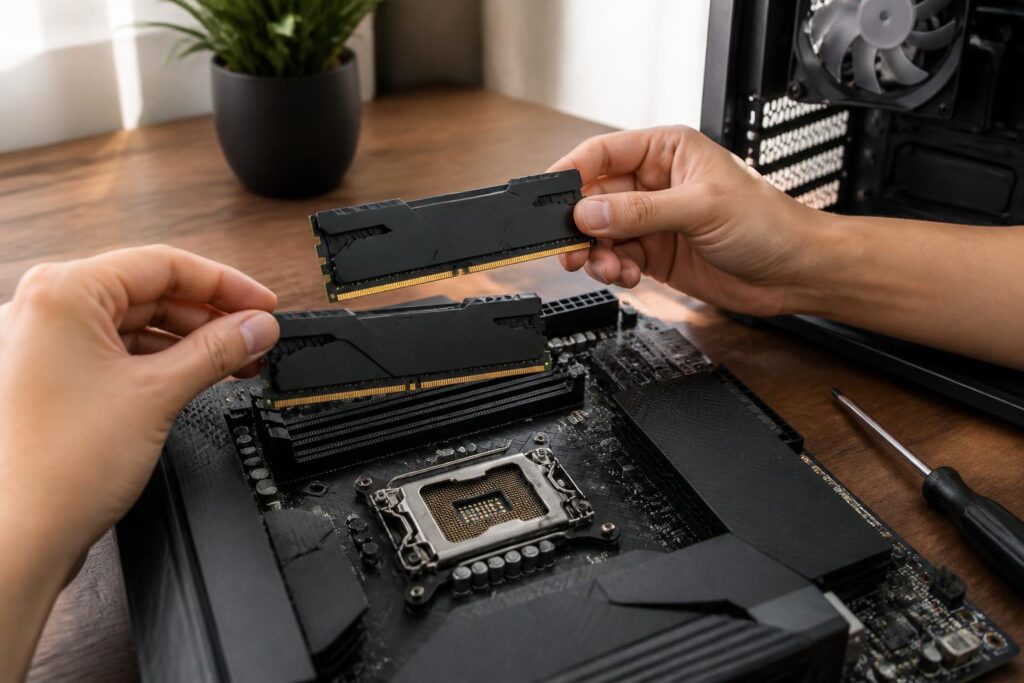
When using a computer, RAM is often one of the components that creates a noticeable difference after an upgrade. A system with a capable processor and fast storage can still become sluggish if it lacks enough temporary memory for running applications. Users may then experience stuttering when switching between windows, browsers having to reload pages, slow responses from editing software, or unusual lag in games.
However, upgrading RAM is not simply a matter of choosing the memory stick with the highest capacity within one’s budget. Motherboards have their own limitations regarding RAM type, number of slots, maximum capacity, and supported speeds. In addition, how the memory modules are arranged affects how effectively bandwidth can be used. A choice made without proper checking may cause the computer not to boot, force it to run at a lower-than-expected speed, or result in reduced stability. Therefore, before buying, users should view RAM as a component within the overall platform rather than as an interchangeable item that can be replaced arbitrarily.
How does RAM actually affect the user experience?
RAM is a high-speed memory area used by the operating system and applications while the computer is running. Frequently accessed data is placed there so that the processor can work with it more conveniently than if it had to retrieve data continuously from storage. RAM does not replace an SSD or hard drive, nor is it a place for long-term data storage. When the computer is turned off, the contents of RAM are lost.
The most noticeable effect of RAM capacity is on the ability to run multiple tasks simultaneously. A user may open a browser with many tabs, a messaging application, office software, an online meeting tool, and an image-editing program during the same work session. If total memory requirements exceed the amount of physical RAM, the operating system will have to use part of the storage drive as virtual memory. This allows the computer to continue operating, but it is usually considerably slower because the speed and latency of storage are not suitable for fully replacing RAM.
A larger capacity does not automatically make every task faster. If a computer only runs lightweight applications and still has plenty of free RAM, installing more memory will not produce an obvious change. An upgrade is truly worthwhile when the computer frequently runs short of RAM, when the user needs to run many programs at the same time, or when specialized software has higher memory requirements.
Assessing your needs before buying
The first step is to monitor actual usage instead of relying on a general impression. On Windows, Task Manager can display the amount of RAM currently in use, the number of occupied slots, and the memory speed recognized by the system. Users should check these details while performing their normal tasks, such as opening many tabs, processing large spreadsheets, editing images, or playing games. A figure recorded immediately after starting the computer does not fully reflect requirements over an entire workday.
If RAM usage regularly approaches its limit and the computer begins responding slowly when switching between tasks, increasing the capacity is a reasonable solution. Conversely, if a large amount of memory remains available but the computer is still slow, the cause may lie with background applications, temperature, system settings, the processor, or the storage drive. In that case, buying more RAM may not solve the main problem.
Basic office users generally need only a moderate configuration for browsing, documents, and online communication. People who frequently open multiple applications, edit images, work with large datasets, or use their computers for long periods should consider a higher capacity. For 3D rendering software, video editing, virtual machines, or demanding data projects, RAM requirements can increase substantially depending on the scale of the work. The important thing is to determine needs over several years of use, but users should not pay for capacity they have no plans to utilize.
Checking platform compatibility
RAM must be compatible with both the motherboard and the processor. Desktop computers and laptops generally use different module types in terms of physical size. RAM for desktop computers typically consists of longer modules, while laptops use smaller modules. The two types cannot be installed interchangeably even when they belong to the same memory generation.
The RAM generation is another essential factor to check. DDR4 and DDR5 have different slot designs, electrical characteristics, and control methods, so they cannot be inserted into the same slot interchangeably. Looking only at the product name and overlooking the generation can result in a wrong purchase from the outset. The necessary information is usually available in the motherboard documentation, the manufacturer’s support page, or the specifications for the laptop model.
In addition to the RAM type, check the number of slots and the maximum capacity supported by the system. A computer with two slots that are already occupied will require the existing modules to be replaced if the user wants to increase capacity. A computer with four slots is generally more flexible, but filling every slot is not always the best option. Some platforms may be less stable when using multiple modules, especially if the modules have different specifications.
It is also important to distinguish RAM intended for ordinary computers from modules with specialized features, such as memory with error-correction capabilities or designs intended for workstations and servers. Not every mainstream motherboard supports every type of RAM. If the system documentation does not clearly state compatibility, users should prioritize modules confirmed by the manufacturer rather than relying only on whether the memory stick physically fits the slot.
Capacity, speed, and latency: What should you prioritize?
Capacity should be considered before pursuing higher speed. Fast memory that is insufficient in capacity can still force the computer to use virtual memory when multiple applications are open. In practice, having enough RAM usually makes a more noticeable difference than increasing the speed by a small amount when capacity already meets the requirements.
RAM speed is commonly specified by manufacturers through a data-transfer specification. This figure indicates the ability to exchange data under the designed conditions, but actual performance also depends on the processor, motherboard, and firmware settings. When a module with a speed higher than the platform supports is installed, the system may automatically adjust it to a suitable level. Therefore, buying faster RAM does not mean the computer will necessarily operate at the advertised speed.
Latency also plays a role, but it should not be considered separately from speed. Two memory kits with different specifications should be evaluated in the same context rather than by looking at a single number in isolation. For office computers, small differences in speed are usually less important than capacity and stability. For certain bandwidth-sensitive tasks, choosing memory suited to the platform can provide clearer benefits, but it still does not replace the need to identify the user’s actual requirements.
Why should you care about dual-channel configurations?
Many computer platforms can use two memory channels to increase data-transfer bandwidth. To take advantage of this, users typically install two modules with matching capacities and similar specifications in the slots indicated by the motherboard instructions. Slot placement should not be guessed based on which slots are next to each other, because each motherboard has its own layout and generally specifies a preferred pair of slots.
Two identical RAM sticks, or modules sold as a matched kit, generally help reduce the risk of differences in specifications. This does not mean that every separately purchased module cannot work with another, but modules from different manufacturers, with different speeds, or with different settings may force the system to operate according to the lower specifications. In cases of incomplete compatibility, the computer may boot unreliably or develop random errors that are difficult to diagnose.
For a computer that currently has one RAM stick, the user may consider adding an equivalent module if there is an available slot and the system supports it. If the existing stick is old, its specifications are unclear, or its capacity is too low, replacing it with a new matched kit may be the safer option. The goal is not only to increase total capacity but also to maintain stable operation over the long term.
Upgrade procedure and points requiring caution
Before opening the computer, completely shut down the system, disconnect the power, and wait a short while for the components to stop operating. The person performing the installation should avoid environments prone to static electricity, hold the module by its edges, and avoid touching the contacts. RAM slots usually have retaining clips at both ends; the module must be aligned correctly with the notch before being pressed down evenly. Do not apply strong force while the memory stick is not oriented correctly.
After installation, turn on the computer and check whether the operating system recognizes the full capacity. If the computer does not boot, turn off the power and recheck the module’s position, the locking clips, and the installation method according to the motherboard diagram. You can test individual modules or slots to identify the cause, but change only one factor at a time to avoid making the troubleshooting process more confusing.
On some systems, the default RAM speed after installation may be lower than the speed printed on the packaging. This may be normal because the platform is using a safe configuration. Experienced users may consider configuring the memory in the firmware, but they should prioritize stability and follow the manufacturer’s limits. Settings that are too high or unsuitable can cause boot failures, system freezes, and time-consuming recovery problems.
Common mistakes when buying RAM
The first mistake is looking only at capacity while ignoring the generation and module form factor. The next mistake is assuming that more modules are always better. Filling all the slots can make it more difficult for the system to achieve high speeds or remain stable compared with some configurations using fewer modules but an equivalent total capacity.
Another mistake is evaluating the computer solely by its RAM usage while idle. The operating system may deliberately use free memory to store temporary data, so the amount currently in use does not always indicate that the computer lacks RAM. Users need to observe the system while running real tasks and check whether it is continuously moving data to virtual memory.
Buyers should also be cautious with products that lack clear information about their origin or return policy. Faulty RAM does not always cause the computer to stop working immediately; it can cause random freezes, errors while extracting files, data corruption, or failures during software installation. After upgrading, testing stability with an appropriate tool is a worthwhile step, especially for computers used for important work.
A RAM upgrade should serve a specific usage plan
RAM is a component that can significantly improve the user experience, but its effectiveness depends on correctly diagnosing the computer’s limitations. Users should begin by asking whether the computer is running short of memory or slowing down for another reason. They should then determine the RAM type, number of slots, maximum capacity, memory-channel configuration, and specifications supported by the platform.
A sensible choice is generally a module with enough capacity for current work, some room for applications in the near future, and clearly confirmed compatibility with the system. Prioritizing consistency, following the installation instructions, and checking the system after the upgrade will help limit problems. When chosen based on actual needs rather than a pursuit of specifications, RAM not only helps the computer respond more smoothly but also extends the period during which the entire system can be used effectively.
