


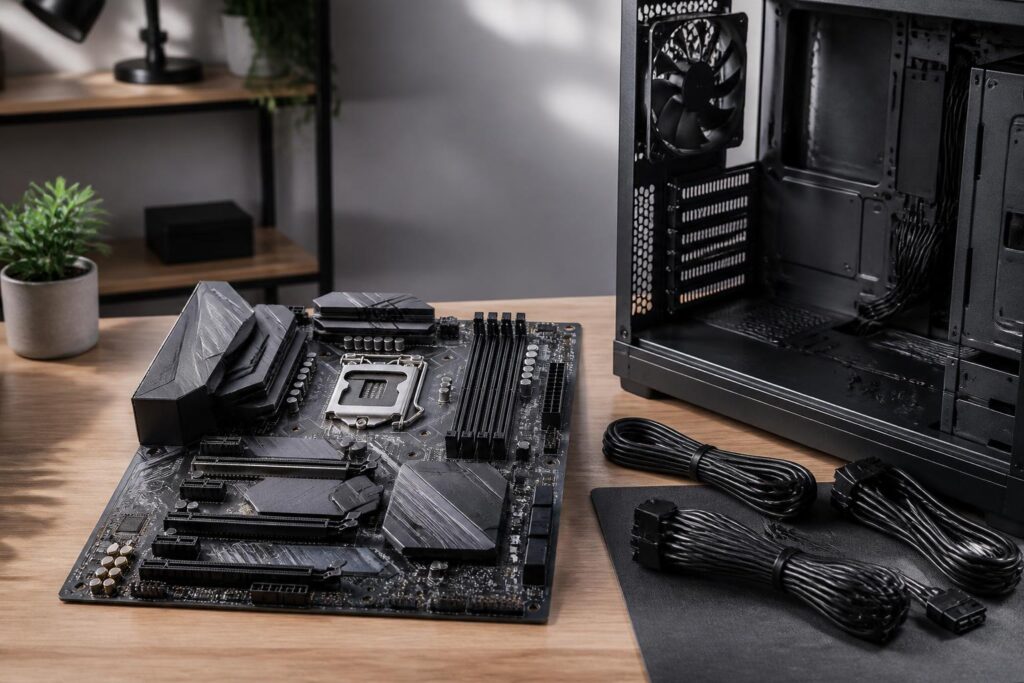
In a computer system, the motherboard usually does not produce easily noticeable performance figures like the processor or graphics card. Nor is it mentioned as often as storage drives when users talk about boot speed. Nevertheless, it is the component that connects nearly every important part: the processor, memory, storage devices, expansion cards, connection ports, and cooling system. A suitable motherboard helps components operate reliably while also providing room for upgrades over many years. Conversely, a poorly considered choice can leave an expensive system limited by the number of slots, power delivery capabilities, or the way space is laid out.
Choosing a motherboard should therefore not stop at looking at the number of ports or the chipset name. Buyers need to start with the hardware platform, their actual needs, and their long-term usage plans. A feature-packed motherboard is not necessarily the best choice if most of its connections will never be used. Meanwhile, a reasonably priced model with a sensible design, an easy-to-use BIOS, and suitable upgrade potential may offer greater value.
Start with the Processor and Compatible Platform
The first factor to check is the socket, meaning the physical and electronic interface between the processor and the motherboard. Each processor line is compatible with only certain sockets, but sharing the same socket does not necessarily guarantee that a motherboard can support every chip generation. Actual support also depends on the chipset, BIOS version, and the list of processors tested by the manufacturer. Therefore, before buying, users should cross-check compatibility information on the motherboard’s product page or technical documentation.
The chipset affects many features, including the number of high-speed interface lanes, overclocking support, the number of storage ports, the types of USB ports, and the degree of support for different memory generations. Chipset names are often divided into several groups for different market segments, but quality should not be inferred solely from a chipset’s position in the product lineup. What matters is whether the specific motherboard meets the requirements. People working with many peripheral devices will care about connectivity and expansion capabilities, while general users may prioritize stability, integrated Wi-Fi, and a sufficient number of storage slots.
Upgrade potential should also be viewed realistically. A motherboard that supports multiple processor generations may provide more options, but that does not mean every future upgrade will necessarily proceed smoothly. Manufacturers may change their BIOS support policies, while the power delivery and cooling requirements of newer processors may also differ. Therefore, an upgrade plan should be tied to a specific timeframe and need, rather than paying significantly more simply to preserve an option that may never be used.
Power Delivery and Stability Under Heavy Loads
The power delivery circuit, commonly called the VRM, converts and regulates voltage before supplying it to the processor. This is one of the most difficult parts to assess by appearance alone, yet it has a noticeable effect on stability, especially when the computer must operate under heavy loads for extended periods. An appropriate power delivery design helps the processor maintain a stable operating level and reduces the risk of performance drops caused by thermal or voltage limits.
Buyers should not evaluate a VRM solely by the number of phases advertised. Component quality, the controller, circuit layout, heatsink size, and power-limit settings are all important. Large numbers in marketing specifications do not automatically turn a mainstream motherboard into a product designed for a high-end processor. A more reasonable approach is to review temperature and stability tests from reliable sources while comparing them with the processor’s expected power consumption.
For office computers, study systems, or systems using a mid-range processor at default settings, a motherboard with a balanced power delivery design is usually sufficient. For video editing, simulation, long compilation sessions, or multi-core processors, more attention should be paid to the power delivery section and the cooling around the socket. Users should also check the space available for the CPU cooler, since a large cooling assembly may block memory slots or make installation more difficult.
Motherboard Size and the Space Equation
Motherboards generally come in several standard sizes, from full-size models for large cases to compact versions designed for space-efficient systems. Size determines not only the amount of space occupied but also directly affects the number of expansion slots, the number of ports on the board, and the way components can be arranged. Larger motherboards generally offer more options, but they provide an advantage only if the case is spacious enough and the user actually needs them.
Before choosing a compact model, clearly determine your requirements for expansion cards, storage drives, and peripheral devices. A small system may need only one graphics card slot, one or two high-speed storage slots, and integrated wireless networking. However, if you plan to install a sound card, an additional network card, a controller, or multiple storage drives, limited space can quickly become an obstacle. In addition, slots positioned close together may sometimes cause a thick card to block ports or reduce cooling capacity.
Compatibility between the motherboard and the case should also be checked separately. Belonging to the same size category does not mean that the layouts will always be identical. The positions of power connectors, rear ports, cooler clearance, and mounting holes can affect the installation process. A design that looks tidy on paper can still be inconvenient if power cables are pressed against the side panel or connectors are placed in hard-to-reach locations.
Memory, Expansion Slots, and Storage Devices
When considering memory, users should pay attention to the supported memory type, maximum capacity, number of slots, and channel configuration. RAM modules should not be installed based only on the capacity printed on the packaging while ignoring the limits of the processor and motherboard. Memory with a speed higher than the platform’s supported baseline may still operate under certain conditions, but the result also depends on BIOS settings, the number of modules, and the quality of the memory controller.
The number of RAM slots is also related to upgrade plans. A motherboard with few slots that are already fully occupied from the start will leave little room for increasing capacity, while a model with more slots makes it easier to add memory later. Even so, mixing different memory modules can reduce the likelihood of achieving optimal speed settings. Therefore, if the required capacity is known in advance, purchasing a matching memory kit with an appropriate configuration is usually the simpler approach.
For storage, check the number of M.2 slots, the interface standard used by each slot, and any bandwidth sharing with other ports. On some motherboards, installing a device in a particular slot may disable one or more SATA ports. This is not a design flaw, but it is information worth knowing to avoid discovering only after installation that a drive does not appear. An M.2 heatsink can also be useful during extended read and write tasks, although having a heatsink does not replace the need for proper airflow throughout the entire case.
Connectivity and Easily Overlooked Features
The ports on the back of the motherboard are where users interact with the system every day, so they should be chosen according to actual devices rather than simply maximizing the number of ports. First list needs such as a keyboard, mouse, printer, webcam, audio interface, external storage devices, and monitors. Wired networking, wireless connectivity, audio outputs, and the ability to update the BIOS are also worth considering if the computer will be placed somewhere difficult to access or used regularly for work.
Integrated Wi-Fi can reduce the number of separate components and is well suited to compact spaces. However, connection quality also depends on the antenna, the computer’s location, the router, and the surrounding environment. Similarly, integrated audio is generally sufficient for common needs, but people working with recording or requiring specialized equipment may still need a separate audio interface. There is no reason to pay extra for a feature if the current system already has a better solution.
A BIOS update button that does not require a processor, as well as diagnostic indicator lights, can also be valuable conveniences in certain situations. They may help users address compatibility problems or identify the cause when the computer does not boot, but they should not be viewed as substitutes for careful assembly. Clear documentation, an accessible connector layout, and a transparent warranty policy often provide more long-term value than features that are rarely used.
BIOS, Drivers, and the User Experience
The BIOS is the software layer that initializes the hardware before the operating system starts. A well-organized BIOS helps users check temperatures, set the boot order, adjust fans, and update the platform when necessary. Even people without overclocking experience should pay attention to the BIOS interface, because basic options such as enabling a memory profile, controlling fans, or checking storage devices are found there.
After the operating system is installed, chipset, network, and audio drivers also affect the stability of the experience. Users should download software from the manufacturer’s official support channels and note the BIOS version currently in use. Updates should not be performed casually when the computer is operating reliably, but important fixes or compatibility improvements directly related to the hardware should not be ignored either.
Balance the Budget Instead of Buying by Specifications
A motherboard should be viewed as part of the entire platform, not as a place to allocate money based on impulse. A model that is too cheap may lack ports or upgrade slots, or may have a power delivery design unsuitable for the intended processor. A model that is too expensive may add many features the user will never use. A reasonable expense is one that enables the system to handle the intended workload, provides the necessary connections, and leaves enough room for upgrades that are likely to occur.
A simple selection process is to identify the processor first, list the amount of memory and number of storage devices, choose the case size, and then check the connections and upgrade capabilities. Finally, review real-world evaluations of the specific model’s temperatures, stability, and BIOS quality. This approach helps buyers avoid being led by prominent specifications that have little relevance to their needs.
A good motherboard is not necessarily the model with the most features. It is the model that strikes a balance between compatibility, stability, expansion space, and cost throughout the life of the system. By choosing based on the actual configuration and usage plan, users can not only build a system that works well today but also remain in control when their needs change.
