


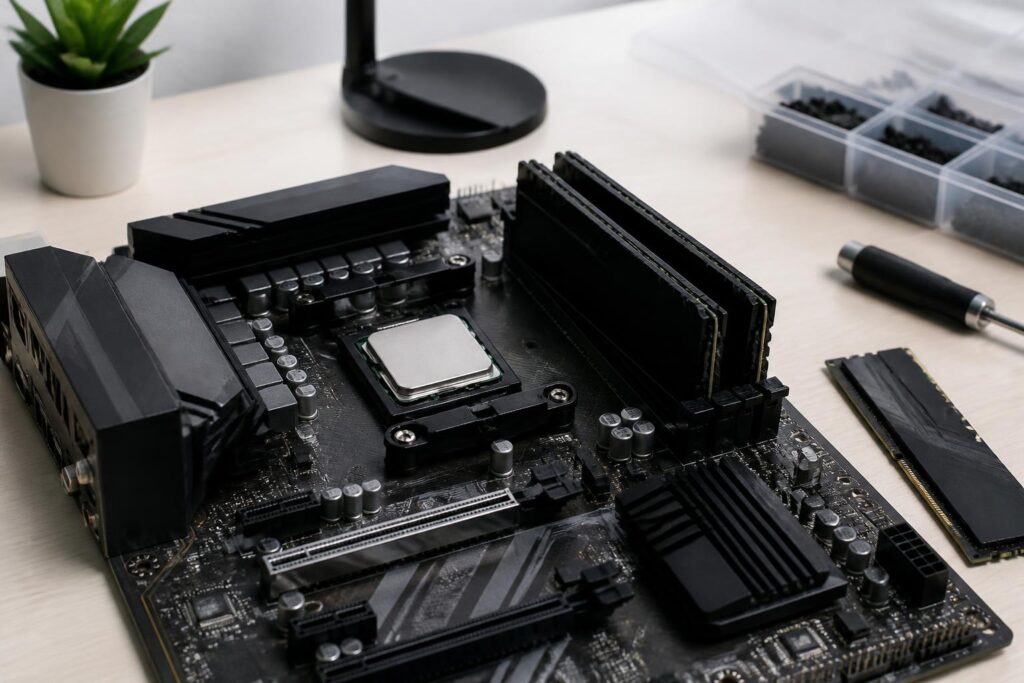
RAM is often the first component people consider when a computer starts slowing down during everyday use. Having many browser tabs open, running office software simultaneously, using photo-editing applications, or playing modern games can all quickly fill the available memory. However, upgrading RAM is not as simple as choosing a large-capacity module and inserting it into any available slot. The memory standard, the motherboard’s limitations, dual-channel configuration, and compatibility between RAM modules all affect the final result.
The right choice should begin with determining whether the computer is actually short on memory or is experiencing a problem with another component. If the operating system frequently has to use virtual memory on the storage drive, adding RAM can make the computer noticeably more responsive. Conversely, if the cause is an overly slow drive, an outdated CPU, or unstable software, upgrading RAM will not resolve the entire experience. Users should therefore check the current situation before spending money.
Determine Whether the Computer Really Needs More RAM
A common sign of insufficient RAM is that the computer gradually slows down when multiple programs are open, switching between windows takes time, or applications reload after switching to another task. On a computer, users can open the operating system’s performance-monitoring tool to observe memory usage during normal work. What matters is not just a single figure when the computer is idle, but the usage level while performing the exact tasks that make the computer slow.
If memory is frequently nearly full and the system has to move data to the storage drive, upgrading RAM is a reasonable solution. If the computer uses only a small portion of its RAM but still responds slowly, the cause may be related to the storage drive, background software, temperature, or drivers. Buying more RAM in this situation may not produce a significant change.
Memory requirements also vary according to how the computer is used. A computer for office work, study, and web browsing generally needs less memory than one used for video editing, graphic design, running virtual machines, or handling projects with large files. Users should not rely solely on a capacity level advertised as suitable for every situation. More important is considering how many applications are usually open at the same time and how much room the system has for expansion over the next few years.
Check the DDR Standard Before Buying
Computer RAM is currently divided into several generations, such as DDR4 and DDR5. These standards have different designs and electrical characteristics and cannot be freely mixed in the same motherboard. The slots for each generation also have differently positioned notches to reduce the chance of incorrect insertion, but buyers should still check the specifications rather than relying only on the external appearance.
Information about the RAM standard can usually be found in the motherboard’s documentation, the manufacturer’s support website, or the hardware information section of the operating system. For desktop systems and laptops, the full product number will make accurate research easier. Some computers have memory soldered directly onto the motherboard, in which case upgrade options may be limited or nonexistent.
In addition to the DDR standard, the appropriate module type must be checked. Desktop computers generally use DIMM modules, while laptops typically use shorter SO-DIMM modules. These two types are not interchangeable. Users should also check how many RAM slots the motherboard has, the maximum supported capacity, and the capacity limit for each slot. This information is more important than simply looking at the capacity printed on the packaging.
Capacity and Speed: Prioritize Actual Needs
Capacity determines how much data RAM can keep readily available for fast access by the CPU, while speed and latency affect the efficiency of data exchange. In many situations, increasing capacity from an insufficient level to an appropriate one creates a more noticeable difference than switching to a RAM kit with higher speed specifications but insufficient capacity.
Users who work in offices or study should focus on a configuration spacious enough for a browser, word-processing software, online meetings, and background tools. Photo editors, video creators, programmers working with multiple development environments, and virtual-machine users should consider higher capacity because these tasks can keep a large amount of data in memory at the same time. For gaming, RAM requirements also depend on the game, resolution, background applications, and the computer’s overall configuration.
The speed specification on the box should not be viewed as the speed the computer is guaranteed to achieve under all conditions. Motherboards and processors each have their own support limits. When a high-performance memory profile is enabled in the firmware, the system may need to use an XMP or EXPO profile, depending on the platform. These are preconfigured profiles for setting memory speed and operating timings appropriately, but stability still depends on the combination of the CPU, motherboard, and RAM modules.
Dual-Channel Operation and RAM Module Placement
Common motherboards generally support multiple memory channels. When two RAM modules are installed in the correct positions according to the manufacturer’s instructions, the system can use dual-channel mode, increasing memory bandwidth compared with using only one module on platforms that support it. Therefore, a kit consisting of two modules with the same capacity is often worth considering instead of a single module with an equivalent total capacity.
Slot positions are not the same on every motherboard. Many designs require two modules to be installed in slots separated from each other, but users should not guess based only on the spacing. The markings printed on the motherboard or the product documentation are the accurate references. After installation, the information in the firmware or operating system can be checked to confirm that the system recognizes the full capacity.
If a computer already has two modules and the user wants to add more, buying another kit with the same capacity does not necessarily create a configuration identical to the original kit. Differences in memory chips, response timings, or circuit-board revisions may force the system to operate at a safer level. In fact, a configuration that was stable with two modules may require adjustment when all four slots are populated. If stability is the priority, replacing the entire set with a kit sold together is generally easier to control, provided the motherboard supports the total capacity.
Risks of Mixing Different RAM Modules
Mixing RAM modules from different brands does not always cause errors. Many systems continue to operate normally if the modules use the same standard and the motherboard can recognize them. However, the computer generally operates according to common specifications that suit the module with the lower limits. The high-speed profiles advertised for individual kits may also be unattainable when one kit is combined with another.
The risk increases when the modules differ in standard, capacity, voltage, or chip configuration. Symptoms may include the computer failing to boot, repeated restarts, random error messages, or problems when running demanding tasks. If the computer becomes unstable after new RAM is installed, users should disable any speed-overclocking profile, return the settings to their defaults, and test each module individually. Updating the motherboard firmware should only be done according to official instructions and under stable power conditions.
Installation and Post-Upgrade Testing Procedure
Before beginning, shut down the computer, disconnect the power, and wait briefly for the system to stop completely. The installer should avoid touching the module’s metal contacts, hold the circuit board by its edges, and make sure the slot’s locking latches are open in the correct position. The memory module must be aligned in the proper direction according to the notch on the contacts, then pressed evenly until the latches on both sides lock into place. Do not use excessive force if the module does not fit correctly.
After starting the computer, the first step is to check whether the system recognizes the full capacity. If there is no display, turn off the power and recheck the installation position, whether the memory module is firmly seated, and the relevant power cables. You can try booting with each module or each slot individually to identify the cause. Once the computer recognizes the full amount of RAM, run the tasks you normally use and observe stability rather than checking only through a single boot.
For computers that are important for work, testing the memory with a reliable diagnostic tool is a recommended step after an upgrade. If errors appear, they should not be ignored on the assumption that memory errors occur only when demanding software is running. Incorrect data in RAM can cause applications to close, files to become corrupted, or the system to become unstable. Each module, the default settings, and compatibility should be checked again before concluding that a component is defective.
Plan the Upgrade to Avoid Waste
A sensible upgrade plan should begin with the existing motherboard and processor, followed by choosing the capacity and RAM kit. If the computer is expected to be used for a long time, users may consider buying a kit with an appropriate total capacity from the outset, rather than filling every slot with small modules and then having to replace the entire set when expansion is needed. Conversely, if the budget is limited and the motherboard still has empty slots, upgrading gradually can still be effective when compatible modules are selected.
RAM is not the only component that determines computer speed. A system balanced among the CPU, GPU, storage drive, cooling system, and power supply generally delivers a more stable experience than a configuration focused only on memory. Once it has been determined that the computer genuinely lacks RAM, checking the DDR standard, module type, maximum capacity, slot positions, and dual-channel capability will help ensure the upgrade is done correctly the first time.
In other words, an effective RAM upgrade is not about choosing the largest number or the highest speed printed on the packaging. Its practical value comes from matching the user’s needs with the entire hardware platform. A memory kit with sufficient capacity, installed correctly and operating stably, will be far more useful than a configuration that looks powerful on paper but is incompatible or frequently produces errors.
