


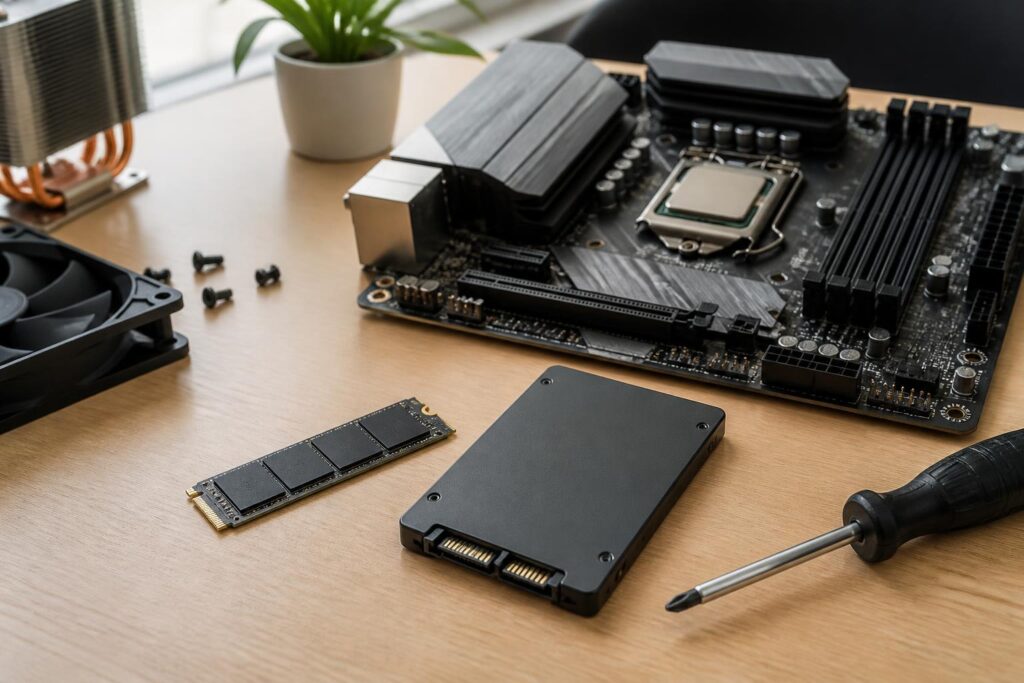
SSDs have become one of the components with the clearest impact on how a computer feels to use. From operating system startup times and application launch speeds to copying photo libraries or projects, a fast storage drive makes the system feel more responsive than a traditional mechanical hard drive. However, the SSD market offers a wide range of models and specifications, while advertising often focuses on maximum read and write speed figures. If users look only at these specifications, they can easily buy an expensive product that is not suitable for their computer or actual needs.
Choosing an SSD effectively should begin with the platform supported by the computer, followed by considerations such as capacity, connection standard, memory type, and warranty policy. A drive with high paper specifications may not make a major difference in office work, while a model with moderate performance but generous capacity and stable operation may be more suitable for a computer intended for long-term use.
The Connection Standard Determines the Initial Limit
The two most common SSD categories today are 2.5-inch SATA SSDs and M.2 SSDs that use the PCI Express interface, commonly known as NVMe. SATA SSDs use a connector and protocol similar to those of many other SATA hard drives, while M.2 SSD refers to a compact form factor, not something that necessarily means NVMe. An M.2 drive may use SATA, so it is important to check the exact information in the motherboard or computer documentation before buying.
SATA SSDs are suitable for many older computers, office machines, and systems without a compatible M.2 slot. Compared with a mechanical hard drive, they still provide a major improvement in response time, noise levels, and resistance to vibration. If a computer supports only SATA, trying to find an NVMe drive will not increase speed because the device cannot use that interface correctly.
NVMe SSDs connect through PCI Express and generally offer higher bandwidth than SATA. They are worth considering for newer computers, content-creation machines, gaming systems, or tasks that frequently read and write large files. Even so, compatibility also depends on the number of M.2 slots, the drive’s length, the PCI Express standard supported by the system, and whether the slot shares bandwidth with another port. This information is usually found in the motherboard or laptop documentation.
Do Not Confuse Maximum Speed with Everyday Experience
Sequential read and write speed is the most visible specification on a product box. It reflects the ability to process large files continuously under specific testing conditions. This figure is useful when users frequently copy large video files, edit films, create disk images, or work with projects containing heavy files. However, operating system startup and software launches also involve latency, random access speed, command queues, and the way the operating system manages data.
For office work, web browsing, and studying, the difference between many high-end NVMe SSD models is not always easy to notice. By contrast, a computer upgraded from a mechanical hard drive to a mainstream SSD usually feels dramatically different. This shows that the most important priority is not always buying the drive with the largest number, but choosing the right type of device for the tasks performed most often.
Performance can also change when a drive is nearly full or has to write data continuously for a long period. Many SSDs use a cache to speed up short tasks, but once that cache has been exhausted, write speeds may drop. This is a normal technical characteristic and does not mean the drive is defective. Users who work with large files should also examine sustained-write and temperature tests rather than looking only at the maximum specifications published by the manufacturer.
Capacity Should Be Calculated Based on the Usage Life Cycle
Capacity is often a more practical consideration than a small difference in speed. A drive with too little capacity causes the operating system, software, and data to quickly consume nearly all available free space. Users then have to keep cleaning up or moving files to another device, reducing the convenience of the entire system.
To choose a capacity, first list the types of data that will be stored on the drive. The operating system and basic software require some space, while games, photo libraries, videos, virtual machines, or design projects can grow quickly over time. A computer used for studying and office work may not need the same capacity as a video-editing computer, but both should have spare room for updates, temporary files, and newly generated data.
The entire capacity printed on the packaging should not be viewed as usable space. Some capacity is consumed by unit calculation methods, formatting, overprovisioning, and the drive’s management operations. In addition, leaving a reasonable amount of free space gives the controller more room to organize data and maintain more stable performance. The amount of free space required depends on the design of each drive and the usage pattern, but the general principle is that users should not buy a drive that is just large enough for their current data.
What Do NAND, Cache, and Write Endurance Mean?
SSDs store data in NAND flash memory chips. Different types of NAND store different numbers of bits in each memory cell, which in turn affects density, cost, performance, and write endurance. Mainstream users do not necessarily need to memorize every term, but they should understand that two drives with the same capacity and connection standard can still differ substantially in their internal design.
Some SSDs have dedicated DRAM cache memory for storing the mapping table between logical data and physical locations. Other models use HMB, which allows them to borrow part of the system memory when supported. A design without dedicated DRAM does not automatically mean that the product is inferior, but its performance in demanding, sustained workloads may differ from that of a drive with dedicated cache memory. For an office computer or mainstream gaming machine, the difference may not be significant; for a workstation that frequently writes large amounts of data, it is information worth considering.
Write endurance is usually expressed as the total amount of data that can be written during the warranty period, but this is a guideline rather than a promise that the drive will fail immediately after reaching the threshold. Error-management mechanisms, temperature, power supply, and firmware quality also affect stability. Users who frequently write and delete large amounts of data should prioritize products with clear technical documentation, an appropriate warranty period, and a manufacturer with a transparent support process.
Temperature and Installation Design Should Not Be Overlooked
High-performance NVMe SSDs can generate considerable heat during continuous operation. As temperatures rise, the controller may automatically reduce speed to protect the device. This phenomenon usually does not appear during short tasks, but it is easier to notice when copying large amounts of data, editing video, or running an extended benchmark.
Before installing an M.2 SSD, check the slot’s location and the surrounding space. Some laptops use a thin heat spreader or have height restrictions, while desktop computers may include a heatsink for the M.2 slot. Do not install a heatsink that is too thick if it causes the drive to bend or puts pressure on the motherboard. Removing the manufacturer’s heat-spreading label may also affect the warranty, so check the instructions before changing the configuration.
Common Mistakes When Buying an SSD
The first mistake is buying based on advertised speed without checking compatibility. A drive that does not fit the slot, uses the wrong protocol, or requires a newer platform can make the upgrade process unnecessarily complicated. The second mistake is focusing only on the price per gigabyte while overlooking the warranty, firmware, management software, and quality of after-sales support.
Another mistake is using an SSD as the sole storage location for important data. An SSD is not a backup. Although flash technology has no moving parts and is often more durable than a hard drive under certain conditions, it can still fail because of component defects, power problems, firmware, or system failures. Personal photos, work documents, and important projects should have at least one copy on another device or in another location, with the copies checked periodically.
Users should also be cautious with products of unclear origin, opaque capacity information, or unusually low prices. Some drives may use different components from one production batch to another, resulting in inconsistent performance. Checking the product code, return policy, and ability to verify the warranty before buying is a simple but practically valuable step.
How to Make the Right Decision
The selection process can begin with four questions: Which connection standard does the computer support, how much capacity is needed, what is the write workload, and how much is the upgrade budget? Next, select a few models that meet the basic requirements and compare their NAND design, cache memory, write endurance, temperature, warranty, and software support.
For an office or study computer, a good-quality SATA SSD or mainstream NVMe SSD is usually enough. For a gaming computer, generous capacity and stable performance may be more practical than pursuing the highest-speed standard. For video editing, data processing, or virtual machines, greater attention should be paid to sustained write speed, temperature, and endurance. In all cases, the operating system SSD and data storage drive can be divided according to purpose for easier management, but partitioning does not replace backups.
An SSD is a component that makes a computer respond faster, but its value does not lie in a single number. A good choice must be compatible with the platform, offer enough capacity for its usage life cycle, maintain performance appropriate to the workload, and come with reliable support policies. When users place these factors ahead of advertising specifications, they are more likely to find a storage drive that balances speed, endurance, and cost while avoiding expensive upgrades that provide little practical benefit.
