


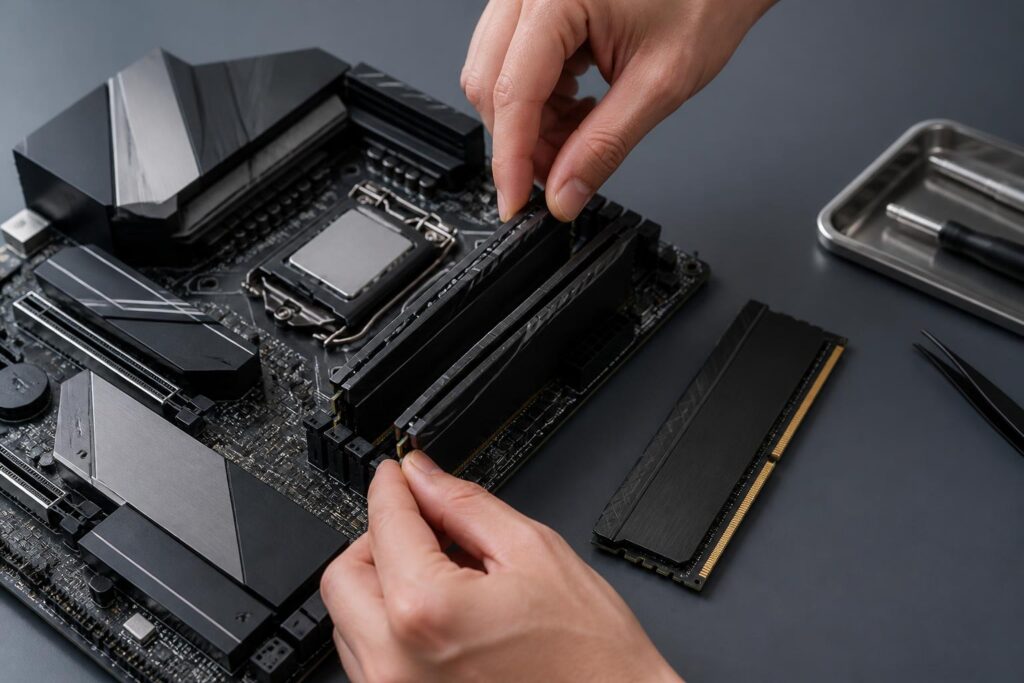
RAM is often one of the first components mentioned when a computer runs slowly, stutters when multiple applications are open, or frequently has to reload open browser tabs. However, upgrading RAM is not as simple as removing the old module, installing a new one with greater capacity, and waiting for performance to improve on its own. The result depends on many factors, such as the type of RAM, the number of slots on the motherboard, compatibility, how the memory modules are arranged, and the nature of the user’s daily workload.
A higher-capacity memory certainly creates more space for the operating system and applications, but not every computer needs to be upgraded in the same way. An office computer used only for browsing and document software has different requirements from a video-editing computer, a machine running virtual machines, or a gaming system. Identifying the actual bottleneck before buying will make the investment more worthwhile while also reducing the risk of startup errors or having to replace components beyond what was originally planned.
What Does RAM Do, and When Is a Computer Actually Short on Memory?
RAM is temporary memory used for data that the operating system and programs are currently using. Unlike storage drives, RAM is designed for fast access, but the data stored in it is not retained when the computer is turned off. When opening an application, switching between multiple windows, or processing a large file, the computer needs to place some of the data in RAM so that the CPU can work more efficiently.
When there is not enough RAM, the operating system must frequently move less-used data to the storage drive. This allows the computer to continue operating, but responsiveness usually declines noticeably because storage is slower than RAM when handling repeated accesses. Users may notice signs such as applications responding slowly after many tabs are opened, delays when switching windows, fans running frequently, or the drive activity light blinking heavily even when no demanding task is being performed.
Even so, not every slowdown originates from RAM. A background application, poor cooling, faulty software, or a deteriorating storage drive can create a similar impression. Before buying components, users should open the operating system’s resource-monitoring tool and observe memory usage in commonly encountered situations. If RAM is frequently nearly full during normal work, an upgrade has a stronger basis than simply relying on the feeling that the computer is slow.
What Capacity Is Appropriate?
There is no single capacity that suits every computer. A computer used for basic tasks may operate well with a moderate amount of RAM, while people who regularly open many programs, edit photos, create videos, or program with large development environments will need more space. What matters is that the total capacity after the upgrade fits the way the computer will be used over the next few years, rather than merely meeting needs at the time of purchase.
Users can begin by listing the programs they commonly run at the same time. A browser with many tabs, video-conferencing software, office applications, and file-synchronization tools all occupy part of the available RAM. If the work also involves editing high-resolution images, video production, running a local database, or using virtual machines, requirements will increase considerably. Consulting each software program’s requirements is necessary, but some capacity should also be reserved for the operating system and background tasks.
Upgrading by too little can cause the problem to return quickly. Conversely, installing a very large amount of RAM that is never used will not automatically make every application faster. RAM does not replace the CPU, graphics card, or storage drive. If the computer already has enough memory for its actual needs, adding more may not make a noticeable difference in tasks that are limited by other components.
Check the RAM Standard Before Buying
There are many generations of RAM on the market, with different designs and electrical characteristics. Desktop computers and laptops also typically use memory modules of different sizes. Therefore, users should not decide what to buy based only on the capacity or speed printed on the product. They need to determine exactly which RAM standard the computer uses and whether the motherboard supports it.
This information can be checked in the motherboard’s technical documentation, on the manufacturer’s support page, or with hardware-identification software. With laptops, users need to pay particular attention because some models use removable slots, while others have part or all of their memory soldered to the motherboard. When RAM is soldered, upgrade options may be limited to a remaining slot, or replacement may not be possible at all.
In addition to the RAM standard, check the number of free slots, the maximum capacity supported by the system, and the limit for each slot if the manufacturer specifies one. A computer with four slots does not necessarily mean that any combination of capacities can be installed. Technical documentation generally provides more reliable information than guesses based on the memory modules’ external appearance.
Two RAM Modules and Memory-Channel Configuration
When supported by the motherboard, using two RAM modules can help the system take advantage of a wider memory-channel configuration than using only one module. The practical benefit depends on the processor, applications, and how the system uses memory, so this should not be viewed as a promise of a fixed performance increase. Even so, correctly installing two modules is often a worthwhile option when building or upgrading a new computer.
It is important to install the RAM in the positions specified in the motherboard’s documentation. Slots may be identified by names or colors, but the labeling method differs between products. Installing the modules in the wrong positions may allow the computer to start but prevent it from using the intended configuration, or may cause the system not to recognize all of the memory.
If adding a RAM module to an existing set, prioritize a product with closely matching specifications for capacity, speed, and latency. Modules from different manufacturers can still work together, but compatibility should not be judged solely by brand. When modules have different specifications, the system generally has to operate using settings that all of them can support. In some cases, an unstable combination can cause random errors, system freezes, or startup failure.
RAM Speed Is Not the Only Criterion
Speed is an attention-grabbing specification, but memory performance is also related to latency, the memory controller inside the CPU, and the motherboard’s limitations. A RAM module with higher specifications does not necessarily make every application faster, especially when the processor or software cannot take advantage of the difference.
Before buying high-speed RAM, check how the motherboard supports that configuration. Some specifications may be achievable only after enabling a memory profile in the firmware, and activating an enhanced profile does not always guarantee stability with every combination of components. For computers used for important work, prioritizing stability is often more sensible than pursuing the highest specifications on paper.
It is also necessary to distinguish between advertised speed and the actual settings the computer is using. After installation, users can check the firmware or hardware-monitoring software to confirm that the system has recognized the correct capacity and configuration. If the computer automatically lowers the speed, this may be behavior intended to ensure compatibility rather than a fault with the RAM module.
Steps to Take Before and After Installing RAM
Before opening the computer case, back up important data and completely shut down the system. For a desktop computer, disconnect the power and wait a short while for the components to stop operating. The person installing the RAM should also avoid touching the module’s contacts and work in a location where static electricity is limited. RAM slots usually have locking latches on both ends or on one end, so do not use force if the module has not been positioned correctly.
After installation, check that the latches are locked and that no cables are obstructing anything before turning on the computer. If the system starts normally, confirm the total capacity in the operating system. Some computers need extra time during the first startup to detect the new memory, but if the computer repeatedly restarts, displays no image, or emits warning signals, turn off the power and check each module individually.
If a problem is suspected, remove the modules and test each one in turn, using each slot, to identify the cause. Dust in the slot, a RAM module that is not fully inserted, or incompatibility between modules can all cause problems. If the computer works but displays blue screens, freezes randomly, or produces corrupted files, test the memory with an appropriate diagnostic tool rather than continuing to use the computer as normal.
Plan the Upgrade to Avoid Waste
A good upgrade plan starts with needs rather than attractive specifications on the packaging. Determine whether the computer lacks memory capacity, processing capability, or has a problem with its storage drive. Then check the hardware limits, the number of free slots, and the potential for future expansion. If all slots are already occupied, increasing capacity may require replacing the existing modules rather than simply adding more.
For a new computer, a RAM kit sold with matching specifications generally reduces the risk of incompatibility compared with combining modules purchased at different times. For a computer that is currently operating reliably, adding more RAM can save money if the specifications are suitable and the system still has free slots. In both cases, the warranty, product origin, and return policy are also worth considering, because memory faults sometimes become apparent only after many hours of use.
Upgrading RAM correctly can help a computer handle multiple tasks more smoothly and extend the useful life of an existing system. But the benefits only appear when capacity, RAM standard, installation method, and actual needs are considered together. Rather than chasing the largest number, users should begin by measuring the current situation, checking the computer’s limitations, and choosing a balanced configuration that combines expandability, stability, and cost.
