


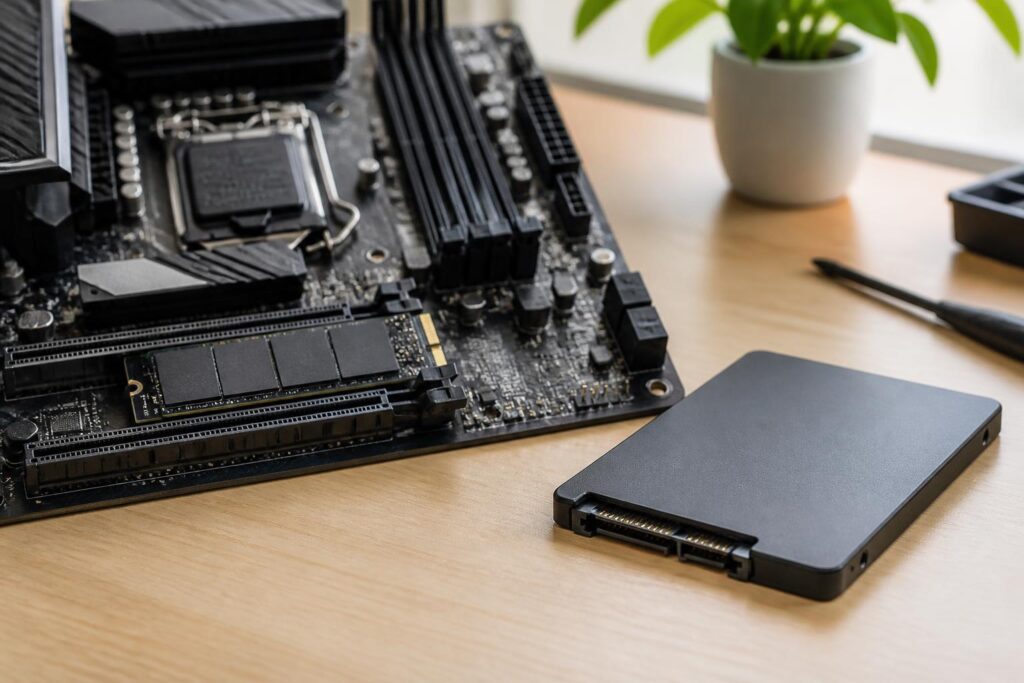
Solid-state drives, commonly known as SSDs, have become one of the components with the most noticeable impact on the computer-using experience. Compared with traditional hard disk drives, SSDs do not use spinning platters or mechanical read heads, so they offer faster data access, quieter operation, and less susceptibility to vibration. However, the SSD market now offers many options with different form factors, interface standards, memory technologies, and price points. A model with very high speed specifications is not necessarily the right choice for every computer.
Choosing the right SSD begins with determining which type of interface the computer supports, then balancing capacity against actual needs. Office users, frequent gamers, video editors, and laptop owners who prioritize power efficiency will have different priorities. Understanding the fundamental factors helps avoid buying an incompatible product or paying extra for performance that is difficult to take advantage of in everyday work.
Determine Which SSD Standard Your Computer Uses
The two most common SSD categories today are 2.5-inch SSDs that use the SATA interface and M.2 SSDs. These are two concepts that are easily confused. M.2 describes the drive’s form factor, while its speed and method of communication depend on the standard supported by the M.2 slot. An M.2 drive may use SATA or NVMe, so having an M.2 slot does not necessarily mean that a computer can run every type of M.2 SSD.
2.5-inch SATA SSDs typically connect to the motherboard through a SATA data cable and a power cable from the power supply. This type is suitable for many desktop computers and laptops that still have a 2.5-inch drive bay. SATA performance is limited by the interface’s bandwidth, but in common tasks such as booting the operating system, opening a browser, working with documents, and using office software, it still makes a major difference compared with a mechanical hard drive.
M.2 NVMe SSDs are more compact and communicate directly with the motherboard through an M.2 slot. NVMe was designed for flash memory and can handle multiple command queues more efficiently than SATA. NVMe models using different generations of PCIe can achieve significantly higher performance, especially when transferring large files, editing video, working with high-resolution images, or running applications that require continuous data reading and writing.
Before buying, users should consult the documentation for their motherboard or laptop to find out the number of M.2 slots, the supported drive length, the interface standard, and whether the slot shares bandwidth with another port. For a custom-built computer, this information is usually found in the motherboard manual. For a laptop, the exact model version should be checked, since the same product line may be sold with different storage configurations.
What Capacity Is Appropriate?
Capacity should be calculated based on how the drive will be used over several years, rather than simply on the amount of data present at the time of purchase. An SSD that is too small will quickly fill up after the operating system, applications, games, and updates are installed. When too little free space remains, file management becomes inconvenient, and write performance in some situations may no longer be as favorable as when the drive was new.
A low-capacity SSD may be suitable for a computer used only for basic office work, but users should still leave a reasonable amount of free space for the operating system and temporary data. A mid-range capacity often provides a better balance between cost and long-term usability. If a computer frequently stores games, high-resolution photos, video libraries, or design projects, a larger capacity will reduce the need to move data back and forth between multiple drives.
It is not necessary to keep all data on the same SSD. A practical arrangement is to use the primary SSD for the operating system and frequently used software, while less frequently accessed data can be stored on a secondary drive or another storage device. Even so, distributing data across multiple locations is not a substitute for backups. An SSD can suffer from controller failure, memory failure, circuit-board damage, or data loss caused by software problems, so important files need an independent copy.
Do Not Look Only at Read and Write Speeds
Sequential read and write speed specifications are often prominently displayed on product packaging. These figures are useful when handling large files, but they do not fully reflect the experience in every type of work. Operating system startup and the opening of multiple applications also involve latency, random-access performance, firmware, and how the system manages command queues.
In everyday use, a good SATA SSD can already deliver a clear improvement over a mechanical hard drive. Switching to a faster NVMe drive may shorten the time required for some demanding tasks, but the perceived difference does not always correspond to the figures in the specification table. If another part of the system, network speed, or workflow is the bottleneck, an SSD with higher theoretical speed will not automatically make every operation faster.
Buyers should also examine performance when the drive is nearly full, its ability to sustain speed during a long write session, and the quality of its management software. Some SSDs have a cache that boosts speed initially, but once the amount of data exceeds the cache area, performance may change. This is especially important for users who frequently copy large files or write data continuously.
Flash Memory Type and Cache
SSDs store data in flash memory cells. Common types of memory store different numbers of bits in each cell, resulting in differences in cost, density, performance, and write endurance. Products using lower-density memory are often regarded as more stable and better able to sustain performance, while higher-density types allow manufacturers to produce high-capacity SSDs at more accessible prices.
An SSD should not be evaluated solely by the name of its flash type. The controller, firmware, circuit-board design, cooling capability, and warranty policy also play important roles. Two models with the same capacity and the same type of memory can still provide different experiences. General users should prioritize products with clear technical information, manufacturer-provided software for checking drive health, and transparent warranty periods.
Some SSDs have DRAM for storing the mapping table between data addresses and locations in flash memory. Other models use a portion of the system’s RAM through a host-memory-buffer mechanism. A DRAM-less design does not necessarily mean that an SSD is poor, but users need to consider it in the proper context. For office computers and light workloads, the difference may not be significant. For heavy write workloads or tasks requiring consistent performance, the cache and the drive’s ability to sustain speed deserve closer consideration.
Temperature and Installation Also Affect Performance
High-speed NVMe SSDs can generate considerable heat during continuous data transfers. As the temperature rises, the drive may automatically reduce its speed to protect its components. This is normal behavior and is not immediately a sign that the product is defective. However, if the M.2 slot is located near a graphics card or in an area with poor airflow, accumulated heat can make performance unstable during long tasks.
A motherboard may come with a heatsink for its M.2 slot. During installation, the heatsink must make proper contact with the SSD’s surface and must not be positioned incorrectly in a way that bends the circuit board. Users should also remove any protective film from the thermal pad, while securing the SSD with the appropriate screw or retention mechanism. In laptops, the internal space is more limited, so the correct type of component must be used, and users should avoid adding a thermal pad that is too thick.
The installation process is also a good time to check the boot order in the firmware, verify that the drive is recognized by the operating system, and update drivers if necessary. If a new SSD does not appear, possible causes include the slot not supporting the correct standard, the drive not having been initialized in the operating system, unsuitable firmware settings, or the drive not being firmly installed. Checking each step is safer than repeatedly removing and reinstalling the drive or formatting it before identifying the cause.
Endurance, Warranty, and Backups
SSD endurance is often described by manufacturers in terms of the total amount of data that can be written over the drive’s designed lifetime. This figure helps compare products under the same conditions, but it is not a guarantee that the drive will operate properly until a specific threshold and then fail. Actual lifespan also depends on temperature, power supply, firmware, write and erase frequency, and the usage environment.
For typical users, what matters more than trying to find a model with the highest figure is choosing a product suited to the workload and backed by a clear warranty policy. People working with video, home servers, or continuously written data should carefully review the write limit, memory type, and ability to sustain performance. Office users can focus more on stability, capacity, and compatibility.
Backups remain an essential layer of protection. A copy on the same computer should not be considered a reliable backup if the computer is lost, infected with malware, or suffers a power-related failure. Important data should have at least one copy on another device or in another location, and users should periodically verify that the copy can actually be restored. A fast SSD does not eliminate the need for careful data management.
Common Mistakes When Buying an SSD
The first mistake is buying an NVMe SSD based on its advertised speed without checking the M.2 slot. The second is choosing a capacity that is just sufficient for today, then having to clean up the drive constantly as software and data grow. Some people also overlook temperature, warranty coverage, and drive-health monitoring software simply because the price is lower.
Conversely, paying for the most high-end SSD is not always necessary. If a computer is used only for studying, working with documents, and basic entertainment, a model with suitable capacity, stable performance, and a good warranty will usually provide more practical value than a product designed for professional workloads. A good choice is one that balances compatibility, storage space, sustained performance, and budget.
An SSD is an upgrade that can noticeably change the feel of using a computer, but the greatest benefit comes from choosing the right type for the right system. Start by checking the interface standard, calculating the capacity needed for several years, and considering temperature and data-writing habits; only then compare speed and price. When a suitable SSD is combined with a sensible backup process, users can enjoy a more responsive computer while reducing unnecessary risks during use.
