


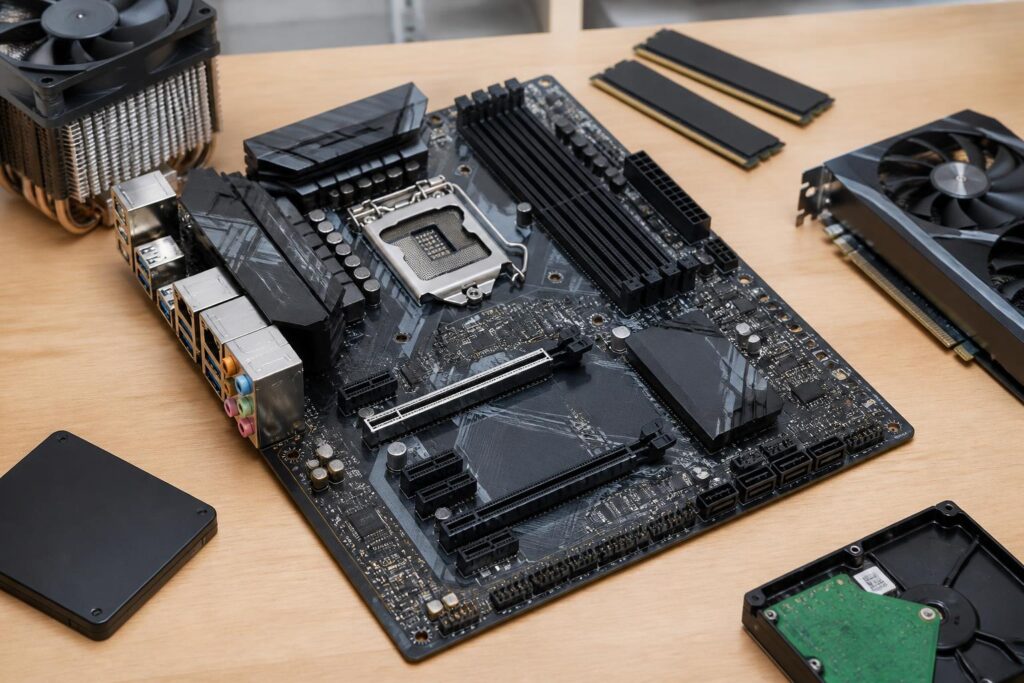
In a computer system, the motherboard often receives less attention than the processor, graphics card, or storage drive. However, it is the component that connects nearly the entire system. The processor is installed on the motherboard, memory operates through the RAM slots, the graphics card uses an expansion slot, while storage drives, fans, connection ports, and many peripherals all depend on the design of this platform. A suitable motherboard does not necessarily have to be the most expensive model, but it must be compatible with the current components and meet usage plans for the next few years.
Choosing the wrong motherboard can leave users facing difficult-to-fix limitations. A model with an incompatible socket cannot accommodate the intended processor. Too few RAM slots, a lack of storage slots, or inconvenient port placement can also make upgrades more expensive. Therefore, instead of looking only at the brand or the number of advertised features, buyers should evaluate the motherboard as the foundation of the entire system.
Start with the Processor and Socket
The first criterion is compatibility with the processor. Each CPU line uses a specific type of socket, but having the same socket does not necessarily mean that every processor generation is fully supported. Compatibility also depends on the chipset, BIOS version, and the CPU list that the manufacturer publishes for each motherboard model.
When planning a configuration, users should identify the exact processor name, product generation, and feature requirements before choosing a motherboard. If buying the motherboard first, they should check the CPU support information on the manufacturer’s product page. Some models may require a BIOS update to recognize newer processors. If the board does not have a suitable BIOS version, updating it may require another compatible CPU or a CPU-less BIOS update feature, depending on the design of the particular model.
Users should not rely solely on the chipset name to conclude that every motherboard is suitable. Different chipsets can create differences in the number of connection lanes, overclocking capability, number of USB ports, storage standards, and expansion options. Office users may not need a feature-rich platform, while gaming PCs, video-editing systems, or machines handling large datasets require more careful consideration of connectivity and sustained-load capability.
The Motherboard Size Must Match the Case
Motherboards are commonly produced in several standard sizes, such as ATX, Micro-ATX, and Mini-ITX. Larger sizes generally have more expansion slots, RAM slots, and connectors, but they also require a compatible case. Conversely, smaller motherboards help create compact systems, though they may limit the number of additional devices that can be installed.
Before buying, users should check which motherboard standards the case supports. The space inside the case also affects cable management, graphics card installation, and cooling-system placement. A motherboard that fits dimensionally does not necessarily make for an easy-to-assemble computer if expansion cards obstruct the slots or connectors are located in hard-to-reach positions.
For mainstream computers, Micro-ATX is often a balanced choice between size and expandability. ATX is more suitable for configurations with multiple cards, multiple storage drives, or a need for more spacious component placement. Mini-ITX is intended for compact systems, but users must accept that component selection and future upgrades may be more complicated.
Assess RAM Slots and Upgradeability
The number of RAM slots is easy to overlook when focusing only on the initial memory capacity. A motherboard with two slots may be sufficient for a basic computer, but it will be less flexible if the user wants to increase capacity in the future. A model with four slots allows for more convenient expansion, although actual upgrade potential still depends on the memory limits supported by the motherboard and processor.
When installing RAM, users should consult the motherboard manual to place the memory modules in the correct slots and activate the appropriate operating mode. If using multiple modules, they should check the memory list tested by the manufacturer, commonly known as the compatibility list. This list is not an absolute requirement for RAM to work, but it provides an additional reference when making a selection.
Advertised memory speed must also be viewed in the context of the platform. A high speed may require enabling a memory profile in the BIOS and may sometimes depend on the capabilities of both the processor and motherboard. Therefore, instead of buying RAM based on the highest specification, users should seek a balance between capacity, compatibility, and actual needs.
Do Not Overlook Power Delivery and Cooling Design
The motherboard has a power-delivery circuit for the processor, generally consisting of control components and power phases arranged around the socket area. For mainstream processors and light workloads, a motherboard with a reasonable design can already perform well. With many-core CPUs, continuous workloads, or operation at high power levels, the power-delivery area and its accompanying heatsinks need to be examined more carefully.
Information about the number of power phases should not be used as the sole criterion. Component quality, design, cooling capability, and firmware all affect system stability. Users should consult reliable independent reviews or the product’s technical documentation rather than drawing conclusions from a single number in the specifications table.
The position of heatsinks, fan headers, and the area around the socket also affects assembly. If using a large air cooler, users should check the clearance from the RAM slots and the side panel of the case. If using liquid cooling, they should determine whether the motherboard has enough headers and whether the case has a suitable mounting position for the radiator.
Check Expansion Slots and Storage Standards
PCI Express slots are commonly used for graphics cards, network cards, sound cards, and other expansion devices. Not every slot with the same physical shape provides the same number of connection lanes. For graphics cards, users need to consider the primary slot, the spacing between slots, and the card’s thickness. A card that occupies a great deal of space may cover the slots below it, changing plans to install additional devices.
Modern motherboards often have one or more M.2 slots for storage drives. However, each slot may support a different interface standard and share some connection paths with SATA ports or expansion slots. When adding a drive, users should read the diagrams in the manual to determine which ports are disabled or share bandwidth. This is a small detail, but it can affect the construction of a system with multiple storage drives.
Users should also consider the location of the M.2 slots and the included heatsinks. A slot located beneath the graphics card may be difficult to access later, while a storage drive positioned near a heat source may require greater attention to airflow inside the case. Checking in advance helps avoid having to remove multiple components just to replace one drive.
Rear Connection Ports and Internal Headers
The number and type of rear connection ports determine convenience in everyday use. Buyers should list the devices they need to connect, such as monitors, keyboards, mice, wired networks, headphones, microphones, and external storage devices. Some people need integrated Wi-Fi and Bluetooth, while others may use a wired network or purchase an additional expansion card.
Video-output ports on the motherboard work only when the processor has integrated graphics and the firmware supports the corresponding configuration. If a discrete graphics card is used, the monitor is usually connected to that card. Therefore, the presence of an HDMI or DisplayPort connector on the motherboard does not mean that every configuration can output an image through those ports.
On the inside, the headers for fans, front-panel USB, front-panel audio, and the case’s power button need to be arranged sensibly. The number of headers affects not only the ability to add more fans but also cable management. Some motherboards may support more devices, but users still need to check the header types and the power they provide.
BIOS, Firmware Updates, and User Experience
BIOS or firmware is the software layer that helps the motherboard initialize hardware and provides basic settings. An easy-to-understand interface, convenient update capability, and clear documentation can significantly reduce difficulties when assembling a computer or troubleshooting problems. Features such as updating the BIOS via USB without a compatible processor are valuable in some situations, especially when a new platform has just been released.
Users should not update firmware out of habit if the system is operating stably and there is no specific reason to do so. When an update is necessary, they must use the correct file for the correct motherboard model, ensure a stable power supply, and follow the manufacturer’s instructions. Interrupting the update process can prevent the system from booting normally.
Brand, Warranty, and Price
Brand is one reference factor, not an absolute guarantee of the quality of every product. When comparing two motherboards, buyers should compare specific criteria side by side, such as CPU compatibility, number of RAM slots, storage slots, connection ports, warranty policy, and suitability for the case. A model with fewer features that meets the actual requirements may be more reasonable than a high-end product with many unused functions.
The motherboard is also not a component where costs should be cut without careful consideration. Saving money here does not mean choosing the cheapest model, but avoiding payment for unnecessary features while still ensuring a stable platform with an appropriate upgrade path. If the computer is intended to be kept for a long time, the number of expansion slots, processor support, and connection quality may be more valuable than decorative features.
Make a Checklist Before Buying
Before finalizing a product, users can make a short list that includes the processor and socket, case type, planned number of RAM modules, graphics card, number of storage drives, networking needs, and required peripheral ports. They can then compare each item with the motherboard’s official specifications. This approach helps identify incompatibilities early instead of discovering them only after the components have been purchased.
It is also worth taking time to read the motherboard layout diagram and user manual, especially for configurations with multiple drives, multiple fans, or expansion cards. Information such as shared connection lanes, M.2 slot limitations, header locations, and BIOS update requirements is often not fully reflected in the product name. This research may not be exciting, but it helps make assembly and future upgrades less risky.
The motherboard is the platform that connects every component in a computer, so a good choice must be based on both current needs and long-term usage plans. Start with the processor, then check the size, RAM slots, expansion capability, storage standards, connection ports, power-delivery design, and firmware support. When these criteria are compared systematically, users will more easily find a motherboard with sufficient features, good compatibility, and no barriers to future upgrades.
