


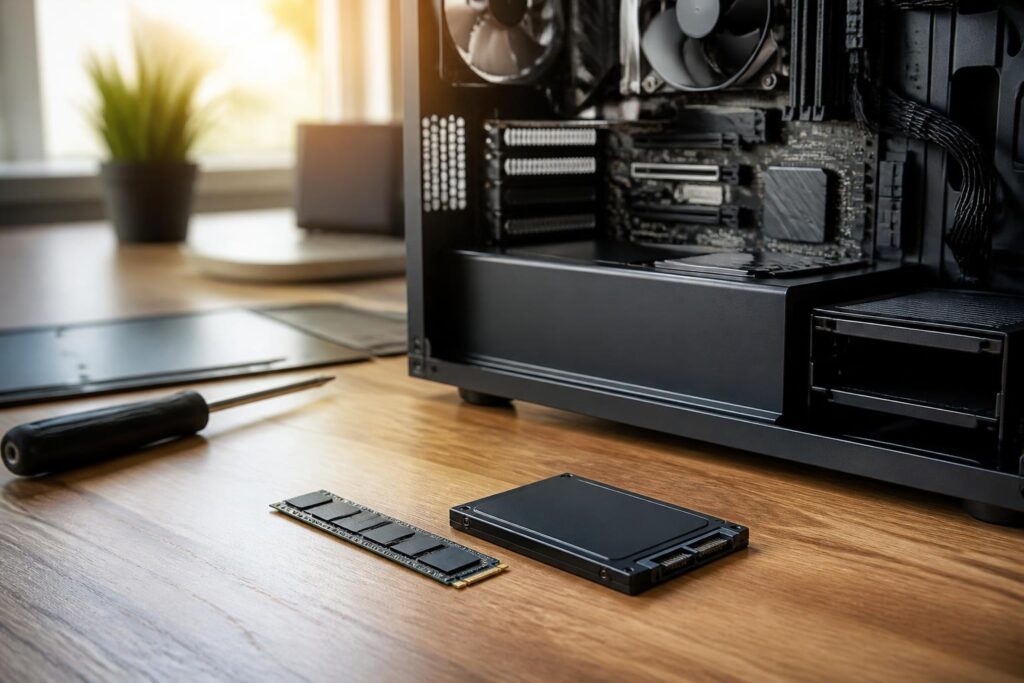
In a modern computer, the storage drive is no longer merely a place to store the operating system and data. SSD speed directly affects boot times, the ability to open applications, responsiveness when working with large files, and the overall day-to-day user experience. However, the market offers many SSD models with different names, connection standards, and prices. A drive with high read and write speeds on its specifications is not necessarily the right choice for everyone.
Choosing an SSD effectively should begin with actual needs rather than simply looking at the largest number on the packaging. Office users, gamers, video editors, and people using a computer as a small server may require very different features. In addition to performance, capacity, compatibility, temperature, durability, and backup plans should all be considered together.
How do SSDs differ in connection standards?
The two most common groups of SSDs today are SATA SSDs and NVMe SSDs. SATA SSDs typically use a 2.5-inch design and connect through a SATA port, a standard that has long been used in desktop and laptop computers. These drives are generally easy to install, compatible with many older systems, and provide a clear improvement over mechanical hard drives. If a computer currently uses an HDD or has a SATA slot but no suitable M.2 slot, a SATA SSD remains a practical choice.
NVMe SSDs usually come in the form of a compact circuit board that is installed in an M.2 slot on the motherboard. This standard communicates through PCI Express lanes, allowing it to handle multiple storage tasks simultaneously with lower latency than SATA. However, not every M.2 slot supports NVMe. Some slots are intended only for M.2 SATA SSDs, while others may support different generations of PCI Express. Therefore, the motherboard or laptop documentation should be checked before purchasing.
Compatibility is not limited to the shape of the SSD module. The installation slot, communication standard, drive length, and space available for a heatsink can all affect installation. Laptops are often limited in terms of size and thickness, while desktop computers may encounter problems if the graphics card or other components block the M.2 slot. A few minutes of checking before placing an order can prevent the purchase of the wrong component.
How much capacity is enough?
Capacity should be determined by how the drive will be used and how quickly data is accumulating, not only by the amount of money available to spend at the time of purchase. A low-capacity drive may be suitable for a secondary computer or a system used only for basic tasks, but it will quickly become cramped if it has to hold the operating system, software, games, photos, and downloaded files at the same time. Managing data also becomes more inconvenient when the drive is nearly full.
For office work, studying, and web browsing, a moderate capacity is usually sufficient if the user makes a habit of storing large documents on an external drive or another storage service. People who regularly install many applications or store photo libraries, games, or personal projects should consider a higher capacity to maintain usable free space over the long term. Video editors, people processing high-resolution images, programmers working with virtual machines, and those working with large datasets may need to separate the operating system drive from the data drive if their workflow requires continuous reading and writing.
It is also unwise to allocate the entire nominal capacity to active data. Some free space helps the operating system and SSD controller manage data more efficiently. Users should proactively delete temporary files, remove software they no longer need, and monitor storage capacity instead of waiting until the drive is nearly full before taking action.
How should speed specifications be interpreted?
Sequential read and sequential write speeds are usually displayed prominently in product specifications. They describe the ability to process large files in a continuous stream, such as when copying a folder of videos. This is useful information, but it does not reflect the entire user experience. When a computer opens many small files, launches applications, or performs multiple tasks simultaneously, latency, random access speed, and the ability to sustain performance may make a much more significant difference.
Manufacturers’ specifications are generally measured under specific testing conditions. Actual performance also depends on the motherboard, temperature, amount of free space, type of data, driver version, and workload. A high-end NVMe drive may be extremely fast for professional tasks, but the benefit for someone who only boots the computer, opens a browser, and processes text documents may not justify the cost.
Buyers should distinguish between peak speed over a short period and sustained performance during a long work session. Once temporary cache memory has been used up, the write speed of some SSD models may drop. This is not necessarily a defect, but it should be taken into account if the workload frequently involves writing very large files. For general-purpose needs, stability and compatibility are often more important than pursuing the highest possible speed.
What do NAND, cache, and durability mean?
SSDs store data in NAND flash memory chips. The way data is organized in different types of NAND affects storage density, cost, performance, and write endurance. Users do not necessarily need to memorize every technical term, but they should understand that two drives with the same capacity and interface can still differ significantly in their internal design.
Some SSDs have dedicated cache memory to support the mapping table and data-management operations. This design can help the drive respond more consistently under certain workloads. However, the presence or absence of cache should not be evaluated separately from the overall design, firmware, and intended use. For home computers, it is important to choose a product with clear technical information, a transparent warranty policy, and reliable monitoring software.
Write endurance is often stated by manufacturers as the total amount of data that can be written under certain conditions. This is a reference point for comparing products, not a promise that the drive will immediately fail when it reaches a specific number. Actual service life is also affected by temperature, the number of power cycles, firmware, power supply, and usage patterns. For most general users, a good-quality SSD can meet their needs for a long time, but it still cannot replace backups.
Temperature and installation
NVMe SSDs can generate heat during continuous data transfers. Prolonged high temperatures may cause the controller to actively reduce speed to protect the components, meaning performance may no longer match the short-term advertised level. Therefore, proper airflow inside the computer case should be ensured, and an M.2 heatsink should be used if the motherboard supports one. The heatsink must be installed correctly, the protective film on the thermal pad should be removed if present, and it should not place abnormal pressure on the SSD module.
With laptops, cooling capability is usually more limited. Users should check temperatures with a compatible tool and pay attention to unusually reduced speeds when copying or processing data for long periods. Do not add thermal materials yourself if you do not clearly understand the clearance and pressure mechanism of the laptop cover, because incorrect installation can affect the components.
Common mistakes when buying an SSD
The first mistake is looking only at the maximum read and write speeds. These figures do not fully indicate stability, performance when the drive is nearly full, or the ability to handle small files. The second mistake is buying a drive with too little capacity to save money in the short term, only to replace it soon because of insufficient space. The third mistake is overlooking the computer’s limitations, such as buying an NVMe SSD for a system that has only a SATA slot or failing to check the M.2 length.
Another issue is using an SSD as the only storage location for important data. An SSD is not a backup device. Hardware failure, operating system errors, accidental deletion, malware, or power problems can all result in data loss. Work documents, personal photos, and important projects should have at least one copy stored elsewhere. Users should also periodically test data recovery, because a backup that has never been tested may not necessarily be usable when needed.
How to choose an SSD for different needs
For office and study computers, the priorities should be compatibility, sufficient capacity, a clear warranty, and a reasonable price. SATA SSDs are suitable for many older systems, while NVMe SSDs are the natural choice if the computer already has an M.2 slot that supports the standard. Upgrading from an HDD to any suitable SSD will generally produce a noticeable change in everyday use.
For gamers, capacity and loading times are often more important than choosing the model with the highest speed. Having enough space for the operating system and game library reduces the need to move data constantly. Video editors, graphic designers, and people who process large files should pay attention to sustained write performance, temperature, and durability. They should also consider using a separate drive for active projects to reduce conflicts with operating-system activity.
For people who want to upgrade an older computer, it is necessary to identify the limitations of the motherboard, the available interface, and the method for migrating the operating system. If replacing the system drive, back up the data first, prepare suitable installation or cloning tools, and check the boot mode after completion. The old drive should not be removed immediately before confirming that the data and operating system on the new drive are working reliably.
Conclusion
An SSD is one of the upgrades with the most noticeable impact on a computer, but the best choice is not necessarily the product with the highest specifications. The connection standard must be compatible, capacity should match the rate at which data accumulates, and performance and durability must be considered in the context of actual workloads. By combining an SSD suited to the intended use with proper installation, temperature monitoring, and a serious backup plan, users can significantly improve their experience while keeping costs and risks under control.
