


In a computer system, storage devices often receive less attention than the processor, RAM, or graphics card. However, this is the component that determines how users experience many everyday operations. The time required to boot the operating system, the speed at which software opens, the ability to load large projects, and the level of responsiveness when working with many files are all significantly affected by the storage drive.
The popularity of SSDs has changed how computers are built. Unlike mechanical hard drives, SSDs do not use spinning platters or moving read heads, so they operate faster and more quietly and are more resistant to vibration under normal usage conditions. Even so, the SSD market includes many different connection standards, memory types, capacities, and heat-dissipation designs. A drive with high specifications is not necessarily the right choice if the motherboard does not support the correct interface or if actual needs do not require that level of performance.
How Do SSDs Improve the Computer Experience?
The most noticeable advantage of an SSD is its low latency. When the operating system and applications are installed on an SSD, the computer can respond more quickly during operations involving small-file access, opening a browser, launching office software, or switching between multiple tasks. This difference is particularly clear when upgrading a computer that uses a mechanical hard drive as its system drive.
SSDs also do not produce the spinning or read-head noise of mechanical hard drives. This is a significant advantage for computers placed in bedrooms, quiet workspaces, or systems where noise reduction is important. Because they have no moving mechanical parts, SSDs are less affected by physical vibration during use. However, this does not mean that all SSDs have the same durability or are always completely safe from hardware failures. Important data still needs to be backed up independently.
Storage performance is not expressed only through the sequential read speeds commonly shown in advertisements. Computers must also handle many small files, simultaneous read and write requests, and random operations. Therefore, the real-world user experience also depends on the drive controller, the type of flash memory, the amount of free space, the temperature, and the drive’s firmware.
Distinguishing SATA and NVMe Before Buying
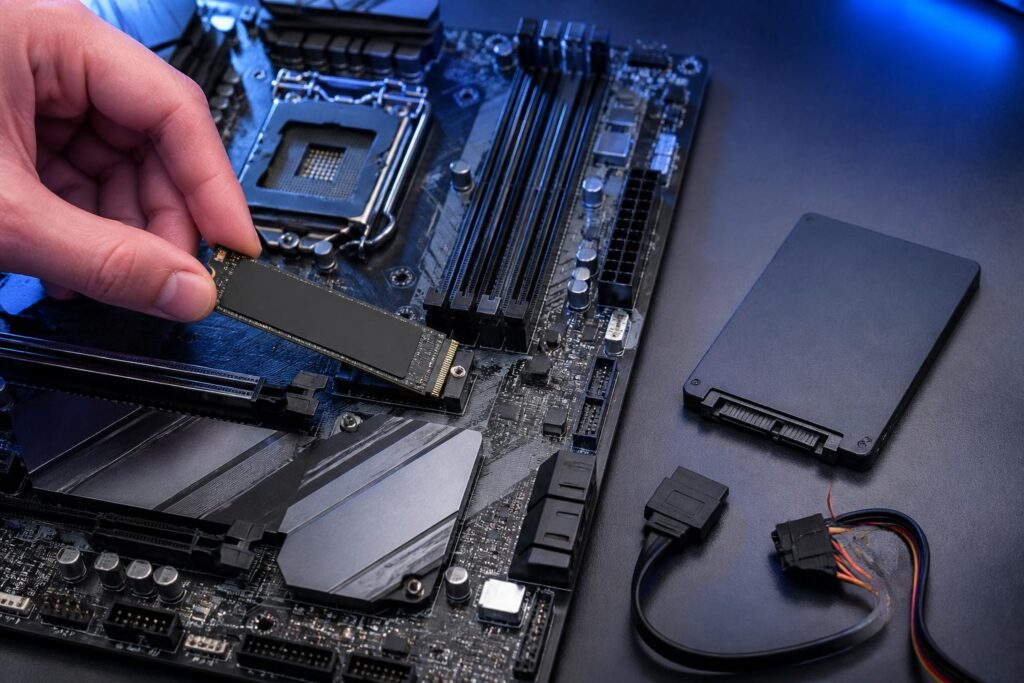
The two most common options today are 2.5-inch SSDs that use the SATA interface and M.2 SSDs that use the NVMe protocol over a PCI Express connection. SATA SSDs typically have a form similar to traditional 2.5-inch drives and connect to the motherboard using a data cable and a power cable. This is an easy upgrade option for many desktop computers and older laptops, especially when the device does not have an M.2 slot.
NVMe SSDs usually come in the form of compact M.2 circuit boards and are installed directly into a compatible slot on the motherboard. The NVMe protocol was designed for flash memory and can handle multiple command queues more efficiently than the SATA protocol, which was developed when mechanical drives were still widespread. For large data transfers or software that frequently accesses fast data stores, NVMe can provide a clear advantage.
However, you should not look only at the name M.2 to determine performance. M.2 is a physical form factor, not the name of a single protocol. An M.2 drive may use SATA or NVMe, while the M.2 slot on each motherboard may also have its own limitations. Before buying, users should check the documentation for the motherboard or laptop to determine which standard the slot supports, which drive sizes it accepts, and whether it shares bandwidth with another port.
For office, study, and home use, a SATA SSD can still perform well if the system is compatible with that standard. For newer computers or work involving large files, an NVMe SSD is often the more sensible upgrade path. Whichever type you choose, compatibility should take priority over maximum speed figures.
Capacity Should Be Calculated Based on Actual Usage
The system drive needs to be large enough to hold the operating system, software, temporary files, and updates over an extended period. A drive that is too small can quickly fill up after applications are installed, photos are saved, games are downloaded, or data-heavy projects are handled. When too little free space remains, file management becomes inconvenient and write performance may no longer be as stable as when the drive was new.
Users should categorize their needs before choosing a capacity. A computer used mainly for browsing, documents, and office software may need less space than one used for video editing, graphic design, programming, or installing many games. These activities often generate large project files, caches, and temporary data, so the space required for the work process itself must be considered, not just the size of the files after completion.
A configuration with two drives is often more flexible than one with a single drive. The first SSD can be used for the operating system and applications, while a second SSD or a higher-capacity hard drive handles data storage. This arrangement makes it easier to reinstall the operating system, facilitates file organization, and reduces the risk of all data being affected when the system drive fails. Even so, two drives in the same computer should not be considered a backup, because a power-related incident, software failure, or hardware damage could affect both.
Understanding Memory Types and Durability Correctly
SSDs store data in flash memory cells. Depending on the design, each cell can store one or more electrical charge levels. Storing multiple levels of data in the same cell increases density and reduces cost, but it also creates differences in speed, heat generation, and write endurance. Products aimed at mainstream users are generally optimized to balance price, capacity, and performance.
Write-endurance specifications are usually expressed by manufacturers as the total amount of data that can be written over the drive’s designed lifespan. This is a useful reference figure, but it should not be used to predict the exact day a drive will fail. Each person’s write demands are different, while actual service life depends on temperature, component quality, firmware, power supply, and operating conditions. For home or office computers, choosing a product from a manufacturer with clear technical information and a transparent warranty policy is often more important than seeking the highest figure.
SSDs with high-speed cache can deliver strong performance during short write bursts. When a large amount of data must be written continuously, speed may decrease after the cache has been used up. This is an important characteristic to consider for people who frequently copy large files, edit video, or work with high-resolution images. A drive should not be evaluated solely by its maximum speed under ideal conditions; sustained performance more accurately reflects the experience during lengthy tasks.
Temperature, Heat Dissipation, and Installation Location
High-performance NVMe SSDs can generate considerable heat when transferring data continuously. If the temperature rises too high, the controller may automatically reduce speed to protect the components. This phenomenon generally has little effect on light tasks, but it can extend the time required to copy files or process large projects.
Some motherboards include a heatsink for the M.2 slot. During installation, users need to remove the correct protective layer from the thermal pad, place the drive flat, and tighten the screw only enough. Do not force the SSD down or allow the thermal pad to make contact in the wrong position. For systems without an integrated heatsink, a compatible heatsink can be considered, but you must first ensure that it will not obstruct the graphics card or nearby components.
The location of the M.2 slot also deserves attention. A slot located near the graphics card or a major heat source may cause the drive to run hotter than one in a more open position. When building a new computer, reviewing the motherboard layout and planning the airflow inside the case can help limit thermal problems later.
Common Mistakes When Upgrading an SSD
The first mistake is buying a drive with an incompatible interface. An M.2 drive does not automatically work in every M.2 slot, and the presence of a slot on a motherboard does not mean that it supports every size or every protocol. Checking the product manual before placing an order is a simple step that can prevent many problems.
The second mistake is focusing only on advertised read speed. Office users may not notice a major difference between many SSD models during ordinary operations, while stability, capacity, and warranty coverage have a more lasting impact. Conversely, people who work with large files should also consider sustained write speed, heat-dissipation capability, and performance when the drive is nearly full.
The third mistake is treating an SSD as a backup solution. An SSD provides faster data access, but it does not replace a copy on another device or an appropriate storage service. Work documents, personal photos, and important projects should have at least one copy separate from the computer in use. When upgrading a drive, users should also prepare a data-migration plan and verify that the system can boot properly before erasing the old drive.
How to Choose an SSD for Different Needs
For office and study computers, a sensible priority is usually an SSD with sufficient capacity, compatibility with the system, and clear warranty coverage. A SATA SSD is worth considering for an older computer without an NVMe slot, while a newer computer can use a mainstream NVMe SSD if the price is appropriate.
For gaming computers, capacity and the ability to maintain performance when many games are installed are often more practical than pursuing the highest possible speed. An NVMe SSD can reduce loading times, but the overall experience still depends on the processor, graphics card, RAM, and the optimization of each game. Therefore, the budget should be allocated in a balanced way across the entire system.
For content-creation work, attention should be paid to space for source files, temporary files, and exported files. A setup consisting of a fast SSD for the operating system, applications, and projects currently being processed, combined with a high-capacity drive for storage, may be more convenient than using a single drive. Data that cannot be lost still needs to be backed up according to a separate schedule.
In conclusion, choosing a good SSD does not begin with the highest speed figure; it begins with understanding your computer and your own needs. Check the connection standard, calculate capacity based on actual usage, consider temperature and durability, and establish a backup plan from the outset. When these factors are considered together, the storage system will not only be faster but also easier to manage, more stable, and better suited to long-term use.
