


When upgrading a computer, users often focus on the processor, memory, or graphics card, while cooling is treated as a secondary concern. This approach can cause a system with many powerful components to perform below expectations. Gradual slowdowns under heavy load, noisy fans, unstable performance, or unexpected restarts may all be related to heat not being removed from the components quickly enough.
Cooling is not simply a matter of installing a larger fan. It is a combination of choosing a suitable cooler, applying thermal paste correctly, arranging the fans inside the case, ensuring adequate case ventilation, and maintaining regular cleaning habits. A balanced system will maintain more reasonable temperatures, reduce noise, and help the hardware operate reliably in a variety of situations.
Where Does Heat Come From, and Why Does It Need to Be Controlled?
Every component that consumes electricity generates heat, but the central processing unit and graphics processing unit are usually the two most notable heat sources in a personal computer. When running office applications, watching videos, or browsing the web, the load may be relatively light. By contrast, gaming, 3D rendering, video editing, software compilation, or processing data for long periods will cause the amount of heat to rise significantly.
High temperatures do not always mean that damage will occur immediately. Modern components generally have automatic adjustment mechanisms to protect themselves from overheating. A processor may reduce its clock speed, lower its power consumption, or shut itself down when it reaches a protection threshold. However, if this happens repeatedly, users will notice unstable performance, longer task completion times, and fans operating at high speeds more often.
Therefore, the goal of a cooling system is not to keep every component absolutely cold at all times. A more practical goal is to keep temperatures within the range appropriate for the design, maintain stable performance, and limit unnecessary noise. Temperature needs to be assessed in relation to the workload, ambient temperature, case type, and characteristics of each component.
Choosing a CPU Cooler Based on Actual Needs
For many mainstream processors, the included cooler or a basic air cooler may be sufficient for everyday use. This choice is suitable for office computers, study computers, or systems that do not regularly run demanding tasks. Its advantages include low cost, simple installation, and relatively few parts requiring maintenance.
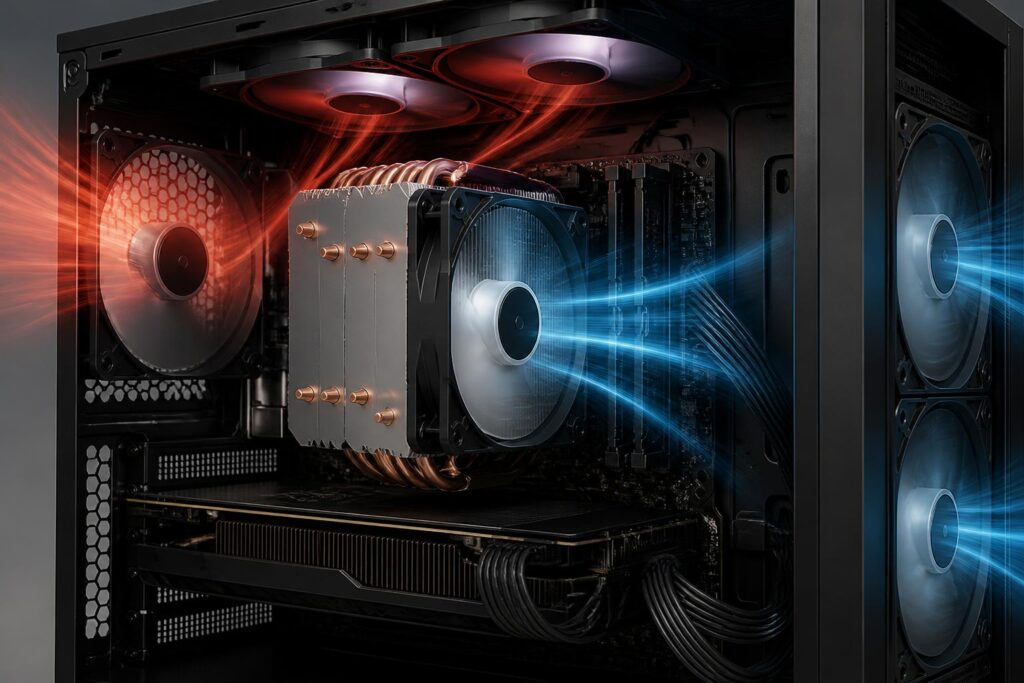
When using a processor with higher power consumption, gaming frequently, or working with applications that make extensive use of multiple cores, users should consider a larger tower-style air cooler. This type of cooler typically uses one or more heat pipes to transfer heat from the contact surface to the cooling fins, after which a fan pushes air through the metal fin assembly. A good air cooler has a relatively simple structure, is easy to inspect, and carries no risk of liquid leakage.
A closed-loop liquid cooler may be a suitable choice for some systems that need more open space around the socket area or are intended to have a particular design. However, it does not automatically make every computer cooler in every situation. Its effectiveness also depends on the size of the radiator, pump quality, fan speed, installation position, and the case’s ability to exhaust hot air. Users should also understand that a system with an additional pump and liquid tubing has more components than an air cooler.
Before buying, four factors should be checked: whether the cooler supports the processor’s socket, whether the cooler’s height fits inside the case, whether its installation position conflicts with the RAM modules or other components, and whether the system has enough fan or pump headers on the motherboard. These checks are no less important than the specifications printed on the product box.
Thermal Paste and Contact Surfaces
Very small gaps always exist between the processor’s integrated heat spreader and the cooler’s base, even though both surfaces may appear flat to the naked eye. Thermal paste is used to fill those gaps, helping heat transfer more effectively from the processor to the cooler base. Thermal paste is not the component that provides the primary cooling capability, but its quality and application still affect the final result.
A common mistake is applying too much paste with the assumption that a thicker layer will transfer heat better. In reality, excessive paste can spread around the surrounding area, create a mess, and provide no corresponding benefit. Conversely, too little paste or applying it without adequately covering the contact area can leave gaps. The appropriate method is to clean the surfaces, use a moderate amount of paste according to the cooler manufacturer’s instructions, and tighten the screws in a balanced sequence.
When removing the cooler for cleaning or component replacement, do not assume that the old paste can still be reused. The surfaces should be cleaned carefully with suitable materials, taking care not to scratch the cooler base or allow liquid to flow onto nearby components. Users should also reinstall the cooler with sufficient but not excessive force and check that it is secure before starting the computer.
Case Airflow Determines Overall Cooling Effectiveness
Even a good cooler can perform poorly if hot air is trapped inside the case. Airflow should have a relatively clear path: cool air should be brought in from the front, bottom, or side, while hot air should be expelled from the rear or top. This arrangement takes advantage of the tendency of hot air to rise while helping prevent fans from drawing in air that has already been heated.
There is no need to install as many fans as possible. Too many fans can increase noise, create turbulent airflow, and allow more dust to enter. What matters is choosing fans of compatible sizes, placing them in the correct orientation, and creating a balance between the amount of air entering and the amount leaving. Arrows on the fan frame usually indicate the direction of rotation and airflow, so they should be checked before securing the fan in place.
Cables also affect the path of the air. Power and signal cables should be routed neatly behind the motherboard tray when the case supports this. This not only keeps the interior more open but also makes cleaning, replacing components, and checking connections more convenient. However, cables should not be forced into position so tightly that connectors bend sharply or pressure is placed on the motherboard.
A case with a closed front panel, numerous glass panels, or few air-intake vents can limit fan effectiveness even when all the necessary fans have been installed. When choosing a case, users should consider the locations of the intake and exhaust vents, dust filters, space for coolers, and fan-mounting options. An attractive design should not be prioritized at the complete expense of ventilation.
Read Temperatures Correctly Instead of Looking at Just One Number
Computer temperatures change according to the workload and environmental conditions. A measurement taken while the computer is idle cannot represent its condition when running a demanding task. Conversely, a brief temperature increase when opening an application or launching a game is not enough to conclude that the system has a problem.
Users should monitor temperatures in familiar situations: when the computer is idle, during normal work, and while running a demanding task for a sufficiently long period. At the same time, observe clock speeds, fan usage, and performance behavior. If the temperature gradually rises over time, the fans constantly run at maximum speed, or performance drops noticeably, these are signs that the cooling system, dust buildup, and airflow need to be checked.
It is also important to distinguish the processor’s temperature from the temperature inside the case. If both the processor and graphics card are hotter than usual, the cause may lie in the overall airflow or the environment where the computer is placed. If only one component shows abnormal behavior, the issue may be related to that component’s cooler, thermal paste, fan, or individual contact arrangement.
Clean and Maintain the System to Prevent Performance Loss
Dust accumulated on filters, cooling fins, and fan blades obstructs airflow. After a period of use, the same task may cause the fans to spin faster and temperatures to rise higher than when the computer was clean. The cleaning interval depends on the environment, the computer’s placement, and the level of use, but users should inspect the system proactively instead of waiting until it overheats or a fan begins making unusual noises.
Before cleaning, shut down the computer, disconnect the power, and allow the components to cool. Dust filters can be removed and cleaned according to the case manufacturer’s instructions. For fans and cooling fins, use suitable tools to remove dust without making the fan blades spin too quickly or causing impacts. Do not apply excessive force to connectors, cables, or the motherboard.
If a fan makes rattling noises, vibrates, or fails to spin steadily, simply applying oil or adjusting its position may not solve the problem. A worn-out fan should be replaced with a model compatible with the required size, connector, and intended use. During replacement, pay attention to the airflow direction so that the ventilation layout of the entire case is not accidentally reversed.
Good Cooling Is a Matter of Balance
There is no single cooling configuration that suits every computer. An office computer needs simplicity and quiet operation; a gaming computer needs a balance among temperature, noise, and cost; and a computer used for long working hours needs to prioritize the ability to maintain stable performance. Therefore, buying the most expensive cooler is not necessarily the right choice if the case does not have enough space or the internal airflow has not been organized properly.
An effective approach is to start with the actual workload, then check the compatibility of the cooler, case, and motherboard. Next, establish a clear airflow layout, apply thermal paste correctly, monitor temperatures in various situations, and maintain regular cleaning. These seemingly minor steps often produce more lasting benefits than changing components based on impulse.
Proper cooling does more than make a computer run cooler. It provides a foundation for stable performance, a more comfortable user experience, and a lower-risk upgrade process. By understanding how heat is generated, transferred, and removed from the case, users can make more informed hardware decisions instead of relying solely on fan size or isolated advertising figures.
