


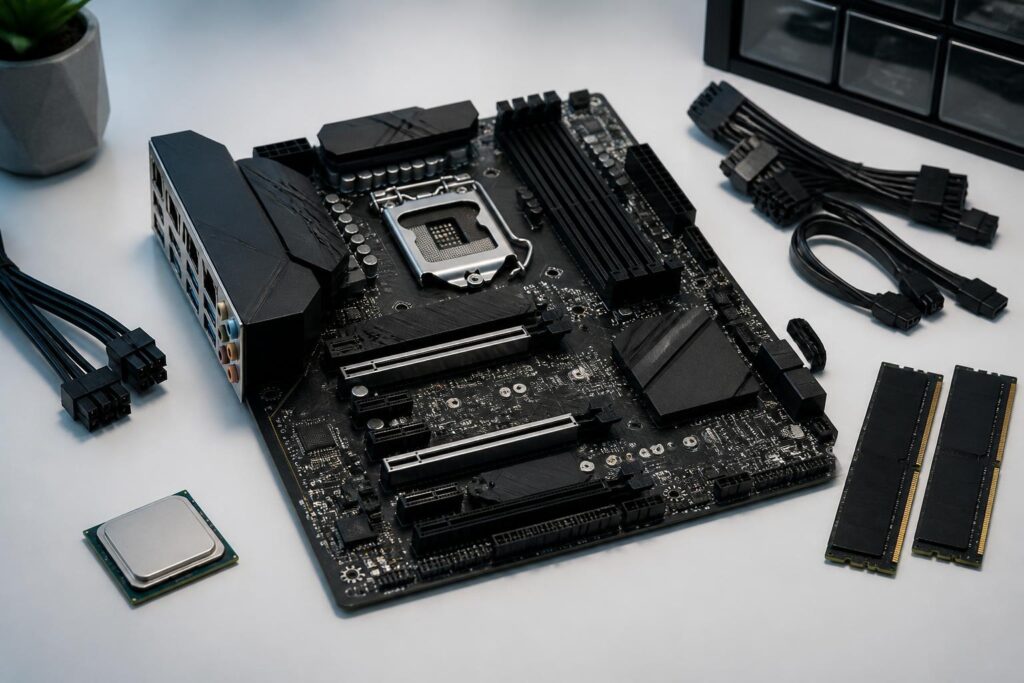
In a computer system, the motherboard often receives less attention than the processor, graphics card, or storage devices. It is a component that rarely produces impressive performance figures on a specification sheet, yet it determines whether many components can work together. A suitable motherboard allows the processor to operate as intended, the memory to use its full configuration, storage devices to have the appropriate connections, and other components to have enough room to perform effectively. Conversely, the wrong choice can force users to replace components, accept upgrade limitations, or deal with problems that are difficult to detect after assembly.
Therefore, choosing a motherboard should not begin with looking for the model with the most slots or the highest price. The better approach is to identify the computer’s role, the intended processor, expansion needs, and future upgrade potential. When users view the motherboard as the connection platform for the entire system, it becomes easier to distinguish genuinely necessary features from specifications that are valuable only in particular situations.
The Socket Is the First Compatibility Requirement
The socket is the position and connection standard designed for the processor. Each processor line is compatible with only certain types of sockets, so this is the information that must be checked before anything else. A motherboard may have an attractive design, numerous connection ports, and a good cooling system, but it still cannot be used if its socket is incompatible with the processor.
However, the same socket does not always mean complete compatibility. A processor manufacturer may release multiple generations of products using the same or a similar platform, while the motherboard may require the appropriate firmware version to recognize each model. Some motherboards are shipped with older firmware versions and may need to be updated before they can support a newer processor. Buyers should check the list of processors supported by the motherboard manufacturer, the required firmware version, and the update method before making a decision.
This information is especially important when reusing older components or buying a motherboard from existing stock. If it is impossible to determine whether the board already has compatible firmware, users may have to install another processor to perform the update, ask the store for assistance, or choose a model with a feature that allows the firmware to be updated without booting into the operating system. This is a small detail, but it can determine whether a computer starts immediately after assembly.
The Chipset Defines Features, Not Performance by Itself
The chipset is commonly used to distinguish groups of motherboards within the same platform. It can affect the number of connection ports, the ability to share data lanes, overclocking features, support for memory standards, and the number of peripheral devices. Even so, a chipset does not directly turn a mid-range processor into a high-end product. An expensive motherboard cannot change the fundamental performance of the processor if the other major components remain unchanged.
Users should evaluate a chipset based on their needs rather than treating it as an absolute measure of quality. An office computer that uses only one storage drive, has few peripherals, and has no major upgrade plans may not need a high-end platform. By contrast, a content-creation computer, a machine running multiple expansion devices, or a system that requires many connection ports may benefit from a chipset with more features. This approach avoids spending money on capabilities that will never be used.
It is important to distinguish between features provided by the chipset and features added by the motherboard’s own design. Two models using the same chipset may still differ in the number of memory slots, the number of storage ports, the network controller, audio, wireless connectivity, or power-delivery capability. Therefore, the chipset name is only a starting point; the specifications for each model are what reveal how well a particular product meets the requirements.
The Power-Delivery System Should Be Considered as a Whole
The motherboard has a power-delivery circuit for the processor and some related components. The power-delivery design, heatsinks, component quality, and control capabilities each play a role in system stability. However, evaluating a board solely by its number of phases or isolated marketing figures can lead to inaccurate conclusions.
What matters is whether the motherboard is suitable for the intended processor, especially when the processor has high power consumption or frequently operates under heavy loads. An inexpensive model may be entirely adequate for an energy-efficient processor, but it may not be a sensible choice for a system that runs continuously under heavy workloads. Conversely, mainstream users do not necessarily need to buy a motherboard with an excessively overbuilt power-delivery system if they are not using a high-end processor or planning to adjust clock speeds.
The temperature of the power-delivery area also depends on airflow inside the case, the processor’s heat output, and the cooling layout. For this reason, the motherboard should be considered together with the cooler, case, and usage habits. A balanced configuration is often more useful than concentrating the entire budget on a board with specifications far beyond actual needs.
Memory and Upgrade Potential
The number of memory slots directly affects how a computer is built and upgraded. A motherboard with few slots may suit a small case or a simple configuration, but it will limit options when the user wants to increase capacity later. A motherboard with more slots provides additional room for upgrades, although filling every slot does not always produce the same results as using only one or two modules.
In addition to maximum capacity, users should check the supported memory standard, the speeds stated by the manufacturer, and how the system operates when multiple modules are installed. Memory can generally run at a safe base speed, while higher speeds may depend on the firmware configuration, processor, and memory itself. During an upgrade, mixing memory modules that differ in capacity, timings, or configuration can cause the system to operate at a more conservative level and may even lead to instability.
Buyers should determine in advance how much memory is needed now and how much additional capacity may be required over the next few years. If the needs are limited to studying, office work, and light entertainment, a moderate memory configuration may be sufficient. For image processing, video editing, large software projects, or running multiple virtual machines, leaving room for upgrades may be more worthwhile than choosing a motherboard with an elaborate design.
Expansion Slots and Connection Lanes Must Be Read Carefully
Expansion slots are often mentioned when choosing a graphics card, network card, capture card, or specialized device. Not every slot with the same physical shape provides the same number of data lanes. Some slots may share resources with other slots or with storage ports. When multiple devices operate at the same time, a port may be disabled or switch to a different mode depending on the motherboard’s design.
This is why users should not simply count the slots shown in a product image. Read the connection diagram and the notes about shared lanes in the technical documentation. If the computer has only one graphics card and one storage device, this issue is usually not complicated. However, for a computer with multiple storage drives, expansion cards, or devices that require high bandwidth, checking in advance can prevent a situation in which the user discovers after assembly that two ports cannot operate simultaneously as intended.
Physical space also matters. A thick graphics card may cover the slots below it, while a large cooler may obstruct memory slots or the area used to install storage devices. The motherboard’s dimensions, the arrangement of its connectors, and the available space inside the case should be considered together rather than selecting each component separately.
Connection Ports and Everyday Usability
The ports on the back of the motherboard often determine how convenient the computer is to use. Users should check the number of USB ports, the type of display connection if integrated graphics will be used, the network port, audio, and wireless connectivity options. A high-speed port is useful only when the peripheral device and cable also support the corresponding standard.
Integrated wireless connectivity can reduce the number of cables, but not everyone needs this feature. If the computer always uses a wired network and separate audio equipment, the budget allocated to wireless connectivity or a high-end audio controller could instead be spent on memory, cooling, or the case. Conversely, for a computer placed where running a cable is difficult, stable wireless connectivity can provide substantial practical value.
Integrated audio should also be considered according to need. It is generally sufficient for computer speakers, mainstream headphones, and everyday tasks. Professionals working with audio or using specialized recording equipment may need a separate audio interface, in which case choosing a motherboard with high-end integrated audio may not be the top priority.
The Motherboard Size Must Match the Case
Different form-factor standards allow manufacturers to create motherboards ranging from compact models to large models with many expansion slots. A small motherboard is convenient for space-saving systems, but it usually has fewer slots and connectors. A larger motherboard may offer more features, but it requires a sufficiently spacious case and a suitable component layout.
It should not be assumed that a small motherboard is always weaker or that a larger motherboard is always better. A well-designed small product can still fully meet the needs of a work computer, entertainment computer, or compact system. What matters is checking compatibility between the motherboard, case, cooler, and expansion cards. In addition to fitting physically, users must ensure that the connectors are not obstructed and that there is enough space for cable management.
Planning Before Buying Helps Avoid Additional Costs
A practical way to choose a motherboard is to make a list of components first. Write down the processor, memory type and capacity, number of storage devices, expansion cards, networking needs, case size, and upgrade potential. Then compare each requirement with the motherboard’s specifications. Any feature that has not been verified should be treated as something that needs clarification rather than assumed to be supported.
The price should also be considered within the total budget. A motherboard that is too inexpensive may reduce the initial cost but force the user to buy additional port splitters, expansion cards, or a replacement motherboard when upgrading. Conversely, an overly high-end model may leave less of the budget for components that have a more direct effect on the work being done. The best choice is a model that fully meets current needs, provides a reasonable amount of headroom, and does not create obvious limitations for the intended usage plan.
A motherboard is not the component that creates the most visible difference in a performance test, but it is the foundation that determines how well the computer can combine components, expand, and operate reliably. Checking the socket and firmware helps ensure processor compatibility. Reading about the chipset, power delivery, expansion slots, connection ports, and dimensions helps users avoid buying based on advertising or appearance. When the choice is based on the actual configuration rather than the number of features, the motherboard becomes an investment with a clear purpose, supporting both current needs and potential upgrades in the future.
