


SSDs have become a familiar choice in most computers today, from laptops used for studying and office PCs to gaming systems and workstations. Compared with mechanical hard drives, SSDs generally offer shorter operating system boot times, faster application launches, and quieter operation because they have no moving parts. However, the popularity of SSDs has also made choosing one more difficult. The market offers many connection standards, several types of flash memory, and significant price differences, while specifications on the packaging often focus on maximum speed rather than long-term everyday experience.
A suitable SSD is not necessarily the model with the highest read and write figures. More important is that the drive be compatible with the computer, meet the actual workload, and have characteristics suited to the way it will be used. Office users, people who frequently edit video, gamers, and home server owners all have different criteria. Understanding the nature of each factor helps prevent paying for excess performance while also avoiding savings in the wrong areas.
The Connection Interface Determines the Performance Foundation
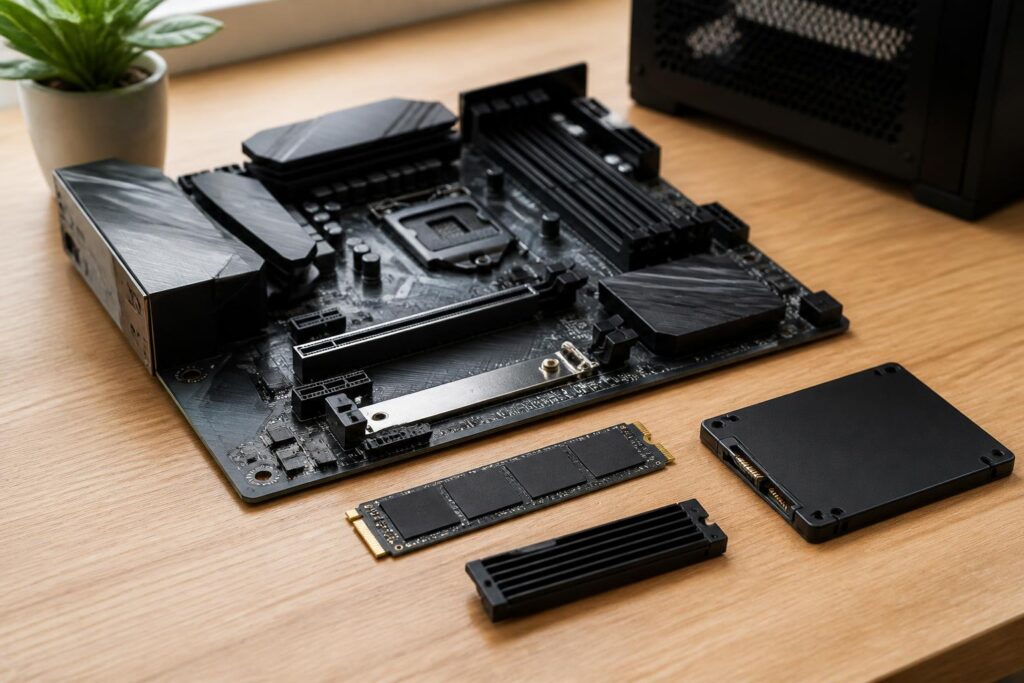
Before comparing brands or speeds, check which type of connection the computer supports. The two most common groups today are 2.5-inch SSDs that use the SATA interface and M.2 SSDs that use the PCI Express interface through the NVMe protocol. The M.2 designation describes only the physical shape and does not automatically mean that the drive uses NVMe. Some M.2 drives still use SATA, so buyers should carefully check the documentation for their motherboard or laptop.
SATA SSDs are generally slower than modern NVMe models, but they still make a major difference compared with mechanical hard drives in everyday tasks. They can be a reasonable choice for older computers, systems that have only SATA ports, or upgrades with a moderate budget. NVMe SSDs, meanwhile, transfer data directly through higher-speed PCI Express lanes, making them suitable for copying large files, content editing, running virtual machines, or handling multiple storage-intensive tasks at once.
Do not look only at the PCI Express generation listed on the product while overlooking the computer’s limitations. If the motherboard supports only an older generation, a newer SSD may still work in many compatible configurations, but its performance will be limited by the platform. Conversely, installing a high-end drive in a computer with inadequate cooling and power delivery may not provide a commensurate benefit. Checking the slot, drive length, supported standard, and ability to boot from an NVMe device are necessary steps before purchasing.
Capacity Should Be Calculated According to How the Drive Will Be Used
SSD capacity is not merely space for storing files. The operating system, applications, cache, temporary files, and updates all need free space to operate reliably. A drive that is too full can reduce flexibility in data management and force users to constantly delete or move files. Therefore, suitable capacity should be determined based on current needs, the rate at which data is accumulating, and plans for using the computer over the next several years.
For an office or study computer, a basic capacity may be enough for the operating system, common software, and documents if the user practices sensible storage habits. Gaming computers often need more space because game installers and game data can be large. People who work with video, graphic design, or software development must also account for project files, content libraries, caches, and intermediate exports. In these cases, separating the operating system drive from the data or project drive can make management easier, although it is not always required.
If the budget is limited, users can prioritize an SSD with enough capacity for the operating system and primary applications, then add another storage device for less frequently accessed data. Even so, important data should not be considered safe simply because it is stored on an SSD. An SSD can fail suddenly, suffer a controller fault, lose its connection, or encounter problems caused by the power supply. Independent backups remain essential, regardless of the type of storage device.
Flash Memory and the Controller Affect the Long-Term Experience
Inside an SSD are flash memory chips, a controller, and firmware that manages the drive’s operation. These components work together to write, read, organize, and reclaim data. Different types of flash memory have different storage densities and endurance characteristics. Ordinary users do not necessarily need to memorize every technical term, but they should understand that two drives with the same capacity and interface can still provide different experiences when data is written continuously or when little free space remains.
Write-endurance specifications are usually published by manufacturers as the total amount of data that can be written over the drive’s designed lifetime. This is a reference indicator, not a promise that the drive will fail immediately after exceeding that figure. With ordinary office workloads, the amount written each day is usually very different from that of tasks that continuously create large files, edit video, or run databases. Buyers should consider this specification in the context of actual use rather than choosing a drive solely because it has a higher number.
Some SSDs have high-speed cache memory to improve performance during short write operations. When the amount of data exceeds the cache area, speed can drop significantly depending on the drive’s design and operating conditions. This is not necessarily a defect, since advertised speeds are generally measured in specific testing environments. If users frequently move very large files, they should also consult reviews that measure sustained write performance rather than relying only on the maximum speed printed on the box.
Temperature and Cooling Should Not Be Overlooked
NVMe SSDs can generate considerable heat during continuous operation, especially in tasks involving large amounts of reading or writing. As temperatures rise, the drive may automatically reduce its speed to protect its components. This behavior means that an SSD with very high specifications but inadequate cooling may operate less consistently in real-world use. Some motherboards include heatsinks for M.2 slots, but users still need to install them correctly and remove the protective film from the thermal pad if the design requires it.
Not every system needs an additional aftermarket heatsink. Office computers performing light tasks usually do not generate a sustained enough load for heat to become a serious issue. In contrast, computers with limited space, weak airflow, or frequent large-file processing require more attention. When an SSD is installed in a laptop, heat dissipation also depends on the manufacturer’s design, the location of the M.2 slot, and the available internal clearance.
Checking temperatures with an appropriate monitoring tool can help identify abnormalities, but users should not repeatedly run heavy tests just to find an impressive number. The important thing is to observe stability during everyday work. If the computer frequently reports storage errors, freezes applications, or experiences unusual slowdowns, users should back up their data before conducting more thorough checks.
Choose an SSD According to Your Needs
For office computers, the priorities should be stability, compatibility, and a clear warranty policy. A mid-range SATA or NVMe SSD is usually sufficient for web browsing, office software, online meetings, and document management. Buying the most high-end model may not make a noticeable difference if the computer spends most of its time handling small files.
For gaming computers, an SSD shortens loading times and makes installation and updates more convenient. However, the experience also depends on the processor, memory, graphics card, game design, and the quality of the system’s overall connections. Users should balance capacity against the number of games they typically install rather than sacrificing storage space for maximum speed that is rarely fully utilized.
Digital content creators need to pay closer attention to sustained write performance, endurance, and available free space. Source video files, temporary files, and exports can quickly increase the amount of data written. A multi-drive configuration, in which the operating system and applications are separated from the project drive, can improve the workflow. Even so, partitioning a drive does not turn one SSD into two independent devices and does not replace backups.
Steps to Take After Installation
After installing an SSD, users should update its firmware according to the manufacturer’s instructions if a newer version addresses compatibility or stability issues. Modern operating systems generally support the TRIM command, which helps the system manage deleted data areas more efficiently. Users should not arbitrarily use optimization tools from unknown sources or defragment the drive in the manner intended for mechanical hard drives without understanding the effects.
Before moving the operating system from an old drive, create a backup and prepare a way to revert if the copying process encounters an error. Users can perform a fresh operating system installation to start with a clean configuration, or use disk-cloning software if they want to retain their existing working environment. Whichever option is chosen, checking boot partitions, data encryption, and drivers is necessary. Do not erase the old drive immediately after the computer boots successfully once; check the applications, data, and recovery capability first.
An SSD is one of the upgrades that can make a clear difference to a computer, but its effectiveness comes from suitability, not merely from high specifications. Buyers should begin by checking compatibility, determining their actual capacity needs, considering the write workload, and evaluating cooling conditions. When that choice is combined with regular backups, drive health monitoring, and sensible capacity management, an SSD can fulfill its role as a faster, more compact, and more dependable storage foundation for everyday work.
