


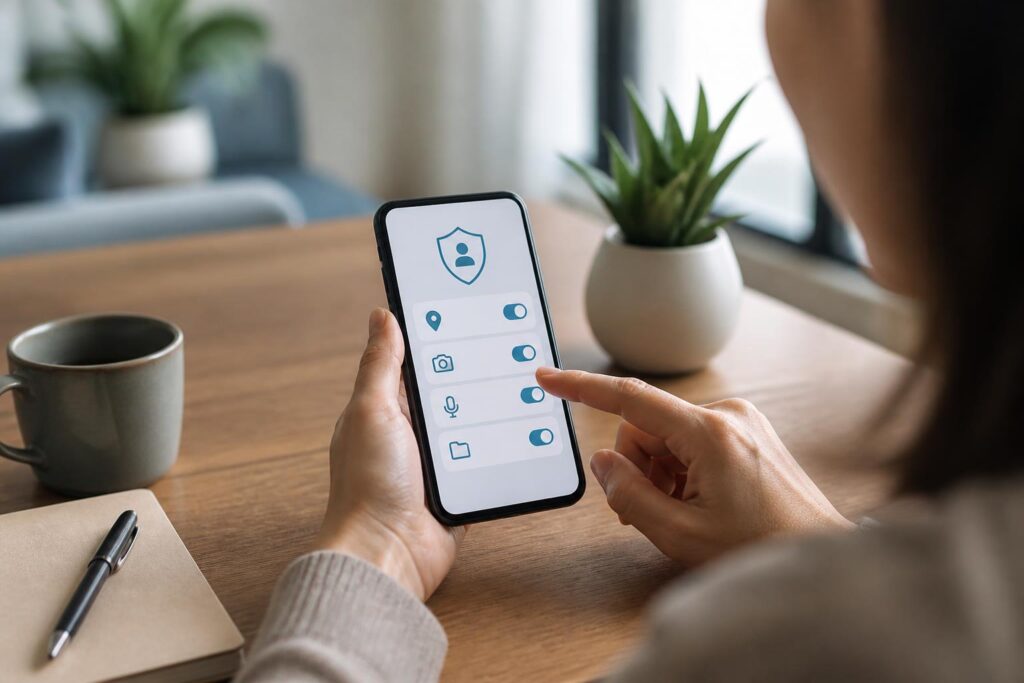
Today’s phones are not merely communication tools; they also store many layers of information about our personal lives. A map app may need location data to provide directions, a video-calling app needs the camera and microphone, while a photo-editing app may need access to the image library. However, not every request that appears on the screen means users must accept it immediately.
Privacy in apps is not a remote concept reserved for people who are familiar with technology. It means knowing what type of data an app is being allowed to access, for how long, and for what purpose. By forming the habit of reading, considering, and reviewing access permissions, users can reduce unnecessary sharing without necessarily giving up digital conveniences.
What Are Access Permissions and Why Should You Care?
Access permission is the user’s authorization for an app to use a function or access a category of data on the device. Depending on the operating system and software version, the terminology may differ, but familiar categories often include location, camera, microphone, contacts, notifications, calendar, photos and files, health data, or activity on the device.
Each permission may serve a reasonable function. A map app cannot operate fully without knowing the current location. An online meeting app needs the microphone when the user wants to speak. A document-scanning app needs the camera to capture images. The issue is not that every permission is dangerous, but whether the permission is appropriate for the app’s actual function, whether it is granted at the necessary level, and whether the user can revoke it later.
Risks often arise when users tap “Allow” out of habit, simply because they want to open an app quickly. After many installations, a phone may accumulate a long list of apps that have previously been granted permissions. Some permissions may remain in place even though users no longer use the related function or have even forgotten when the app was installed.
Read Requests in the Context of Use
The simplest way to evaluate a permission is to ask: what does this app need it for? The question is not intended to make users suspicious of every piece of software, but to help them compare the request with the app’s function.
For example, camera access is understandable when it appears in a camera, code-scanning, or video-calling app. But if an app used only to read text content continually requests camera access without clearly explaining why, users have reason to examine the request more closely. Similarly, contact access may be useful when finding friends on a communications service, but not every app needs to know the user’s entire list of contacts.
Location access should also be considered in relation to timing. A delivery service may need location when the user selects an address or tracks an order. In that case, allowing access only while the app is in use may be more appropriate than allowing continuous access. The specific option names will vary by device, but the general principle remains the same: choose the narrowest level of permission that can meet the need.
Users should also pay attention to the difference between required and optional permissions. Some apps may still open without access to contacts, location, or notifications. Refusing a permission does not necessarily make the entire app useless. In many cases, users can try the main function first and grant additional permissions only when they are genuinely needed.
Four Permission Categories That Often Need Review
Location
Location data can indicate where the device is or which areas it has previously visited, depending on how the app operates and the device’s settings. Users should consider whether the app really needs real-time location or only location while it is in use. For apps unrelated to maps, delivery, weather, or location-based services, requests for location should be considered more cautiously.
Camera and Microphone
The camera and microphone are directly connected to images and sounds in the surrounding environment. These permissions are generally reasonable for video-calling, recording, photography, or document-scanning apps. However, granting permission does not mean users should ignore unusual signs. When they do not need to use recording or filming functions, they can close the app and review the permission settings. If the device displays an indicator showing that the camera or microphone is active, users should pay attention to which app is using them.
Photos, Files, and Storage
The need to select one photo does not necessarily mean that an app must be able to view the entire library. Some devices and apps allow users to select individual photos or grant access only to chosen items. This is an option worth considering when the app needs only a few files to complete its task.
Contacts, Calendar, and Notifications
Contacts and calendars contain considerable information about other people, appointments, and daily routines. Therefore, users should consider the specific benefit before granting access. Notifications are usually less sensitive than the categories above, but too many notifications can distract users and cause them to overlook important alerts. Turning on only the notifications that are necessary is also a way to manage the digital experience.
Review Access Permissions Regularly
Granting permission should not be viewed as a decision that happens only once at the time of installation. Usage needs change, apps are updated, and users may stop using certain services. Therefore, regular checks help identify permissions that are no longer appropriate.
On a phone, users can open the privacy settings or the app list to see which permissions have been granted to each piece of software. The layout depends on the device, but permissions can generally be reviewed in two ways: open each app to see its permissions, or open each permission category to see the list of apps allowed to access it.
When reviewing permissions, start with apps that are rarely used. If an app has not been opened for a long time, its permissions can be revoked, or the app can be uninstalled if it is no longer needed. For apps that are still in use, check which permissions are essential and which can be changed to allow access only while the app is in use. This does not need to be done hurriedly; users can change one permission category at a time and observe which functions are affected.
It is also worth reviewing apps installed from unfamiliar sources or those that no longer receive updates. An app’s name alone is not enough to assess its trustworthiness. Users should consider the installation source, developer information, description of its functions, and their own actual needs. If an app requests many permissions unrelated to its main task, that is a signal to read more carefully before continuing to use it.
Do Not Look Only at the “Agree” Button
Access permissions are only one part of the privacy picture. When signing up for a service, users may also be asked to create an account or provide a phone number, email address, date of birth, or payment information. Each type of data has a different purpose and level of sensitivity. Before entering it, users should determine whether the information is truly necessary to complete the function they are using.
A service’s privacy policy may sometimes be long and contain many difficult terms, but users can still look for sections describing the types of data collected, the purposes of use, the retention period, and how to make contact when support is needed. Not everyone needs to read every line of every document, but pausing at the sections directly related to them is much better than accepting everything without knowing what they are agreeing to.
Users should also distinguish between an app’s access permissions and the sharing of data with an online service. Turning off camera access on the device may prevent the app from opening the camera, but it does not automatically delete data that was uploaded previously. If they want to deal with old data, users may need to find a deletion option within the account itself or contact the service provider through an official channel.
Develop Cautious Usage Habits
Effective privacy management does not require users to turn their phones into inconvenient devices. Small habits often produce clearer results than extreme decisions. Before installing an app, identify which function is needed. When the app requests a permission, read the name of the permission and compare it with that function. After finishing, check whether the temporary permission can be revoked.
For shared devices, users should be more careful with photos, files, contacts, and notifications displayed on the lock screen. For children or older adults, teaching them how to recognize access-permission requests is no less important than installing software. An easy principle to remember is not to grant permission simply because an app asks for it; grant it when you understand the reason and see that the permission fits the need.
There is no way to eliminate every risk in the digital environment. However, privacy is not a choice between the two extremes of “allow everything” and “do not use technology.” Users can take greater control by sharing less, checking more often, and being willing to change permissions as their needs change.
Phones are more useful when they serve exactly what users need, rather than silently expanding their access beyond the original purpose. A few seconds spent reading a request before tapping agree, together with a periodic review, can make a significant difference in how each person protects their personal data every day.
