


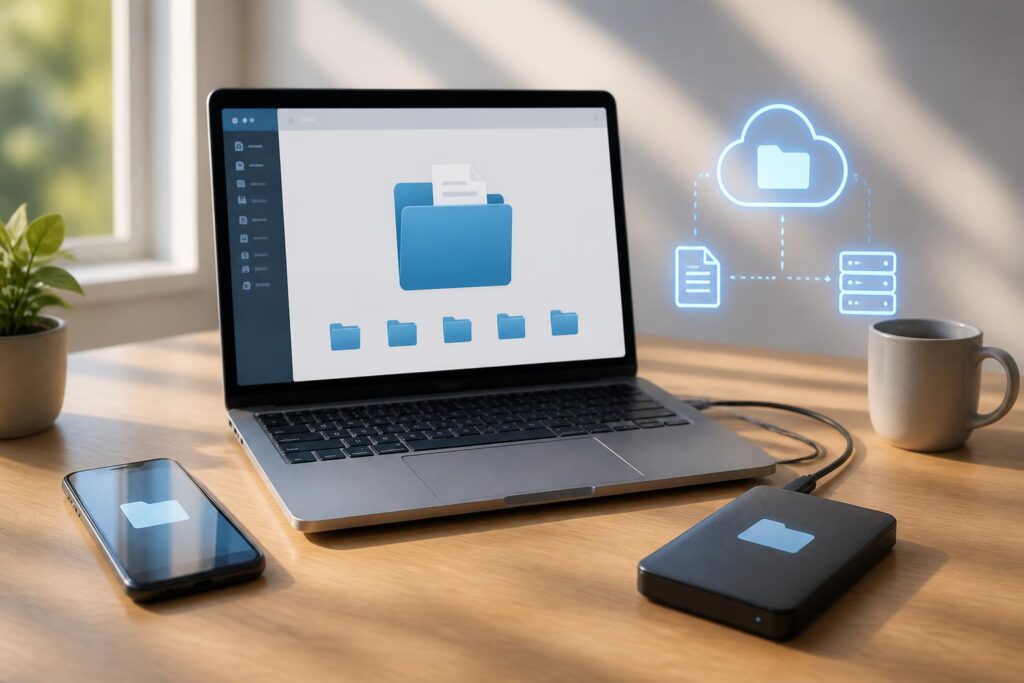
Family photos, electronic documents, work files, invoices, educational information, and many other types of data are being stored on phones, computers, or online services. This convenience makes searching and sharing faster, but it also creates a frequently overlooked risk: a single device failure, locked account, or accidental action can cause important data to disappear or become difficult to access.
Data backup is not only for businesses or people who work in technology. For ordinary users, a simple but regular plan can make a major difference when something goes wrong. What matters is not owning a large number of devices or subscribing to many services, but understanding which data needs protection, where to store copies, how to check whether recovery is possible, and which habits are likely to cause loss.
Start by Knowing What You Are Storing
Many people think about backups only after encountering a problem, while the first step should be to form a reasonably clear picture of the data they have. Check commonly used devices such as phones, personal computers, tablets, and external storage drives. In addition, review the online services that contain data, such as email accounts, photo libraries, note-taking applications, work platforms, or cloud storage services.
Not every file is equally important. Data can be divided into several groups to make decisions easier. The first group consists of content that is difficult to replace, such as personal photos, family videos, unfinished drafts, or documents with sentimental value. The second group includes papers and records needed for work, study, or transactions. The third group consists of data that can be downloaded again, recreated, or is no longer necessary. This classification helps prioritize time and storage space for information that truly matters.
During the review, users should also pay attention to forgotten folders. Data may be located in the downloads folder, on the desktop, in messaging applications, in a camera’s memory, or on old drives. Finding all of these locations helps avoid the situation in which one assumes a backup has been made when in reality only part of the data has been copied.
Set Up an Easy-to-Understand Folder Structure
A good backup system will be less effective if the original data is disorganized. The folder structure does not need to be complicated, but it should be consistent. Users can begin with broad folders based on purpose, such as Work, Study, Personal Finances, Documents, Photos, and Projects. Within them, files can be further divided by year, event, or project name.
File names should also help users recognize the content without having to open each file. A name containing the date, subject, and version is generally more useful than vague names such as “new document” or “final version.” The way dates are written should be consistent throughout the system. If there are multiple versions, use clear labels such as “draft,” “checked,” or “ready to send,” rather than creating too many files with nearly identical names.
This organization not only supports backups but also reduces the risk of accidentally overwriting files, sending the wrong document, or retaining outdated versions. Once the structure is stable, copying and checking also become easier. Users no longer have to spend time figuring out where the data is located each time they make a backup.
Do Not Rely on a Single Storage Location
Storing data in only one place creates a single point of failure. If photos are stored only on a phone, losing the phone may mean losing the photos. If only one computer is used, a storage drive failure can interrupt work. If a copy is kept only in one online account, login problems or changes in access permissions may temporarily make the data unusable.
A practical principle is to keep the original and at least one copy in a different location. For especially important data, consider keeping more copies, including one that is not regularly connected to the primary device. Each option has advantages and limitations. External storage drives provide direct control but can fail, be lost, or become infected with malware if connected carelessly. Cloud services are convenient for synchronization and access from multiple locations, but they depend on the account, network connection, and provider policies.
Therefore, the suitable choice is often to combine different methods rather than consider one solution sufficient for every need. Users should consider storage capacity, privacy, access frequency, affordability, and the importance of the data. A family photo collection may require a different protection method from temporary files used for a short-term task.
Use Automatic Backups, but Still Check Them
Automatic backup features reduce reliance on memory. When configured correctly, new data can be synchronized or copied on a schedule without requiring users to do it manually every day. However, automatic does not mean guaranteed. A service may synchronize only certain folders, skip files that are too large, or retain the latest changes in a way that makes older versions difficult to recover.
Therefore, after enabling backups, check the basic questions: What data is being included in the backup? When did the most recent backup take place? How much storage space remains? Can the copy be opened on another device? If the system reports that the process is complete but in reality contains only a list of files or reduced versions, users need to know that before a problem occurs.
Checks can be carried out on a schedule appropriate to how much the data changes. Work data generated daily needs to be reviewed more frequently than a photo library that rarely changes. After changing devices, reinstalling an operating system, or switching to a new service, review the entire setup again. A configuration that once worked well may no longer be suitable after passwords, folders, or access permissions have changed.
Try Restoring Data Before You Really Need It
Many people check only whether a copy exists and have never tried retrieving data from it. This is a significant shortcoming. A copy is meaningful only if it can be read, opened, and used when necessary. Users do not necessarily have to restore all their data immediately. They can select a few representative files, download them to another device, and check their names, contents, and ability to open.
For documents, try opening them with the appropriate software and check whether the important components are still intact. For photos and videos, check the quality, dates, or accompanying information if those elements are valuable. If the copy is encrypted, the information needed to decrypt it must be stored somewhere safe and easy to find when needed. A copy whose password the user cannot remember or whose access key is no longer available is, in practice, very difficult to use.
Trying to restore data also helps uncover common misunderstandings, such as assuming that synchronization is an independent backup. Some systems immediately reflect changes on every device. If a file is deleted or overwritten, that change may spread to all synchronized copies. Therefore, for important data, users should learn whether the tool they use supports keeping older versions, a recycle bin, change history, or an offline copy.
Protect the Accounts and Devices That Contain Data
Backups are only one part of data protection. Accounts containing backups also need to be protected with unique, hard-to-guess passwords that are not reused across multiple services. When a service supports multi-step authentication, users should consider enabling it and storing recovery options somewhere safe. Recovery information should not be kept in the same place as a device that could be lost or damaged.
External storage devices should be stored carefully and protected from impacts, unsuitable temperatures, and excessive humidity. When not in use, they can be disconnected to reduce the risk of data being changed unintentionally. Before opening files from unknown sources, users should exercise caution, because a backup that is connected to a computer can also be affected by malware.
Privacy also needs to be taken into account. Personal data, identity documents, financial records, or private photos should not be shared widely merely for storage convenience. Before uploading data to a service, read the basic information about access permissions, download capabilities, and how data can be deleted. If a device is shared with others, separate accounts or appropriate folders should be used instead of leaving all data freely accessible.
Establish a Simple Maintenance Schedule
A plan that is easy to maintain is usually more effective than an overly complicated process. Users can set aside a fixed amount of time to review their data, delete unnecessary copies, check storage capacity, and try restoring a few files. When buying a new device, include data transfer and backup verification on the list of tasks to complete, rather than focusing only on installing applications.
Before selling, giving away, repairing, or discarding a device, check whether the data has been transferred to a safe location. Then sign out of accounts and delete the data in a way appropriate for the device. Old memory cards, drives, or computers should not be thrown away while they still contain private information that can be accessed.
Backup habits cannot eliminate every risk, but they help turn an unexpected incident into a problem that can be handled through an established process. When users know where their data is, which copies are still working, and how to restore it, they become less dependent on luck. A safer digital life does not necessarily begin with expensive tools. It begins by classifying data, maintaining several reasonable storage options, protecting accounts, and regularly checking whether the plan is actually working.
