


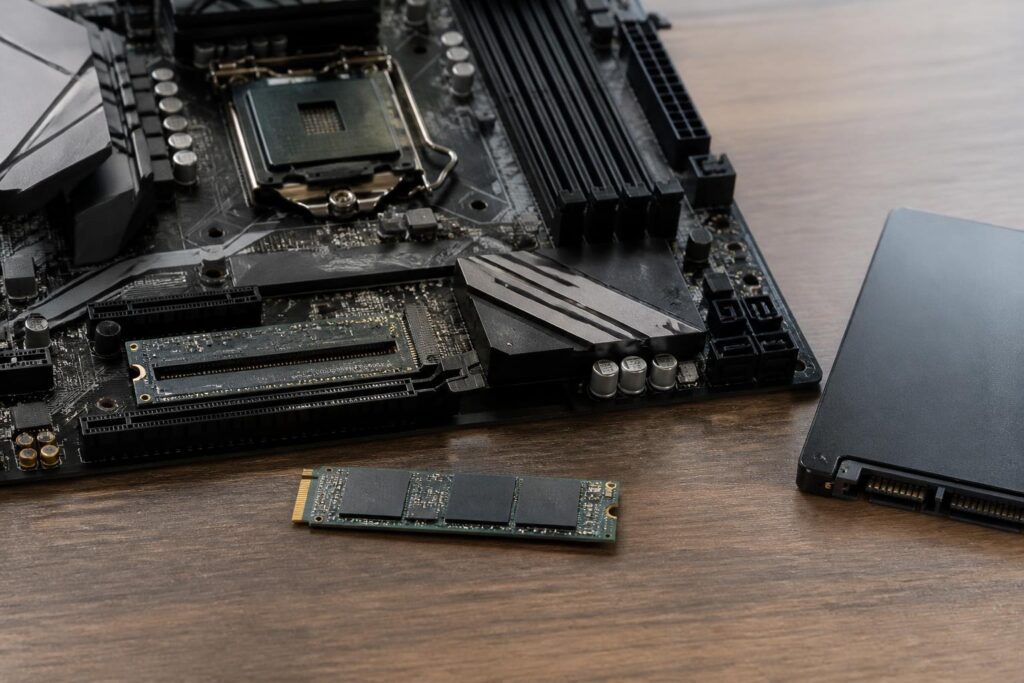
Solid-state drives, commonly known as SSDs, have significantly changed the computer-using experience. Compared with traditional mechanical hard drives, SSDs have no spinning platters or moving read heads, so the time required to boot the operating system, open applications, and access data is usually noticeably shorter. Office computers, thin-and-light laptops, gaming PCs, and workstations can all benefit from switching to an SSD.
However, choosing an SSD is not simply a matter of looking at the highest read and write speed figures printed on the box. A suitable product must be compatible with the computer, offer enough capacity for the intended usage, maintain stable performance during real-world tasks, and provide reasonable mechanisms for protecting data. Price should also be considered in relation to the expected period of use, rather than by comparing capacity per unit of currency alone.
Three Common SSD Standards and Their Differences
Before comparing SSD models, users need to determine which connection standard their computer supports. SATA SSDs typically come in a 2.5-inch form factor or as M.2 SATA drives. Although their physical designs differ, both types rely on the SATA interface, so their real-world performance is limited by the bandwidth of that standard. They remain suitable for upgrading laptops or older computers, especially when the primary goal is to replace a mechanical hard drive.
M.2 NVMe SSDs have a more compact form factor and communicate through PCI Express. NVMe was designed for flash memory, can handle multiple simultaneous access requests, and generally delivers higher speeds than SATA. However, the fact that a drive has an M.2 form factor does not necessarily mean it is an NVMe drive. The M.2 slot on a given motherboard may support SATA, NVMe, or both, so users should check the computer’s technical documentation before buying.
Different generations of PCI Express also create differences in bandwidth. SSDs using newer interfaces may achieve very high sequential specifications, but the practical benefits also depend on the processor, motherboard, operating system, temperature, and type of workload. In many everyday tasks, the perceived responsiveness does not increase in proportion to the advertised figures. Users should prioritize compatibility and stability before pursuing the newest connection standard.
Capacity Should Be Calculated Based on Usage Habits
A low-capacity SSD may be sufficient for a computer used only for web browsing and word processing, with most data stored on another device. Even so, capacity that is too close to the actual requirement can easily leave the operating system short of free space after updates, additional software installations, and the creation of temporary data over time. When a drive is nearly full, file management becomes inconvenient, and some write operations may become less flexible.
For a general-purpose office computer, a capacity of around one terabyte usually provides more comfortable room for the operating system, applications, documents, and some multimedia files. Users working with high-resolution photos, video, game libraries, or virtual machines need to plan for more space, as these types of data can fill a drive quickly. When the budget is limited, it is possible to use a moderately sized SSD for the operating system and applications, combined with another storage device for less frequently accessed data.
An SSD should not be treated as the only place to store irreplaceable files. Large capacity does not eliminate the risk of device failure, accidental deletion, malware, or loss caused by software problems. An independent backup plan is still necessary, especially for personal photos, work documents, and project data. An SSD provides faster access, but it is not a backup.
Sequential Speed Does Not Tell the Whole Story
Sequential read and write speed figures are often prominently displayed on SSD packaging. This is a useful metric when users frequently copy large files continuously, such as video, high-resolution photos, or project files. However, operating systems and everyday applications usually generate many small requests scattered across different locations. In such situations, latency, random-access performance, and consistency have a much more significant effect.
Two SSDs with the same sequential speed on paper may feel different when installing software, updating the operating system, or working with multiple applications at the same time. The controller, type of flash memory, cache capacity, and firmware all help determine how a drive behaves. Buyers should therefore not use a single figure as the sole measure of quality.
Another issue is that performance may change after the high-speed write cache has been exhausted. During long write sessions, an SSD may reduce its speed to maintain stable operation. This is not necessarily a defect, but users who edit video professionally, process large datasets, or frequently copy hundreds of gigabytes should look into sustained-load tests rather than viewing only the results of short benchmarks.
Durability, Cache, and the Ability to Sustain Performance
SSDs use NAND flash memory, in which data is stored through electrical states in memory cells. Each cell has a limited number of program-and-erase cycles, although the controller and firmware can distribute operations to reduce uneven wear. Manufacturers commonly publish a total amount of data that can be written, often known as TBW, to describe the drive’s designed write endurance.
TBW is not a promise that a drive will fail immediately upon reaching a specific figure, nor is it the sole basis for predicting service life. An SSD’s suitability also depends on temperature, power supply, firmware quality, the condition of the computer, and usage patterns. For home or office computers, the daily write workload is usually very different from that of a server environment. Conversely, systems used for continuous recording, video editing, or database processing need to be assessed according to their actual write workload.
Some SSDs have dedicated DRAM for storing the mapping table between logical addresses and data locations in flash memory. Other models use a caching mechanism based on system RAM or have no dedicated DRAM. This does not automatically make one group of products good and the other group poor. DRAM-less SSDs can consume less power, cost less, and still suit many mainstream computers, while models with DRAM are often more worth considering in systems that must handle heavy workloads or frequent access.
Temperature and Installation Space Also Need to Be Considered
High-speed NVMe SSDs can generate considerable heat when transferring data continuously. Rising temperatures may cause the controller to throttle the drive deliberately to protect the device. In desktop computers, an M.2 heatsink included with the motherboard can help control temperatures, but users must install it in the correct position and ensure that the thermal pad makes proper contact.
In laptops, the space around the M.2 slot is usually more limited. An SSD with an unsuitable size, thickness, or heatsink design may make it difficult to close the laptop’s cover. Before upgrading, users should check the supported drive length, interface standard, any capacity limitations, and the manufacturer’s installation instructions. Incorrect installation may damage components or affect warranty coverage.
Temperature is not a reason to reject every high-performance SSD. The important thing is to choose a product that matches the system and workload. If a computer is used mainly for office work, an SSD with moderate power consumption and stable performance may be more suitable than a high-end model that requires more cooling space but provides little clear benefit in everyday tasks.
How to Choose an SSD for Different User Groups
For an office laptop or home computer, the first priorities should be compatibility, sufficient capacity, and stability. A SATA SSD is still worth considering for older devices with a 2.5-inch bay, while an M.2 NVMe drive is suitable for computers that support that standard. There is no need to pay substantially more just to obtain the highest speed if the rest of the system cannot take advantage of it.
For gamers, an SSD shortens game-loading times and application startup, but it does not directly replace the role of the processor or graphics card in producing frame rates. Capacity should be balanced against the size of the game library. A model with stable performance, ample capacity, and reliable management software is often more practical than simply choosing the drive with the highest sequential read speed.
Content creators need to pay closer attention to sustained write workloads, available free space, and backup procedures. A fast SSD can improve editing and file transfers, but users should not rely on a single drive as the operating-system drive, the location for original files, and the place for temporary files without a protection plan. The roles of the system drive, project drive, and backup device can be separated to reduce the impact if one device fails.
For workstations or systems that frequently process large amounts of data, users should carefully consider the warranty, endurance rating, ability to sustain performance, and cooling conditions. If the work involves important data, a redundant storage design should be prioritized rather than placing complete trust in a single high-end SSD.
Steps to Take After Installing an SSD
After installation, users should check whether the computer recognizes the drive and the correct connection standard. The device’s status can be viewed using the operating system’s management tools or the manufacturer’s official software, but the software should be downloaded from a trustworthy source. Firmware should be updated when an update addresses compatibility or stability issues, while power interruptions during the process must be avoided.
An SSD should not be defragmented in the way traditionally used for mechanical hard drives. Modern operating systems generally have dedicated optimization mechanisms for SSDs, including sending TRIM commands to indicate which data blocks are no longer in use. Users only need to let the system manage the drive in the proper mode and maintain a reasonable amount of free space, rather than repeatedly running optimization tools from unknown sources.
Finally, watch for unusual signs such as read or write errors, system freezes when accessing data, a prolonged sudden drop in speed, or drive-health warnings. These signs do not always mean that an SSD is about to fail, but they are sufficient reasons to check backups and prepare a replacement plan. Early detection helps users avoid turning a hardware problem into irrecoverable data loss.
Conclusion
Choosing an SSD effectively means balancing compatibility, capacity, performance, temperature, durability, and budget. High speed can be appealing, but it only provides value when it matches the slot and the way the drive will be used. For most users, an SSD with comfortable capacity, stable performance, and a clear provenance will be more useful than a product with impressive specifications that is not suited to the computer.
More importantly, an SSD does not replace a backup strategy. By combining suitable storage devices with careful data-management habits, users can take advantage of the responsiveness of modern computers while reducing risks over the long term.
