


Storage drives are among the components that directly affect how a computer feels to use every day. A powerful processor or plenty of RAM can still be overshadowed by a slow drive, especially when starting the operating system, opening applications, decompressing data, or switching between multiple tasks. The popularity of SSDs has significantly changed this experience, but today’s market has also made choosing one more complicated. Buyers have to consider different connection standards, types of flash memory, capacities, speed specifications, and warranty policies.
The fastest SSD on a specification sheet is not always the best choice. A drive with extremely high sequential speeds but limited capacity, high temperatures, or incompatibility with a computer’s slot may offer less value than a reasonably priced model with sufficient capacity and stable operation. Therefore, a sensible selection process should begin with actual needs, followed by comparisons of technology and price.
Determine What the SSD Will Be Used For
Before looking at product names, users should answer a simple question: will this SSD contain the operating system, applications, games, work data, or the entire system? For office work, studying, and web browsing, an SSD with a moderate capacity can already make a major difference compared with a mechanical hard drive. The operating system starts faster, applications open almost immediately, and the computer is less likely to stall when performing small read and write operations.
If the computer is mainly used for writing documents, online meetings, studying, and storing lightweight files, a capacity of around 500 GB usually provides more comfortable space than a drive that is too small. A low-capacity drive may work well at first, but quickly become cramped after operating-system updates, additional software installations, and the storage of temporary files. When a drive is nearly full, data management also becomes inconvenient, and performance may decline in some situations.
Gaming computers and systems used for photo editing or video production require a different calculation. Modern games, high-resolution photo libraries, and project files can take up a great deal of space. In this case, higher capacity is often more worth prioritizing than pursuing the highest possible speed. Users should also consider separating infrequently changing data from active project files if they want to make backups easier to manage.
Distinguish Between SATA SSDs and NVMe SSDs
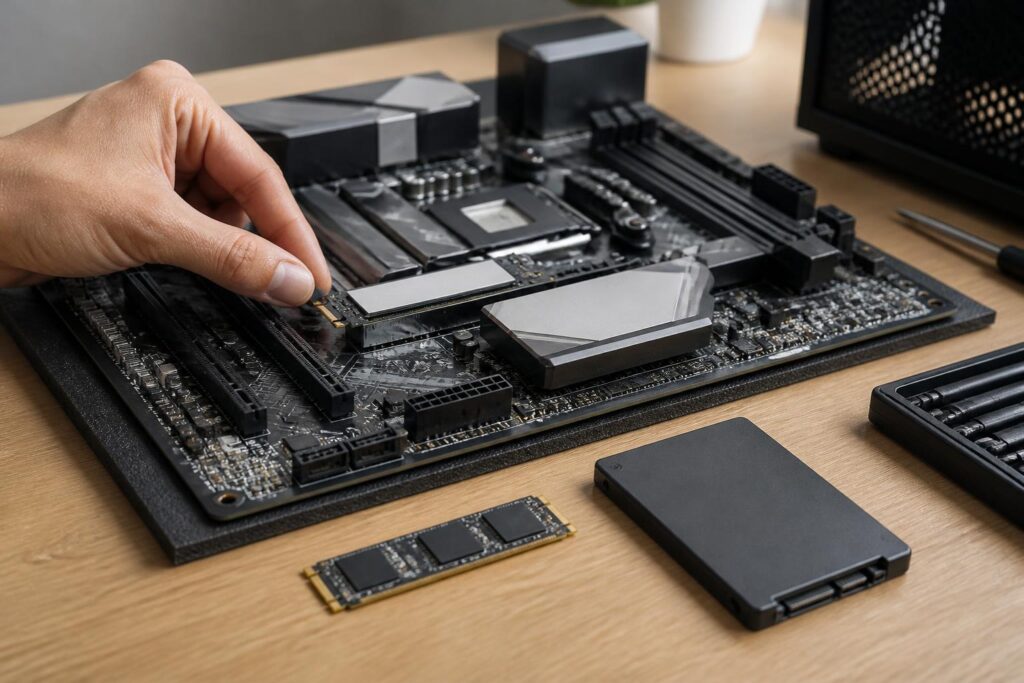
SATA SSDs commonly come in a 2.5-inch form factor or several other variants, using the SATA interface that is already widespread across many computers. They are easy to use with older machines, especially systems that still use 2.5-inch mechanical hard drives. Upgrading is usually simple, costs are easier to control, and the practical improvement is very clear if the computer previously used a spinning hard drive.
NVMe SSDs commonly come in the form of M.2 circuit boards and communicate through PCI Express lanes. Compared with SATA, NVMe can handle more simultaneous storage requests and achieve higher bandwidth. This advantage is especially apparent when copying large files, editing video, compiling source code, running virtual machines, or working with applications that frequently access data. However, for ordinary office tasks, the noticeable difference is not always proportional to the gap shown on the specification sheet.
The important point is that an M.2 slot does not mean every M.2 SSD is NVMe. Some M.2 drives use the SATA interface, while others use NVMe and PCI Express. Users need to check the documentation for their motherboard or laptop to determine which standard the slot supports, what circuit-board dimensions are suitable, and whether there are any limitations on the number of PCI Express lanes. Buying the correct physical form but the wrong interface may prevent the drive from working as expected.
Read and Write Speeds Are Not the Only Criteria
Manufacturers often emphasize sequential read and write speeds. These are useful indicators when handling large files continuously, but they do not fully describe the everyday experience. Opening applications, starting the operating system, or searching for files often involves many small, random requests. Latency, queue-handling capability, and firmware quality also help determine how responsive a drive feels.
Published specifications are generally maximum figures measured under particular test conditions. When the drive is nearly full, temperatures rise, the cache is exhausted, or the system is performing multiple tasks at once, actual speeds may differ. Some SSDs use a high-speed cache area to maintain performance while writing data. After this cache is full, write speeds may drop significantly, especially when copying a large amount of data continuously.
That does not mean speed figures are useless. They help distinguish product segments and indicate the capabilities of each interface. However, users should not pay substantially more just to achieve a higher number if their main needs are web browsing, office work, and ordinary gaming. Suitable capacity, a clear warranty, and compatibility often provide more lasting benefits.
NAND Flash Memory, Cache, and Durability
SSDs store data on NAND flash memory. The market includes several ways of organizing the number of bits in each memory cell, commonly referred to by terms such as SLC, MLC, TLC, and QLC. In principle, storing more bits in a cell can increase storage density and reduce the cost per gigabyte, but this design also creates different requirements for data management and write endurance.
General users do not necessarily need to memorize every term, but they should understand that SSD models with the same capacity can differ in their internal structure. Drives intended for heavy write workloads need to be evaluated more carefully in terms of endurance, controller, and ability to maintain performance. For home computers, the important considerations are choosing a product with transparent technical information, a brand with a clear support policy, and an appropriate warranty.
Some SSDs have dedicated DRAM cache, while some models use a mechanism that allocates part of the system’s RAM through HMB. A DRAM-less design does not automatically mean poor quality, just as having DRAM does not guarantee that a product will always be suitable for every need. This is one of many factors that should be considered alongside the controller, firmware, NAND type, and intended use.
The TBW rating, when published by the manufacturer, represents the estimated amount of data written over the product’s rated lifespan. It is not a promise that the drive will fail immediately once that figure is exceeded, nor is it the sole measure of reliability. For office users, the amount of data written each day is usually not very large. By contrast, video-editing computers, personal servers, or systems that continuously write logs need to pay more attention to this rating and the warranty policy.
Temperature and Installation Space
High-performance NVMe SSDs can generate more heat than mainstream models, especially during continuous data transfers. As temperatures rise, the drive may reduce its speed automatically to protect its components. This phenomenon is usually not noticeable during short tasks, but it can affect long data-copying sessions or professional workloads.
Before installing an M.2 SSD, check whether the computer has a heatsink for the slot and whether that heatsink is compatible with the drive’s installation position. Do not add thick materials on your own, as they could bend the circuit board or prevent the cover from closing. In laptops, space is usually more limited and cooling depends heavily on the manufacturer’s design, so users should prioritize models that have been confirmed to be compatible.
Airflow inside the case also plays a role, although the SSD is not the only component that needs cooling. Keeping cables organized, removing dust, and ensuring that the fans operate properly can help maintain a more stable internal environment. Low temperatures cannot turn an ordinary SSD into a high-end product, but prolonged excessive heat can reduce performance and place additional stress on the entire system.
Common Mistakes When Upgrading an SSD
The most common mistake is buying based on the connection standard without checking whether the device supports it. Laptop users may also overlook the M.2 dimensions, the position of the retaining screw, or the capacity limits that the computer’s firmware can recognize. Before buying, read the documentation for the computer or motherboard manufacturer, and determine whether there is an empty slot or whether the current drive must be replaced.
The second mistake is focusing only on capacity while forgetting to plan for data. If the new SSD will be used as the operating-system drive, the user needs to decide how to migrate the system or perform a fresh installation. If the old drive is retained, determine which drive contains important data and which will be used as a backup. Backing up before removing or installing hardware is essential, since any hardware operation can cause errors or data loss if performed incorrectly.
Another mistake is evaluating durability based on advertising or a single benchmark. Performance can vary according to capacity, firmware version, temperature, and test conditions. Buyers should review the entire warranty policy, return conditions, drive-health monitoring software, and firmware-update capability. A product should not be chosen solely because of one standout specification while the remaining information is ignored.
Balance the Budget for a Sensible Choice
For most home computers, an SSD with sufficient capacity, a compatible standard, and stable speed is already a worthwhile upgrade. If the budget is limited, it may be better to prioritize capacity and support quality rather than choosing the most advanced NVMe model. If the computer already has a good SATA SSD, switching to NVMe is truly worth considering only when the workload frequently involves large files or requires higher storage speeds.
Users should also distinguish between a drive used for the operating system and one used for storage. The operating-system drive needs consistent responsiveness and enough free space for updates. A storage drive can prioritize capacity over speed, but important data must still have a copy in another location. An SSD is not a backup device, because it can still fail, be accidentally erased, or encounter system errors.
A smart way to buy is to make a list of requirements first: which interfaces the device supports, how much capacity is needed, whether the write workload is heavy, whether there are any special thermal requirements, and what the maximum budget is. Only then should a few models in the same segment be compared. This process helps prevent users from being drawn in by speed figures that do not serve their actual needs.
Conclusion
Choosing an SSD is a balancing act involving compatibility, capacity, performance, durability, and budget. SATA remains highly valuable when upgrading older computers, while NVMe is suitable for systems with compatible slots and workloads that require higher bandwidth. Read and write speeds are only part of the story; the controller, cache, temperature, warranty policy, and usage patterns determine the long-term experience.
A suitable SSD is not necessarily the most expensive model. It is a product that fits the existing hardware, provides enough space for several years of use, maintains stable performance, and is incorporated into a clear backup plan. By evaluating these criteria, users can upgrade their computers with greater confidence and avoid spending money on benefits that are difficult to notice in everyday work.
