


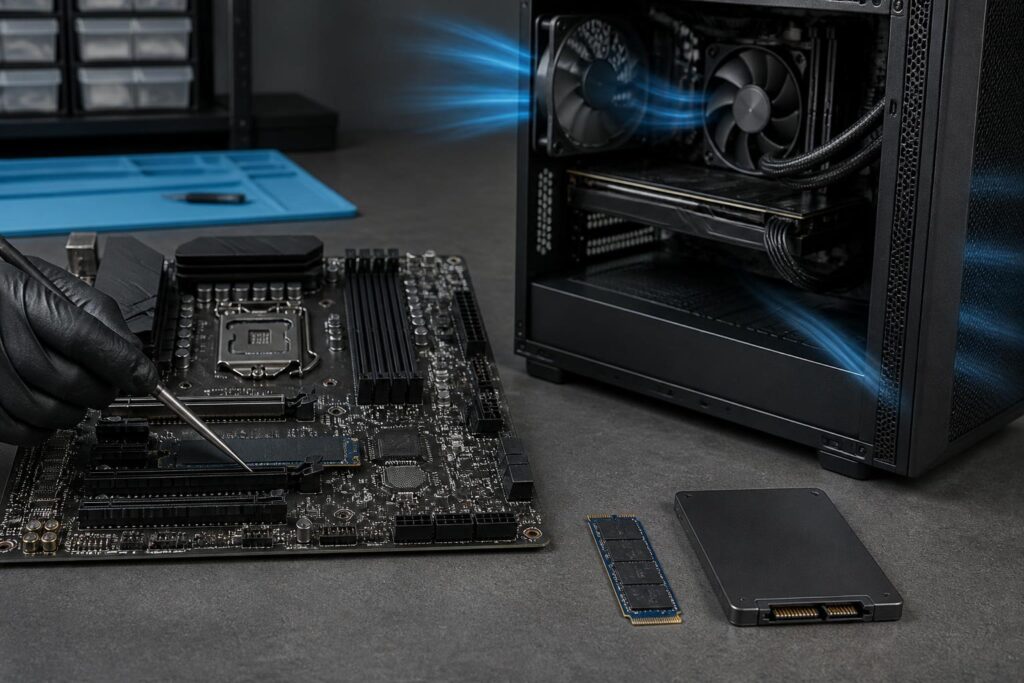
Storage drives are often one of the components that create the most noticeable difference in the computer-use experience. When replacing a hard disk drive with an SSD or upgrading from an older SSD to a newer device, users may notice improvements in boot times, software launch speeds, and operating system responsiveness. However, not every SSD is suitable for every computer, and the speed specifications printed on the box are not the only factor determining the quality of the experience.
To make the right choice, an SSD needs to be viewed as one part of the entire system. The motherboard must support the corresponding interface standard, the computer case must have a suitable installation location, the operating system must be installed and configured correctly, and actual storage needs determine how much capacity should be purchased. A balanced choice will deliver more consistent results than simply chasing the highest read and write speeds.
What is the difference between SATA SSDs and NVMe SSDs?
The two most common groups of SSDs in personal computers today are SATA SSDs and NVMe SSDs. SATA SSDs commonly use a 2.5-inch form factor with separate data and power cables, or they may come in the form of an M.2 circuit board while still communicating through the SATA protocol. NVMe SSDs, meanwhile, generally use an M.2 slot and communicate through PCI Express lanes, enabling higher data-transfer speeds in suitable tasks.
SATA SSDs are fast enough for many common needs, such as booting the operating system, office work, online learning, web browsing, and using ordinary software. They are also worth considering for older computers that have SATA ports but no M.2 slot. Replacing a hard disk drive with a SATA SSD usually brings a major improvement without requiring the entire computer platform to be replaced.
NVMe SSDs show a clearer advantage when users regularly handle large files, edit video, process images with large data libraries, run virtual machines, or perform tasks that require continuous access to the storage drive. Even so, higher technical specifications do not mean that every application will become faster by the same proportion. For light tasks, the difference between a good SATA SSD and a mainstream NVMe SSD may be less significant than the difference between an SSD and a hard disk drive.
Check compatibility before buying
A common mistake is to see that a computer has an M.2 slot and assume that every M.2 SSD can be installed in it. M.2 only describes the physical shape and dimensions of the device; M.2 SSDs may use either the SATA or NVMe interface. The slot, the standard supported by the motherboard, and the arrangement of the contact pins must be compatible with one another. Users should therefore consult the technical documentation for the motherboard or laptop model before placing an order.
For desktop computers, in addition to determining whether the motherboard has an M.2 slot, users should check whether the slot is obstructed by an expansion card or heatsink. Some motherboards share bandwidth between an M.2 slot and SATA ports, meaning that certain ports may be disabled when an SSD is installed. This is not a serious issue, but users should be aware of it in advance to avoid mistakenly thinking that the storage drive or another device has malfunctioned.
For laptops, upgrades may be limited by the drive’s size, thickness, number of slots, and the manufacturer’s proprietary design. Some models only allow the existing storage drive to be replaced, while others have an additional empty slot. Before opening the computer, users should back up their data and clearly determine whether they will reinstall the operating system or copy the data to the new drive.
What capacity is appropriate?
SSD capacity should be chosen based on how the computer will be used over the next few years, not just on the amount of data present at the time of purchase. A low-capacity SSD may be suitable for a basic office computer, but it will quickly become cramped when many applications are installed, photos are stored, games are downloaded, or media projects are handled. When the drive is nearly full, data management becomes inconvenient and the free space available to the operating system is also reduced.
For computers used for studying, office work, and ordinary entertainment, an SSD with a moderate capacity can accommodate the operating system, essential software, and some personal data. Users who regularly edit photos or videos, program with multiple development environments, or install large games should consider a higher capacity, or combine a good-performing SSD for the operating system with a secondary drive for data.
There is no need to put all data on the fastest SSD. Infrequently used documents, movie libraries, backup files, and long-term archival data can be stored on a secondary drive or another storage device. This approach helps reduce costs while preserving fast responsiveness for the operating system and frequently used software. However, every setup should include an independent backup, because any storage drive, whether new or expensive, can still fail.
Do not focus only on maximum read and write speeds
Sequential read and write speeds are often used to describe SSD performance, but they represent only part of the picture. Sequential speeds are useful when continuously reading or writing large files. During operating system startup and the opening of multiple applications, the computer also performs many operations involving small files, so latency, random-access performance, and firmware quality are important as well.
The ability to sustain performance during extended data-writing sessions also deserves attention. Some SSDs can reach high speeds initially but slow down when the write cache is full or temperatures rise. This does not necessarily indicate that the product is poor, as it is part of how the device manages memory and heat. Users should ask practical questions: Will the computer frequently copy large files for many minutes, or will it mainly open documents and applications? The answer will help determine the required level of performance.
For common needs, an SSD with stable performance, reliable firmware, and clear warranty coverage is often a better value than a model with a high advertised speed that does not suit the system. Real-world reviews of sustained speed, temperature, and long-term stability may be more useful than comparing a single number.
How do temperature and durability matter?
NVMe SSDs can generate more heat than SATA SSDs under certain heavy workloads, particularly during continuous data transfers. As temperatures rise, the device may automatically reduce performance to protect its components. In desktop computers, an M.2 slot located near a heat source such as a graphics card may require extra attention. An M.2 heatsink included with the motherboard, when installed correctly, can help control temperatures during extended work sessions.
SSD durability is commonly described by manufacturers in terms of the amount of data that can be written over the drive’s designed lifetime. This is important reference information, but it should not be understood as a promise that the drive will definitely operate until that exact threshold and then fail. Thermal conditions, power quality, firmware, usage patterns, and many other factors affect reliability. For a typical personal computer, the most practical approach is still to choose a product from a brand with clear support and maintain a regular backup habit.
Installing a new SSD and managing data after the upgrade
Before installing an SSD, back up important files to another device. If the new SSD will be used as the operating system drive, users can perform a clean operating system installation or copy the entire system from the old drive. A clean installation usually removes unnecessary data, but it requires applications and the working environment to be set up again. Copying the system is more convenient, but the boot partition and drivers should be checked after the process is complete.
After installation, check whether the operating system has recognized the correct capacity and interface standard. Firmware updates should only be performed according to the manufacturer’s instructions and after the data has been backed up. Users should also avoid using unreliable optimization software to repeatedly write or delete data in the hope of making the SSD faster. Modern operating systems generally already include SSD support mechanisms, including sending TRIM commands when appropriate.
A balanced choice for each type of user
Office users and students should prioritize an SSD that is compatible with their computer, has sufficient capacity, and comes with good warranty coverage. An older computer with only SATA does not necessarily need its entire platform upgraded to use NVMe. For gaming computers, capacity and loading times are often more important than buying the model with the highest speed, since the experience also depends on the processor, memory, and how the software is optimized.
Digital content creators should pay attention to sustained performance, temperature, and available free space when handling large projects. They can use a fast SSD for software and active project files, combined with another drive for long-term storage. Professional users who require high reliability should also plan for automatic backups instead of treating the SSD as their only storage location.
An SSD is a worthwhile upgrade, but the best choice is not necessarily the model with the highest specifications. Start with compatibility, determine capacity based on actual needs, consider the type of interface, evaluate sustained performance, and give reliability and data backups the importance they deserve. When these factors are balanced, an SSD will improve computer speed without turning the upgrade process into an inefficient expense.
