


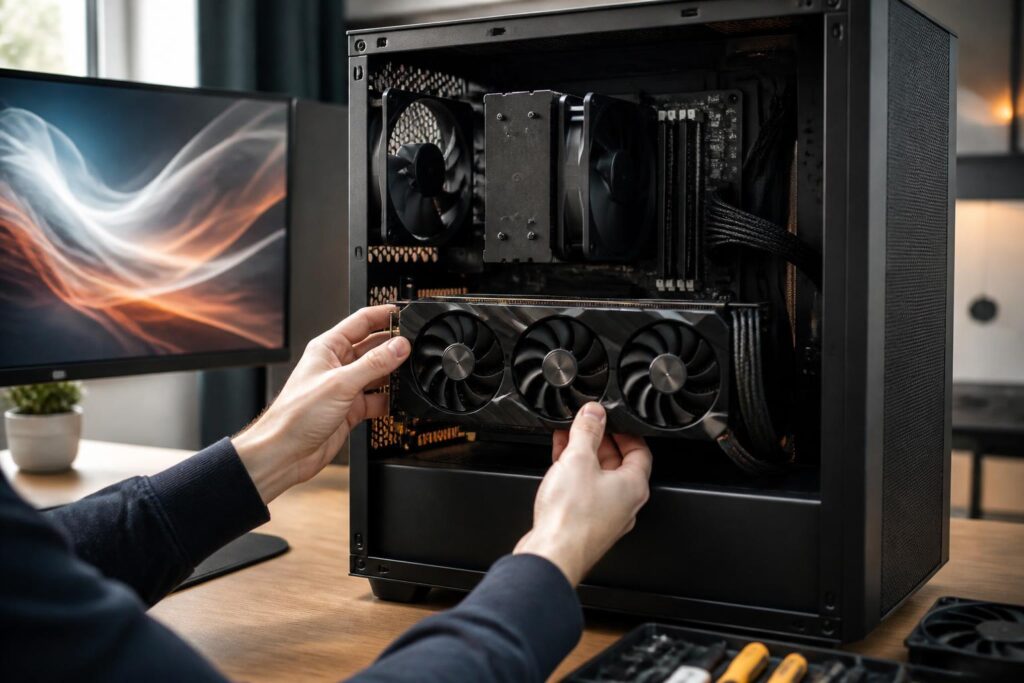
A graphics card is one of the components that can cause the most confusion when upgrading a computer. Many people start by looking for a model with a newer name, more VRAM, or higher specifications, but these criteria alone are not enough to guarantee a sensible choice. A powerful GPU may not reach its potential if paired with a processor that is too weak, a power supply that is not stable enough, or a case without suitable space and airflow. Conversely, a mid-range card can provide a better experience if it is matched correctly with the monitor and intended usage.
Choosing a graphics card should therefore be a process of balancing actual performance, budget, power consumption, and the expected period of use. Gamers, video editors, 3D designers, and people who only need basic display output will have very different priorities. Understanding each factor before buying helps avoid paying for unnecessary power or having to replace several additional components later.
Start with Your Needs and the Monitor You Use
A monitor’s resolution and refresh rate are two important pieces of information for determining how powerful a graphics card needs to be. The higher the monitor’s resolution, the more pixels the GPU must process in each frame. A high refresh rate also creates greater demands if users want to take full advantage of the display’s capabilities. A card that suits a low-resolution monitor may not deliver stable frame rates when paired with a wider monitor or one with a higher refresh rate.
For office work, studying, watching movies, and basic photo editing, the integrated GPU in some modern processors may already be sufficient, provided that the computer has a compatible display output. Users should not buy a discrete graphics card simply because they think every computer needs one. A discrete card becomes worth considering when playing graphically demanding games, creating 3D scenes, processing video regularly, or using applications that take advantage of the GPU’s parallel-computing capabilities.
For gaming, first identify the titles you usually play and the desired quality level. Not every game requires the same level of hardware capability. Some games prioritize frame rate and fast response, while others emphasize detailed visuals, lighting effects, or open worlds with many objects. Therefore, choosing a GPU based on a single performance number can easily lead to an incorrect assessment. More important is whether the card can maintain a stable experience in the type of tasks the user actually cares about.
VRAM Matters, but It Is Not the Only Criterion
VRAM is the dedicated memory on a graphics card, used to store image data, textures, frame buffers, and some of the information needed for scene rendering. As resolution or detail levels increase, VRAM requirements generally increase as well. If the graphics memory capacity is insufficient, a game or application may need to exchange data frequently with system memory, increasing waiting times and making the experience less stable.
However, having more VRAM does not automatically turn a weak GPU into a powerful one. Memory capacity must be considered alongside processing capability, memory bandwidth, architecture, cooling performance, and drivers. A card with a large amount of VRAM can still fail to achieve the desired frame rate if its graphics processor is not powerful enough. Conversely, users working at moderate resolutions may not need to pay extra for a memory capacity far beyond their needs.
A more practical way to evaluate a card is to consider resolution, image quality, and application type at the same time. Gamers who commonly enable high texture settings or use high-resolution monitors should pay attention to VRAM headroom. Video editors should check the software requirements and project complexity instead of looking only at the specifications advertised on the box. For 3D design, scene size, the number of objects, and the rendering method also affect the amount of memory required.
Do Not Overlook the Processor and the Risk of Performance Bottlenecks
The graphics card and central processor should be considered as a system. When the CPU cannot provide data quickly enough, a powerful GPU may not be fully utilized. This situation is often easy to notice in CPU-intensive games, scenes with many characters, or tasks that require continuous logical processing. In such cases, replacing the graphics card with a more powerful one will not necessarily increase the frame rate proportionally.
Conversely, if the graphics card is far weaker than the needs of the monitor and applications, even a powerful CPU cannot compensate for the limitation in the rendering stage. The goal is not to pair the two most expensive components, but to create a balance based on resolution and type of work. At high resolutions, the workload generally leans more heavily toward the GPU; at low resolutions with a goal of achieving very high frame rates, the CPU’s role may become more apparent.
Users should also check their existing platform before upgrading. An older system may require driver updates, an inspection of the expansion slot, or consideration of system memory limitations. Replacing only the graphics card while ignoring related components can sometimes create higher costs without significantly improving the experience.
The Power Supply, Size, and Cooling Are Essential Requirements
A powerful graphics card usually has higher power consumption and cooling requirements. The power supply needs to have suitable wattage, stable quality, and the correct power connectors for the card. Do not rely solely on the maximum wattage printed on the power supply while overlooking its age, component quality, and ability to deliver continuous power. An unsuitable power supply can cause system shutdowns, instability, or reduced reliability across the entire system.
Before buying, check the card’s actual dimensions, including its length, thickness, and the number of expansion slots it occupies. Some models have large heatsinks that may block adjacent slots or fail to fit in a small case. The space needed for power cables should also be taken into account, especially when the side panel of the case sits close to the connector area. These details are often overlooked when viewing specifications online, but they determine whether the card can be installed safely.
Airflow inside the case also directly affects temperature and noise. A card may reduce its clock speed when temperatures remain high for a prolonged period, causing actual performance to fall below expectations. A system with fans that appropriately draw in cool air and expel hot air will help the GPU operate more consistently. Buyers do not necessarily need to choose the most expensive cooling solution, but they should ensure that the case has enough space, dust is controlled, and the fans work properly.
Features to Consider Before Buying
Beyond raw performance, modern graphics cards may support many features related to image upscaling, video encoding, and lighting processing. These features are valuable only when the software or games the user relies on actually support them. Therefore, compatibility should be checked in specific applications rather than treating a feature as an absolute advantage.
Video encoding and decoding capabilities can be important for people who frequently record their screens, livestream, or create content. The number and type of connectors should also suit the monitors already in use. If using multiple monitors, check how the card supports simultaneous display outputs. These seemingly secondary factors can reduce the need for adapters or additional equipment after installation.
Drivers are also part of the overall experience. A card with appealing specifications but unstable drivers or poor compatibility with familiar applications can cause considerable inconvenience. Before deciding, users should review support information from the hardware and software manufacturers and consider the product’s update cycle. This is why two graphics cards should not be compared solely by clock speed or VRAM capacity.
Buy New or Upgrade Step by Step?
If the current computer still handles other tasks well, upgrading only the graphics card can be a cost-effective option with little impact on data. Even so, the compatibility of the power supply, CPU, case, and expansion slot should be checked before buying. In a system that has been used for many years, installing a card that is too powerful may expose other limitations, such as insufficient system memory, slow storage, or cooling that no longer performs well.
When several components are no longer suitable at the same time, rebuilding the entire system may make more sense than making piecemeal upgrades. Users should create a list of priorities based on the problems they are experiencing. If graphics applications lack speed, the GPU may be the first priority. If the computer frequently freezes when opening multiple programs, system memory and a newer processing platform may be more important. This approach helps ensure that the budget is spent where it matters instead of chasing the most prominent component.
How to Check Your Choice Before Finalizing the Purchase
Before paying, write down the monitor’s resolution, the main applications, the processor, memory capacity, power supply model, and case dimensions. Then compare them with the card’s installation requirements. This information should be checked in technical documentation or on a reliable product page, not just in the seller’s title. If buying a used card, ask clearly about its warranty status, operating history, and whether the product can be tested, while being cautious of unusually low prices.
You should also distinguish between maximum performance in a benchmark and long-term experience. A card that runs quickly for a short time may not be suitable if temperatures are high, noise is excessive, or power consumption exceeds the system’s capabilities. Stability, warranty coverage, and compatibility are often more valuable than a small difference in the specification table.
The right graphics card is not the most expensive or newest model, but the component that meets the user’s needs within a balanced system. Start with the monitor and software, assess VRAM needs and processing capability, then check the CPU, power supply, dimensions, and cooling. When these factors are considered together, the upgrade decision will be more practical, involve fewer additional costs, and have a better chance of remaining effective over the long term.
