


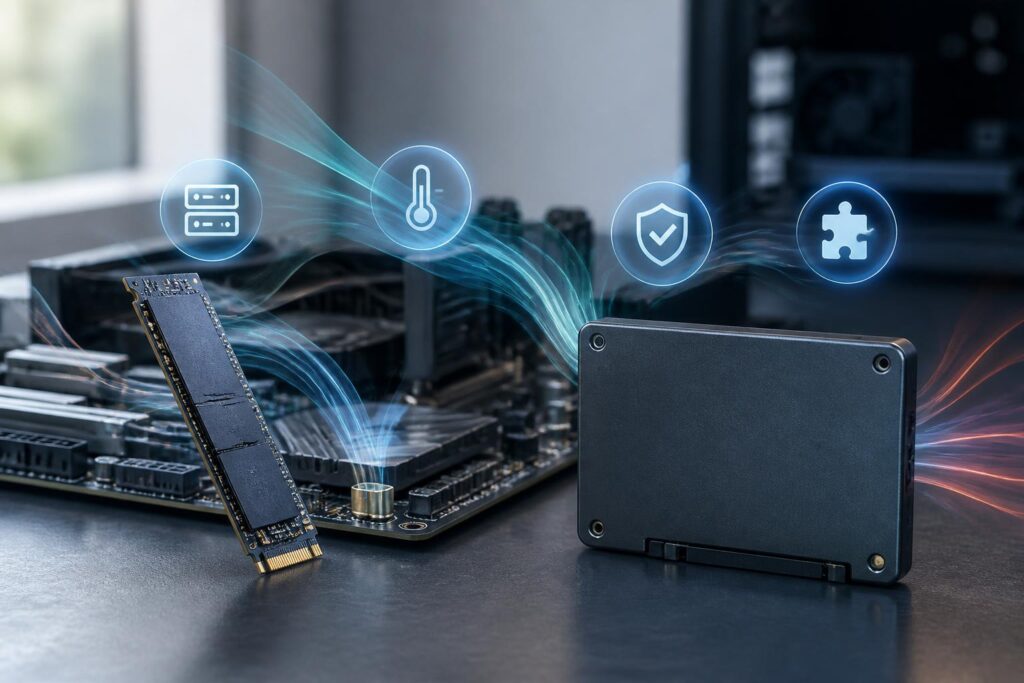
SSDs have become a familiar choice in most computers today. Compared with mechanical hard drives, SSDs help the operating system boot faster, software open almost instantly, and data copying become more convenient. However, the increasingly diverse SSD market has also made choosing one less straightforward. Users may encounter numerous connection standards, different types of flash memory, a wide range of capacities, and very different speed specifications.
The difficulty is that the prominent numbers on the box do not always reflect real-world experience. An SSD with a very high sequential read speed may not provide a noticeable difference in office work. Conversely, a drive with more modest specifications but sufficient capacity, stable sustained performance, and reasonable temperatures may be better suited to a computer intended for long-term use. Therefore, choosing an SSD should begin with usage needs rather than simply looking at maximum speed.
Determine the SSD’s Role in the System
Before comparing products, users need to determine what tasks the SSD will perform. If the drive will be used to install the operating system and basic software, important factors include fast responsiveness in random tasks, stability, and sufficient capacity for updates. For this use case, a mainstream SSD from a reputable manufacturer will usually be adequate; it is not necessarily necessary to choose the most expensive model.
Computers used for gaming have different requirements. An SSD shortens game loading times, reduces waiting when launching applications, and makes it more convenient to manage a game library. However, capacity is often more important than a small difference in sequential read speed. A drive that is too small will quickly fill up, forcing users to constantly uninstall and reinstall games. In this case, prioritizing reasonable capacity and stable performance is generally more practical than chasing the highest specifications.
Content creators, video editors, people who process large image files, or those who frequently transfer data need to consider the matter more carefully. These tasks can involve long, continuous write sessions, causing the SSD to work harder than it would in an office computer. The ability to maintain speed after the cache is exhausted, heat dissipation, and write endurance become important criteria. A drive that is fast only for a short period may not be suitable for a professional workflow.
The Connection Standard Determines Compatibility Limits
Common SSDs today may use the SATA interface or the M.2 form factor connected via PCI Express. SATA drives typically come in a 2.5-inch form factor, are easy to install in many older computers, and still provide a major improvement over mechanical hard drives. M.2 is a compact form factor, but M.2 alone does not indicate the device’s full speed. An M.2 drive may use either the SATA or PCI Express protocol, so buyers need to check the information on the motherboard or in the computer’s documentation.
For PCI Express SSDs, the interface generation also affects theoretical bandwidth. However, a computer can only take advantage of the level supported by its platform. Installing a newer-generation SSD in an older system does not necessarily provide speeds matching the advertised specifications; the device may operate at a lower limit. This does not make the drive useless, but it may prevent the investment from delivering the expected value.
Before buying, check the number of M.2 slots, the supported drive length, the interface standard, and whether the connection lanes are shared with other devices. Some laptops also have limited space, restricted installation positions, or specific size requirements. Comparing the computer’s technical documentation will help avoid a situation in which an SSD is theoretically the right type but cannot be installed or used to its full potential.
TLC, QLC, and the Question of Endurance
SSD flash memory can organize data in several ways. In mainstream products, users commonly encounter TLC and QLC memory. One should not be viewed as entirely good while the other is completely unsuitable. Each option aims for a different balance among cost, capacity, and data-writing characteristics.
SSDs using QLC memory generally have an advantage in providing large capacities at more accessible prices. If a computer is mainly used to store games, documents, photo libraries, or data that is read more often than it is written, this may be a reasonable choice. However, when large amounts of data must be written continuously, speed may drop after the cache has been used. Users need to distinguish between speed under ideal conditions and performance during a long data-copying session.
TLC is generally regarded as offering a better balance between performance and write endurance. This does not mean that all TLC SSDs are the same, since the controller design, firmware, cache, and the way the manufacturer manages the product also have an impact. The published write-endurance rating is only an indicator for reference, not a guarantee that the drive will fail as soon as it reaches a specific figure or will certainly operate forever if it has not reached that figure.
For most home users, maintaining the habit of backing up important data matters more than trying to find a drive with the highest possible endurance rating. SSDs can fail for many reasons, including the controller, power supply, temperature, or unforeseen problems. No single specification can replace an independent copy of the data.
Temperature and Sustained Performance
High-speed PCI Express SSDs can generate considerable heat during operation, especially when transferring data continuously or running demanding tasks. When the temperature rises to the point at which the device must reduce its speed to protect the hardware, real-world performance will no longer match the figure presented under test conditions. Therefore, the SSD’s cooling system and the airflow inside the computer case can directly affect the user experience.
If the motherboard has a heatsink for the M.2 slot, users should install it correctly and ensure that the contact pad is positioned according to the instructions. Do not accidentally remove the wrong protective layer or allow the heatsink to make uneven contact with the surface that needs cooling. In laptops, limited space makes choosing an SSD with suitable power consumption and temperatures even more important.
In addition to maximum read speed, pay attention to sustained write speed, performance when the drive is nearly full, and the ability to handle multiple tasks simultaneously. SSDs generally need some free capacity to manage data efficiently. A drive that is filled excessively can reduce the flexibility of the memory-management system and affect performance. Leaving a reasonable amount of free space also makes updates, temporary-file creation, and everyday operation smoother.
Do Not Overlook the Warranty and Management Software
Because an SSD is a storage component, choosing a manufacturer with a clear warranty policy is worth considering. Buyers should check the warranty period, applicable conditions, and how to validate the product in the market where it will be used. This information has more practical value than general claims about speed.
If the manufacturer provides management software, the tool may help check the drive’s condition, update firmware, monitor the amount of data written, and perform a secure erase when necessary. New firmware can sometimes improve compatibility or stability, but updates should still be carried out according to the instructions and with a stable power supply. Do not update casually using files from unknown sources.
After installing the SSD, users should also check whether the computer has recognized the correct capacity, confirm that the drive is operating at the appropriate connection standard, and monitor its temperature during some ordinary tasks. These simple checks can detect installation errors, compatibility issues, or system limitations early.
Suitable Capacity Matters More Than Chasing Specifications
Capacity should be chosen based on how the computer will be used over the next few years, not only on needs at the time of purchase. Operating systems, software, games, and personal data all tend to grow over time. An SSD that is just large enough today may become cramped after a short while, especially if the user frequently stores photos, videos, or large projects.
If the budget is limited, one option is to choose a moderately sized SSD for the operating system and software, then use another storage drive for less frequently accessed data. However, dividing data in this way should be accompanied by a clear backup plan. A second drive in the same computer is not a safe backup if the computer is lost, suffers a power-supply failure, or experiences physical damage. Important data should also have a copy on an independent device or in an independent location.
Conclusion
A good SSD is not necessarily the SSD with the highest advertised speed. The right choice must balance the connection standard, capacity, memory type, temperature, sustained performance, reliability, and warranty policy. Office users may prioritize stability and value; gamers should consider capacity; and those who frequently write large amounts of data need to pay closer attention to endurance and the ability to maintain performance over long periods.
Once buyers look beyond the prominent numbers on the packaging, purchasing an SSD becomes easier and more practical. The ultimate goal is not to own the fastest component on paper, but to have a system that responds well, offers sufficient capacity, operates reliably, and protects data throughout its useful life.
