


SSDs have significantly changed how users experience a computer. Operating systems boot faster, software opens almost instantly, and copying data is more convenient than with mechanical hard drives. However, the popularity of SSDs has led to a market filled with choices featuring different names, interface standards, and specifications. A drive with a very high advertised speed is not necessarily the right choice for every PC build, while a model with more modest specifications may adequately meet the needs of office work, studying, or gaming.
The difficulty lies in the fact that an SSD is not merely a storage device with a certain capacity. It is a combination of flash memory, a controller, firmware, cache memory, and an interface with the motherboard. These components affect real-world speed, power consumption, temperature, stability, and the ability to maintain performance after the drive has been in use for a long time. Therefore, when upgrading or building a new PC, users should view the SSD as a component that needs to be balanced with the entire system rather than chasing a single number.
Capacity Should Be Determined by How You Use the Drive
The first criterion to consider is capacity. A 250 GB or 256 GB SSD may be enough for the operating system and some basic software, but available space quickly decreases after applications, games, temporary files, and updates are installed. When too little space remains, data management becomes inconvenient, and write performance may not remain as consistent as when the drive was new.
For computers used mainly for office work, studying, or browsing, documents, and online applications, an SSD of around 500 GB usually offers a more practical balance. Users have enough room for the operating system, frequently used applications, and a reasonable amount of personal data without having to constantly clean up the drive. A capacity of 1 TB is more suitable for people who install many programs, store photo and video libraries, work on design projects, or play large games. Those who frequently work with high-resolution video, virtual machines, or large data libraries may need multiple separate drives instead of putting everything on a single device.
Capacity should not be calculated based only on today’s needs. Operating systems, software, and games tend to grow larger over time. A drive that is just large enough when purchased may become cramped after a few years. On the other hand, buying far more capacity than needed without a usage plan also ties up the budget in a component that may not provide a proportionate benefit. A sensible approach is to estimate needs over the next few years, keep part of the space free, and leave open the possibility of adding another drive if the motherboard supports it.
Distinguish Between SATA and NVMe Before Buying
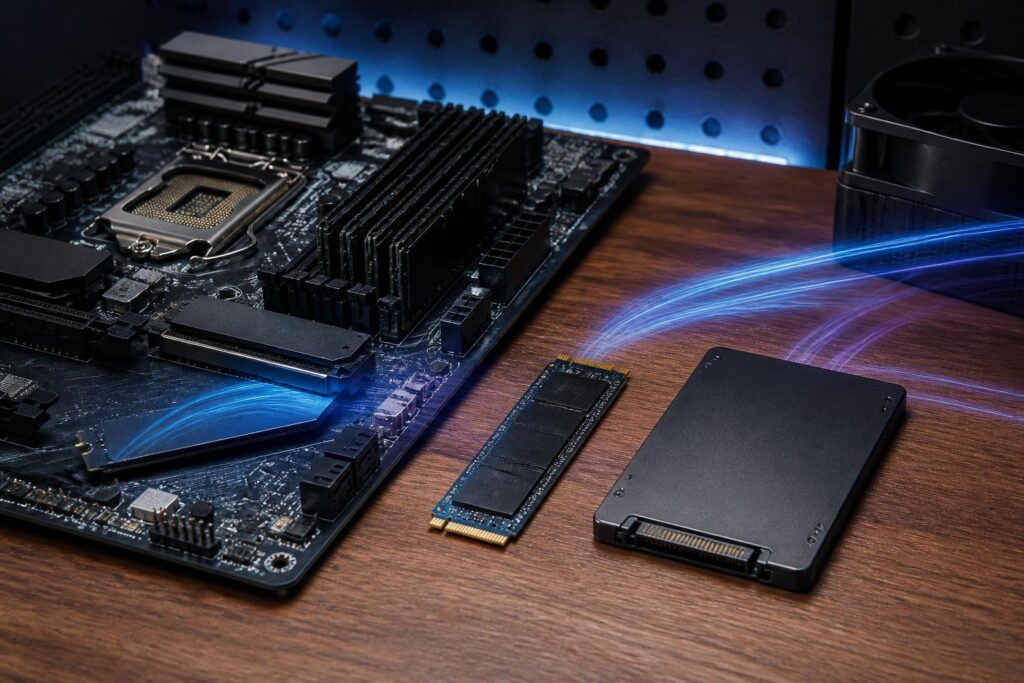
The two most common SSD categories today are SATA SSDs and NVMe SSDs. SATA SSDs generally use a 2.5-inch design and connect to the motherboard through a SATA cable, although SATA versions in the M.2 form factor also exist. NVMe SSDs generally use a PCI Express interface and are installed directly into a compatible M.2 slot on the motherboard. Therefore, the M.2 form factor does not mean that a drive is necessarily NVMe. An M.2 slot may support SATA, NVMe, or both, depending on the motherboard’s design.
SATA SSDs are significantly faster than mechanical hard drives and remain useful for older computers, office machines, or systems with limited expansion slots. If the motherboard does not have a suitable M.2 slot, a SATA SSD can improve boot times and application responsiveness without requiring the entire platform to be replaced. NVMe drives, by contrast, use PCI Express bandwidth to achieve higher throughput, especially when handling large files or workloads involving many simultaneous read and write operations.
However, differences in specifications do not always translate into equivalent differences in every situation. When opening a browser, writing documents, or launching several ordinary applications, overall system responsiveness also depends on the processor, RAM, software, and condition of the operating system. Mainstream users do not necessarily need to buy the fastest NVMe model. A mid-range NVMe SSD or a good-quality SATA SSD may already fully meet their practical needs.
The PCI Express Standard Must Be Compatible with the Motherboard
Within the NVMe category, users may encounter different generations of PCI Express. Each generation has its own bandwidth limit, but a drive can perform to its full potential only when the motherboard and M.2 slot support the corresponding standard. A newer-generation PCI Express drive can generally operate on an older platform in a compatible mode, but its speed will be limited by the system’s standard. Conversely, an incompatible M.2 slot may cause the drive not to be detected or prevent it from being installed properly.
Before buying, check the motherboard documentation to determine the number of M.2 slots, the supported PCI Express standard, the supported SSD dimensions, and whether bandwidth is shared with other ports. On some designs, installing an SSD in a particular slot may disable a SATA port or expansion slot. This is not an SSD defect but rather the result of how the manufacturer allocates connection lanes on the motherboard. Reading the manual before placing an order can help avoid buying the right type of drive but being unable to use it in the intended location.
Read and Write Speeds Are Not the Whole Story
Sequential read and sequential write speeds are often emphasized on packaging because they are easy to compare. These figures are useful when users copy very large files, edit video, create backups, or work with continuous data. However, everyday activity also involves random access, latency, and the ability to process many small requests at the same time. This is why an SSD with a lower sequential speed can still provide an excellent experience when booting and opening applications.
In particular, advertised write speed often depends on the cache. When writing an amount of data within the cache’s capacity, the drive may reach a high speed; after the cache fills up, performance may drop considerably depending on the design. This is easy to notice when copying a very large file or continuously writing a large volume of data. Office users rarely encounter this limitation, but people who frequently edit video, export data, create virtual machines, or move large libraries should look into sustained write performance rather than focusing only on the maximum figure.
The controller and firmware also affect stability. Two SSDs with the same interface standard and capacity can still produce different results because of how they manage flash memory, cache, and heat. Since buyers do not always have the opportunity to examine every component in depth, prioritizing products with transparent technical information, clear warranty terms, and reliable real-world reviews is safer than choosing the model with the highest advertised speed.
Durability, Temperature, and Warranty Should Be Considered Together
SSD durability is often expressed as the expected amount of data written over the product’s lifetime. This figure is useful for comparing models in the same category, but it should not be interpreted as the point at which the drive will definitely fail. Actual lifespan also depends on daily write volume, temperature, firmware quality, power supply, and usage patterns. For a typical office computer, data-writing demands are usually far lower than in professional scenarios, so it is not necessarily worth choosing the model with the highest rating.
Temperature is an easily overlooked factor in high-speed NVMe models. During continuous operation, an SSD may heat up and automatically reduce its speed to protect its components. This does not necessarily indicate that the product is defective, but if airflow inside the case is poor or the M.2 slot is located near a major heat source, long-term performance may be unstable. Some motherboards include heatsinks for M.2 slots; if not, users may consider a compatible cooling solution while ensuring that it does not interfere with the graphics card or surrounding components.
The warranty policy should also be considered part of the product’s value. Check the duration, acceptance conditions, return or replacement process, and availability of support from the seller. Users should not store important data on only one SSD, regardless of how good the drive’s durability specifications are. Regularly backing up data to another device or a suitable service remains essential, because hardware failure and data loss do not always provide advance warning.
How Should the Operating System and Data Drives Be Divided?
A single SSD is still sufficient for many home computers. However, using two drives can help separate the operating system and applications from work data or game libraries. When the operating system needs to be reinstalled, organizing data separately is more convenient, although users must still back up important files. For professional workstations, a second drive can also be assigned to cache files, active projects, or temporary libraries, reducing access competition on the system drive.
This arrangement does not automatically make a computer twice as fast. Its effectiveness depends on the type of workload and how the software uses the drives. Therefore, users should not buy an additional SSD simply expecting every activity to become noticeably faster. First determine whether the current problem is insufficient capacity, a lack of expansion slots, inadequate write speed, or inconvenient data management. Each problem requires a different solution.
A Practical SSD Selection Process
A simple process can begin by listing your needs: whether the computer will be used for office work, gaming, photo editing, video production, or running virtual machines. Next, check the motherboard and identify the available slots and supported interface standards. The next step is to choose a capacity that will leave enough free space for several years, and only then compare the performance, temperature, durability, and warranty of compatible products.
During installation, update the firmware if the manufacturer provides appropriate instructions, enable the correct system boot mode, and check that the drive is detected in both the BIOS and the operating system. After installation, monitor the drive’s condition using the manufacturer’s management tool or reliable monitoring software. There is no need to run demanding benchmarks continuously to prove the drive’s speed, since unnecessary data writing only increases the SSD’s usage.
Conclusion
Choosing a good SSD does not mean choosing the product with the highest advertised speed. Appropriate capacity, compatibility with the motherboard, stable performance in real-world tasks, manageable temperatures, and a clear warranty policy are what make a decision sensible. SATA SSDs still have a place in older systems and for mainstream needs, while NVMe drives are suitable for users who need greater bandwidth or are building a new platform.
Most importantly, an SSD should be selected based on the entire system and the user’s usage habits. By understanding what they actually need, users can avoid paying extra for specifications that do not make a significant difference, while directing their budget toward capacity, backup capability, and long-term stability. That is how a storage upgrade delivers more practical benefits than chasing the prominent numbers printed on the box.
