


SSDs have become an almost mandatory component in a modern computer. Compared with mechanical hard drives, SSDs help the operating system boot faster, software open almost instantly, and data copying no longer produce mechanical noise. However, the growing number of SSD choices on the market makes buying the right drive less straightforward. Numbers such as read speeds of 7,000 MB/s, newer-generation PCIe interfaces, or capacities of several terabytes may be impressive, but they are not enough to conclude that a product is the right choice for everyone.
The value of an SSD lies in the balance between usage needs, compatibility, sustained performance, durability, and the cooling conditions inside the computer. An SSD that is very fast on paper may not make a significant difference for office use, while a drive with a lower advertised speed may be more suitable for a computer that operates continuously or a system that needs substantial capacity. Therefore, instead of looking only at maximum speed, buyers should evaluate the entire storage platform.
Identify the Correct Connection Standard Before Choosing an SSD
The two most common types of SSDs in computers today are 2.5-inch SSDs using the SATA interface and M.2 SSDs using the PCIe interface through the NVMe protocol. SATA SSDs typically have considerably lower sequential speeds than NVMe drives, but they are still much faster than many mechanical hard drives and have the advantage of being compatible with many older computers. They are a reasonable choice when the motherboard does not have an M.2 slot, when upgrading an older laptop, or when users want to make use of existing SATA power and data cables.
M.2 SSD does not always mean NVMe. The M.2 size only describes the physical shape, while an M.2 drive may use SATA or PCIe. These two types may look almost identical but are not necessarily compatible with the same slot. Before purchasing, check the motherboard or laptop documentation to determine which interface the M.2 slot supports, the maximum drive size, and whether it shares bandwidth with another port.
For a new computer, a PCIe NVMe SSD is often worth considering because of its compact design, fewer cables, and high bandwidth. However, differences between PCIe generations can only be realized when the SSD, motherboard, and processor all support the corresponding standard. Installing a newer-generation PCIe drive in an older slot does not turn the computer into a newer system; the drive will generally operate at the standard permitted by the platform. This is not a problem if the need is limited to booting the operating system and running ordinary software, but it should be taken into account when paying extra for a high-end model.
Maximum Speed Does Not Reflect the Entire Experience
Sequential read and write speeds are often used to promote SSDs because they are easy to compare. This is a useful metric when handling large files, editing video, backing up data, or working with high-capacity project folders. However, the process of booting the operating system and opening multiple applications also depends on latency, random-access performance, command-queue processing capability, and firmware quality.
For office work, studying, or web browsing, a mid-range NVMe SSD already meets most needs well. Upgrading from a SATA SSD to a very fast NVMe model may improve some tasks, but the perceived difference is often not proportional to the gap shown in the specifications. Conversely, when users frequently copy large files, edit high-resolution video, run virtual machines, or compile software, sustained performance after the cache has been exhausted is more important than peak speed during the first few seconds.
Buyers should also distinguish sequential read and write speeds from actual performance when the drive is nearly full. An SSD needs free space to organize data, collect used memory blocks, and maintain performance. When too little free capacity remains, write speeds may decrease, response times may increase, and data updates may become less stable. Therefore, a drive with just enough capacity but that is constantly near its maximum capacity is not the optimal choice.
Memory Type and Cache Affect Stability
SSDs use flash memory chips with various methods of storing data. In principle, the more data stored in each memory cell, the lower the cost per gigabyte, but the trade-offs in speed and durability may become more apparent under certain workloads. Mainstream users do not necessarily need to choose the most expensive type, but they should avoid making a decision based solely on capacity while overlooking the drive’s memory design.
Many SSDs use part of their memory to simulate a high-speed cache. When writing data within the cache’s capacity, the drive can achieve very high speeds. Once this area is full, speeds may drop considerably, especially in models without dedicated cache memory or those using designs optimized for a low price. This does not mean the SSD is of poor quality, because in small and short tasks the difference may be insignificant. However, if users frequently move hundreds of gigabytes of data, they should look for information about long-term write performance rather than simply focusing on the highest number.
Firmware also plays an important role in managing the cache, correcting errors, and allocating data. Two SSDs with nearly identical specifications may provide different experiences because of their controllers, firmware, and the way the manufacturer controls quality. For important data, it is advisable to prioritize products with clear technical information, transparent warranty policies, and drive-health monitoring tools from the manufacturer.
Capacity Should Be Calculated Based on Long-Term Use
A 500 GB or 512 GB SSD may be enough for an office computer, but it will quickly become cramped if many games, specialized software, and multimedia files are installed. Modern operating systems, application caches, updates, and download folders all consume additional space over time. Therefore, the initial capacity purchased should be based on needs over the next several years, not just on the number of files currently present.
A drive of around 1 TB often provides a good balance for a personal computer, especially when users want to install the operating system and software and keep a moderate game library on the same drive. Larger capacities are suitable for content creators, those storing photo and video libraries, or users who want to reduce the need to move data between multiple drives. In a desktop computer, the operating-system SSD and data SSD can be separated for easier management, but this arrangement is not always necessary when the budget is limited.
The important point is not to treat an SSD as the only storage location for irreplaceable data. Despite their high durability, SSDs can still fail because of controller defects, power issues, firmware, or unpredictable causes. Work documents, personal photos, and important data should have copies on another drive or an independent storage medium. Large capacity does not replace a backup strategy.
Durability, Temperature, and Installation
Durability specifications expressed as the total amount of data that can be written usually help buyers understand an SSD’s workload endurance. This is a useful indicator, but it should not be interpreted to mean that the drive will immediately fail when it reaches that number. Actual lifespan also depends on temperature, flash-memory quality, the amount of writing and erasing, and operating conditions. For a home computer, this figure is usually not something that needs to be maximized at all costs; more important is choosing a product suitable for the workload and backed by a reliable warranty.
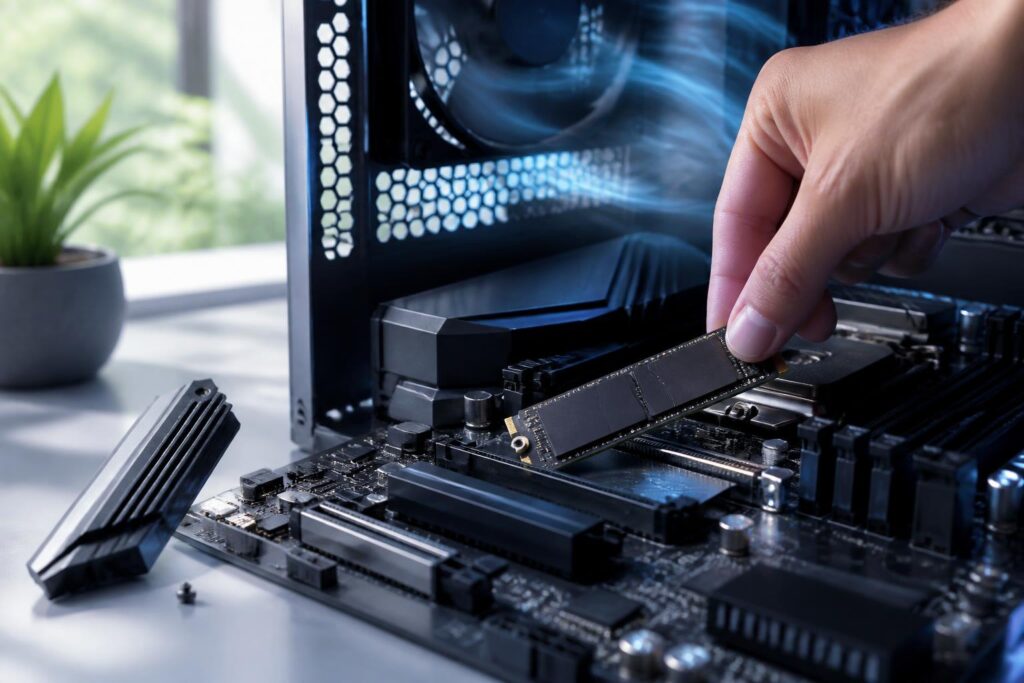
High-performance NVMe SSDs can generate considerable heat when reading or writing continuously. If the temperature rises too high, the controller will automatically reduce speed to protect the components. This phenomenon usually does not appear during a few application-opening operations, but it can be observed when copying large files, editing video, or running extended benchmarks. A motherboard with a heatsink for the M.2 slot can help improve the situation, provided that the heatsink makes proper contact with the drive’s surface and the protective film is removed before installation.
The location of the M.2 slot also matters. A slot directly beneath the graphics card may receive additional heat from that component, while a slot near the airflow at the front of the case generally has better conditions. When installing an SSD, secure it with the correct screw, do not bend the circuit board, and do not press the heatsink too hard. Laptops have their own limitations regarding drive length, component thickness, and cooling capacity, so conclusions should not be transferred from desktop configurations to mobile computers.
Common Mistakes When Buying an SSD
A common mistake is paying significantly more for speed that the platform cannot use. If the motherboard supports only an older PCIe standard, a newer-generation SSD will still work but will not reach its maximum performance. Another mistake is buying a low-capacity drive because it is inexpensive and then having to constantly clean up or move data. A low initial cost can turn into prolonged inconvenience, especially when the computer has only one M.2 slot.
Many people also overlook checking the warranty and management software. Official tools can show the amount of data written, temperature, health status, and support for firmware updates. When buying from an unclear source, verifying the product and handling problems if a failure occurs will be more difficult. For SSDs, an unusually low price should be evaluated together with the source, warranty period, and return policy, rather than by looking only at capacity.
Finally, a single SSD should not be used both to run the operating system and to store the only copy of important data. Upgrading the drive can make the computer faster, but data safety requires a broader approach. One reasonable option is to use the main SSD for the operating system and applications, monitor free capacity, keep temperatures within an appropriate range, and establish a backup schedule for files that cannot be recovered.
How to Make a Balanced Decision
Before buying, check the computer’s slot and interface standard, determine the capacity needed over the next several years, and only then compare performance and price. Office users can prioritize an SSD with sufficient capacity, low temperatures, and a good warranty. Gamers should pay attention to capacity because modern games occupy a great deal of space, while the difference between the fastest models and mid-range models is not always obvious in loading times. Content creators and those processing large amounts of data should care more about long-term write speed, cooling capability, and durability than about a single peak-speed figure.
A good SSD is not necessarily the SSD with the highest specifications. It is the model that is compatible with the computer, has sufficient capacity, maintains stable performance in real-world work, and can be protected by an appropriate backup system. By evaluating these criteria, users can avoid spending money on unnecessary features while building a storage foundation that is faster, more durable, and easier to upgrade.
