


RAM is often one of the first components mentioned when a computer runs slowly, has many applications open, or frequently needs to use large files. However, upgrading memory does not always mean buying the RAM module with the largest number on the market. A system may be unable to take advantage of high speeds, may not be compatible with a new memory standard, or may encounter stability problems if the RAM modules are installed in an unbalanced configuration.
To choose RAM appropriately, users need to consider both their actual needs and the limitations of the motherboard, processor, and operating system. Capacity is an important factor, but it is only one part of the equation. The DDR standard, number of modules, memory-channel configuration, clock speed, latency, and future upgrade potential can all make a difference in the user experience.
Start with Your Needs Instead of Advertised Specifications
An office computer used for writing, web browsing, online meetings, and document processing generally does not need the same RAM configuration as a gaming computer or a rendering workstation. If most of the time is spent using only a few lightweight applications, sufficient capacity and stable operation will be more valuable than high specifications that are rarely utilized.
Conversely, people who frequently keep many browser tabs open, edit photos, render video, run virtual machines, or work with large projects will quickly notice the limits of their memory. When RAM is no longer sufficient, the operating system has to use part of the storage drive as virtual memory. This mechanism allows the system to continue operating, but responsiveness usually decreases noticeably, especially when the storage and memory both have to handle many tasks.
Therefore, the first question should not be “How fast is the RAM?” but rather “How much memory does the computer need under real-world usage conditions?” Users can observe RAM usage in Task Manager on Windows or the corresponding monitoring tool in their operating system. Monitoring usage during normal work and while running demanding tasks will reveal whether the problem is insufficient capacity or another component.
RAM Capacity and Room for the Future
RAM capacity should be chosen based on both current needs and the expected period of use for the computer. A system that is only sufficient for today’s work can quickly become cramped as software is updated, browsers load more content, or users begin performing additional tasks.
Computers used for basic tasks should have enough memory for the operating system, browser, and commonly used applications to run simultaneously without relying too heavily on virtual memory. For gaming computers, capacity should be considered together with the game, background applications, and the resolution being used. Professional workstations for video editing, three-dimensional design, software compilation, or virtual machines generally need considerably more memory, because each project or concurrently running environment consumes part of the available resources.
Do not look only at the total capacity advertised on the box. Two RAM modules with a combined capacity equivalent to that of a single larger module can result in different operating behavior, depending on how many memory channels the platform supports. In many cases, using a pair of modules with matching specifications allows the system to operate in dual-channel mode, thereby improving memory bandwidth compared with using only one module. The actual improvement depends on the application, but a balanced configuration is still a reasonable choice when building or upgrading a new computer.
DDR, Slots, and Compatibility
RAM modules cannot be mixed freely between generations. Different DDR standards use different slot designs and electrical characteristics, so a RAM module from one generation cannot replace one from another simply because they look similar externally. Users need to determine which standard the motherboard and processor support before buying.
This information is usually available in the motherboard’s technical documentation, the manufacturer’s specifications page, or hardware-identification software. For prebuilt computers and laptops, checking the exact product number is even more important because not every device allows RAM replacement. Some models use memory soldered directly onto the motherboard, while others have only one upgrade slot or use a small module format designed for laptops.
In addition to the DDR standard, check the number of available RAM slots, the maximum capacity supported by the motherboard, and the processor’s limitations. A system may recognize a high-capacity RAM module but be unable to use its full capacity if the platform has its own limits. Updating the BIOS can sometimes improve compatibility with newer memory, but a BIOS update should not be regarded as a guaranteed way to overcome hardware limitations.
Clock Speed and Latency Should Not Be Viewed Separately
Clock speed is often the most prominent specification on RAM packaging. Basically, a higher clock speed can provide greater bandwidth, but the effectiveness also depends on latency and the support capabilities of the entire system. Memory with a high clock speed but high latency may not produce a noticeable difference compared with a more balanced option.
Latency is usually represented by a sequence of specifications, including a value that represents the number of cycles required before data can be accessed in response to a particular command. A smaller number is generally beneficial under the same conditions, but different DDR generations should not be compared directly using just one specification. Buyers should consider clock speed, latency, voltage, and compatibility as a unified set of information.
In everyday use, the difference between several RAM kits with the same capacity may not be as significant as the difference caused by insufficient capacity or an incorrectly configured channel arrangement. Therefore, if the budget is limited, prioritizing sufficient RAM and installing it correctly is usually more sensible than sacrificing capacity to pursue a high clock speed.
XMP, EXPO, and the Limits of Automatic Settings
Many RAM kits are advertised with speeds higher than the basic settings that the system can select immediately after installation. To reach the advertised level, users usually have to enable a memory profile in the BIOS. The name may vary depending on the platform, such as XMP or EXPO, but the general purpose is to load a preset group of settings for clock speed, latency, and voltage.
Enabling this profile is usually quite simple, but that does not mean every computer will operate stably at the highest level listed on the box. Stability is also affected by the processor, motherboard, number of RAM modules, BIOS version, and compatibility between the modules. If the computer restarts, application errors appear, or a blue screen occurs after enabling the profile, users should try a lower setting rather than insisting on the maximum specifications.
Testing should be performed after changing the configuration. Users can operate the computer during everyday tasks, run demanding software, and use an appropriate memory-testing tool. If errors appear only randomly, especially when the computer remains under load for a long time, that is still a sign that requires attention. A system that is stable at a lower speed is generally more useful than one that reaches higher specifications but frequently encounters errors.
Should You Mix Different RAM Modules?
Mixing RAM from different brands does not always cause errors, but it is not the option with the highest degree of certainty. Modules that differ in memory chips, circuitry, clock speed, latency, or voltage may force the motherboard to select lower common settings. In worse cases, the computer may fail to boot or develop errors that are difficult to reproduce.
If an upgrade is needed, RAM kits sold in pairs are usually the safer choice because the modules have been tested to work together. When adding to an existing kit, users should look for a module with specifications as close as possible to those of the old module and check the motherboard’s compatibility list, if available. Even if two modules share the same commercial name, they may use different internal components depending on the production batch, so the product name cannot be considered an absolute guarantee.
If the system becomes unstable after an upgrade, try removing the new modules, testing each module individually, and reinstalling them in the slots specified in the motherboard documentation. Clearing the memory settings in the BIOS and then testing at the default specifications can also help determine whether the problem comes from the configuration or the hardware.
Details That Are Easy to Overlook When Installing RAM
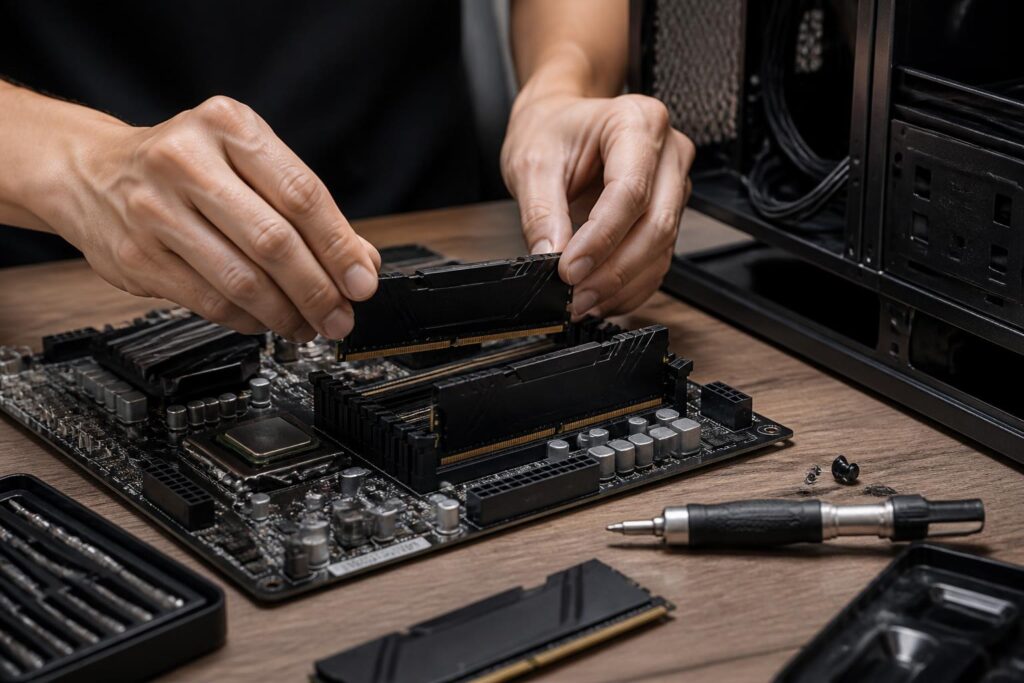
Before beginning, shut down the computer completely, disconnect the power, and avoid touching the contact area of the RAM module. The module must be oriented correctly according to the alignment notch, and both retaining clips must lock securely after installation. Do not use excessive force when the RAM module has not yet aligned with the slot, because incorrect handling can damage the slot or the module.
The slot position also affects the memory-channel mode. Many motherboards require two modules to be installed in slots separated according to specific instructions rather than next to each other. The documentation included with the motherboard is a more reliable reference than guessing based on the slot positions.
RAM with large heat spreaders or decorative lighting may interfere with the processor cooler, especially in small computer cases. Users should check the module height and the available internal clearance before buying. For office or work computers where stability is important, a simple design, moderate cooling, and clear warranty coverage are generally more worth prioritizing than appearance.
How to Upgrade RAM Without Wasting Money
A sensible upgrade plan begins by determining the cause of the slowdown. If the computer is simply short on memory, increasing capacity can produce a noticeable improvement. However, if the slowdown is caused by storage that is too slow, an underpowered processor, high temperatures, or background software, replacing the RAM will not solve the entire problem.
Users should record the current configuration, the number of available slots, the capacity of each slot, and the settings currently being used by the BIOS. Then, compare them with the motherboard or device documentation. If the computer is expected to be kept for many years, it may be worth considering an option that leaves an empty slot for a future upgrade, but users should not sacrifice too much current performance for the sake of an uncertain plan.
Finally, prioritize compatibility and stability over attention-grabbing specifications in advertisements. A RAM kit that suits the platform, has the right capacity for the needs, and is carefully tested will provide more practical value than an expensive option that cannot run at its proper configuration. By understanding how memory works together with the motherboard and processor, users can avoid many unnecessary expenses and build a system capable of serving them for a long time.
