


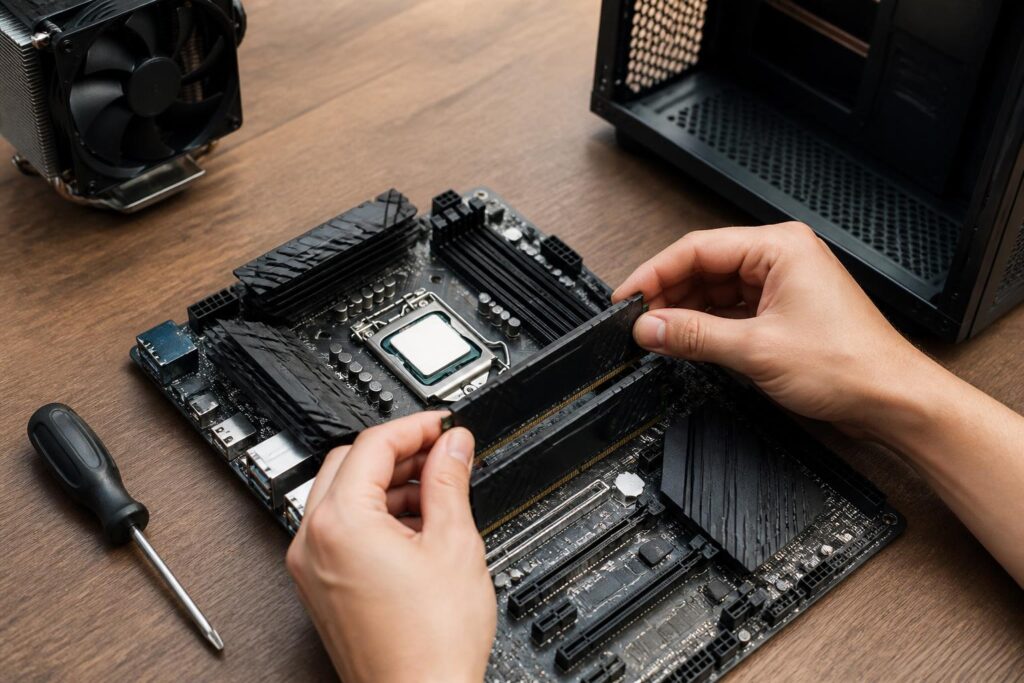
RAM is often mentioned as one of the easiest components to upgrade in a computer. Users only need to open the case, install one or two additional memory modules, and expect the system to run faster. However, the actual results depend on many factors at the same time, from capacity, the number of modules, and the memory standard to the support capabilities of the motherboard and processor. An unsuitable choice may prevent the computer from making full use of the RAM’s capabilities, and may even cause boot errors or instability.
Therefore, a RAM upgrade should begin by identifying the problem the computer is experiencing. If the computer often slows down when opening multiple applications, using a browser with many tabs, running photo-editing software, or working in a development environment, increasing the capacity can make a noticeable difference. Conversely, if the computer already has enough memory but is slow because of storage, temperature, or background software, adding more RAM may not address the main cause.
RAM capacity should be determined by how the computer is used
RAM capacity determines how much data the operating system and applications can keep ready for quick access. When physical memory is no longer sufficient, the system must move some data to virtual memory on the storage drive. This allows the computer to continue operating, but it usually makes response times slower, especially when the user switches constantly between multiple programs.
For a computer used mainly for basic tasks such as reading news, working with documents, attending online meetings, and entertainment, a moderate amount of RAM may be sufficient if the software being used is not particularly demanding. People who frequently work with many browser windows, large spreadsheets, communication tools, and office applications at the same time will need more headroom to prevent the system from having to use virtual memory.
Computers used for photo editing, video production, programming, or running virtual machines should be assessed according to the scale of the projects. A high-resolution image file, a multilayer video project, or a development environment accompanied by a test server can all consume a considerable amount of RAM. In these cases, larger capacity is often more important than pursuing a high clock speed that does not suit the workload.
Users should also check actual RAM usage before buying. On Windows, Task Manager shows the amount currently in use, the available memory, and the applications consuming the most resources. This information does not always reflect the entire user experience, but it helps determine whether the computer is genuinely short of RAM. If usage regularly approaches the limit during work, upgrading the capacity is worth considering.
The number of memory modules affects how the system operates
RAM in personal computers is typically installed across memory channels. When two compatible modules are used in the appropriate slots, the system can operate in dual-channel mode, increasing bandwidth compared with using only one module in many situations. The specific improvement also depends on the application, platform, and the way the system uses data, so it should not be treated as a fixed figure for every computer.
For example, a single high-capacity RAM module may help users reach their desired total capacity, but they may still miss out on the benefits of a dual-channel configuration. Conversely, two lower-capacity modules may provide better bandwidth but quickly become a limitation when running demanding software. The right decision requires balancing current needs with future upgrade potential.
RAM installation must also follow the motherboard’s instructions. The slots are commonly arranged in pairs, but the preferred positions may differ between models. If the modules are installed in the wrong slots, the computer may still boot but fail to achieve the optimal memory configuration. Before proceeding, users should consult the motherboard’s manual or technical documentation rather than relying only on the most visually obvious slot positions.
Check the RAM standard before buying
RAM is not a component that can be installed in any computer at will. Desktop and laptop computers may use modules of different sizes. In addition, different generations of memory cannot replace one another simply because they have similar shapes. The slots on a motherboard are designed for specific standards, so users need to determine exactly which type their computer uses.
Information to check includes the memory standard, the maximum capacity supported by the motherboard, the number of available slots, and any limits associated with individual slots. For laptops, upgradeability also depends on whether the RAM is soldered directly to the motherboard or uses removable modules. Some devices may allow only one module to be replaced, while the remaining memory cannot be removed or installed.
If additional RAM is being purchased to pair with an existing module, consistency becomes even more important. Two modules from different brands may still work together, but differences in capacity, specifications, and secondary settings may force the system to operate at lower settings. In the worst case, the computer may experience random errors, restart, or fail to pass the initial hardware check.
Clock speed and latency should not be considered separately
RAM specifications often attract attention because of the clock-speed number, but this is not the only factor that determines performance. Latency, the number of memory channels, the processor’s memory controller, and the motherboard’s limitations all play a role. Higher-clocked memory does not automatically provide a better experience if the system does not support it or must reduce its speed to operate reliably.
Many RAM kits have speed profiles provided by the manufacturer as an optional configuration. On a compatible platform, users need to enable this profile in the motherboard’s firmware settings. Otherwise, the RAM may start at lower default specifications. Enabling it should not be done mechanically, because the system must still meet the compatibility requirements of the processor and motherboard.
For computers using processors with integrated graphics, RAM bandwidth may be more significant because integrated graphics typically use part of the system memory. In this situation, a dual-channel configuration and memory with suitable specifications can support graphics-processing capabilities. Even so, users should prioritize stability and sufficient capacity instead of simply pursuing the highest specifications listed on the product page.
The upgrade process requires care
Before installing RAM, shut down the computer completely, disconnect the power, and wait a short while so that the system is no longer carrying electrical charge. The person performing the installation should avoid touching the metal contacts on the memory module and should place the component on a clean, static-free surface. When installing it, both ends of the RAM module must be aligned correctly with the notch on the module and the slot. Do not use excessive force if the memory module is not positioned correctly.
After installation, check whether the latches at both ends of the slot have locked into place. If the computer does not boot, do not immediately conclude that the RAM is defective. Common causes may include a module that is not fully inserted, an incorrect slot, an old memory configuration that is incompatible, or firmware that needs time to retrain its settings. Shutting down the computer, checking each module, and trying a minimal configuration will often help narrow down the problem.
If the system boots normally, users should still check the total capacity recognized by the operating system. Next, they can use memory-testing tools to detect errors over a sufficiently long period. RAM errors do not always appear immediately when the computer starts; they may only emerge when the system runs continuously or performs demanding tasks. A stable configuration is more trustworthy than one with higher specifications that frequently causes the computer to freeze.
Plan the upgrade to avoid waste
A reasonable upgrade plan should take both current needs and expansion potential into account. If the motherboard still has several empty slots, users can choose a set of modules suitable for the current configuration while preserving some room for the future. However, mixing multiple RAM kits purchased at different times always requires careful testing, because identical specifications on the label do not guarantee that all modules will operate in exactly the same way.
In some cases, replacing the entire RAM set with a kit sold together is easier to control than adding a single module. This approach may be more expensive, but it reduces the risk of incompatibility between modules. Users should also retain information about the motherboard model, processor, and firmware version for reference when troubleshooting is necessary.
The important point is not to view RAM as a solution for every sign of sluggishness. A computer may be limited by an almost-full storage drive, high temperatures, outdated drivers, or too many applications set to start automatically. Performing a comprehensive check before buying will help direct the expense toward the actual bottleneck, while avoiding an excessive configuration that does not significantly improve the experience.
Conclusion
An effective RAM upgrade begins with understanding how the computer is being used and identifying the system’s current limitations. Capacity must be sufficient for the workload, the number of modules must suit the memory-channel configuration, and the RAM standard and compatibility must be checked before purchasing. High clock speed is meaningful only when paired with a supporting platform and a stable configuration.
Rather than choosing a memory module based on one prominent specification, users should view the entire system as an interconnected structure involving the motherboard, processor, software, and actual needs. A reasonably sized, highly compatible choice with a clear upgrade plan will usually provide greater long-term value than an expensive RAM kit that does not suit everyday usage.
