


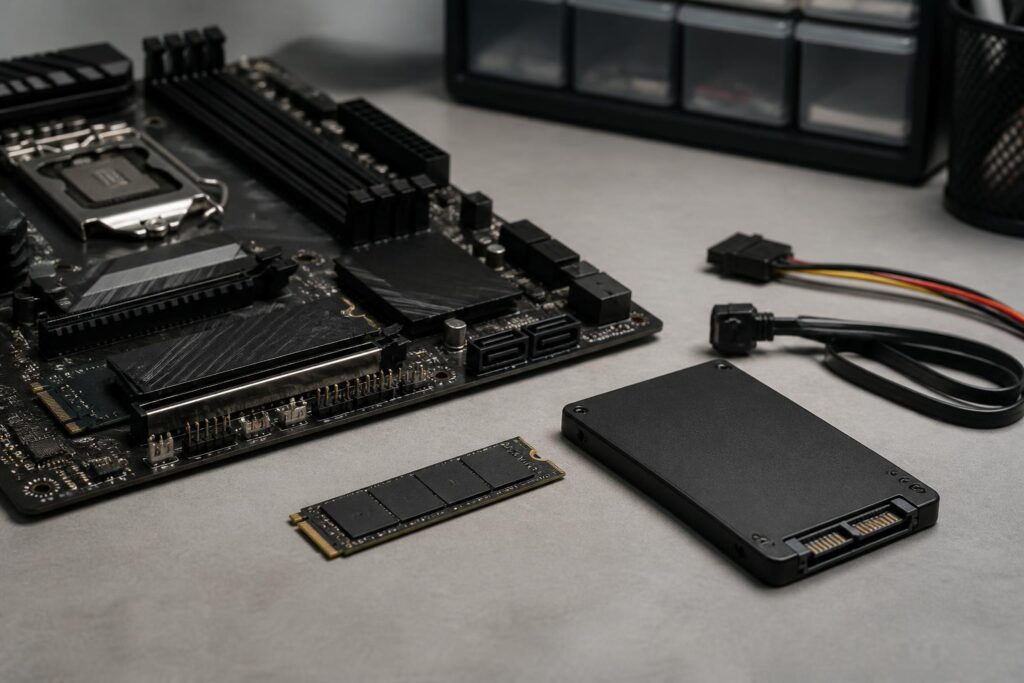
SSDs have become a familiar choice when upgrading a computer, but choosing the right model is not simply a matter of finding the product with the highest read and write speeds. Between 2.5-inch SATA SSDs, M.2 SSDs using the SATA interface, and M.2 NVMe SSDs, there are many differences in connection standards, compatibility, operating temperatures, and performance for different types of work. A drive with very high specifications may not provide a corresponding experience if the motherboard does not support the appropriate standard or if the cooling system is unsuitable.
An SSD is also not a component that can simply be installed and expected to operate at its full potential. Available free space, partitioning, flash memory quality, cache memory, and the nature of the workload all affect real-world speed. Therefore, a sensible choice should begin with the user’s needs and the existing hardware platform, followed by comparisons between product models.
Three Common Types of SSDs and Common Points of Confusion
2.5-inch SATA SSDs use the SATA interface and are typically connected to a computer through separate data and power cables. They are easy to install in many desktop computers and remain suitable for laptops with a 2.5-inch drive bay. The speed of this group is limited by the SATA interface, but when switching from a mechanical hard drive to a SATA SSD, users can still clearly feel improvements in boot times, application launches, and file access.
M.2 SSD is a name that primarily refers to the shape of the circuit board and does not automatically mean NVMe. An M.2 SSD may use either the SATA or PCI Express interface. These two types may look very similar, but they cannot always use the same slot. This is a common reason why a buyer installs an M.2 drive in a computer but the system fails to recognize it.
M.2 NVMe SSDs communicate with the system through PCI Express and use the NVMe protocol, which was designed for high-speed storage. On newer computers, this type of drive is often preferred when reducing project loading times, copying large amounts of data, or working with many files. However, the speeds listed in the specifications only matter when the motherboard, M.2 slot, and processor platform provide corresponding support.
Check Compatibility Before Buying
Before ordering an SSD, check the documentation for the motherboard or laptop to determine which storage slots the computer has. For desktop computers, this information is usually found in the motherboard manual or on the manufacturer’s support page. With laptops, checking can be more complicated because each product line may have a different layout; even the same model may be sold with different storage configurations.
If choosing a 2.5-inch SSD, check whether the computer still has a mounting bay, a SATA connector, and sufficient space for the drive. If choosing an M.2 drive, pay attention to the supported drive length, the interface type, and the number of PCI Express lanes available to the slot. Some M.2 slots also share bandwidth with SATA ports or other expansion slots. When another drive is installed, a storage port may be disabled according to the motherboard’s design.
Compatibility also involves how the operating system boots. If the new SSD will be used as the system drive, users can either perform a fresh installation or clone the operating system from the old drive. During this process, the boot mode, partition style, and firmware configuration should be checked to prevent the computer from recognizing the drive but failing to boot correctly. Backing up data before starting is essential, especially when moving the operating system.
Choose Capacity According to How You Use the Drive
A low-capacity drive may be more affordable, but it can quickly become cramped if the operating system, software, games, and personal data are all stored on it at the same time. When too little free space remains, file management becomes inconvenient, and write performance in some situations may no longer be as stable as when the drive was new. Therefore, do not calculate only the space required by the operating system; reserve room for applications, updates, temporary files, and newly generated data as well.
For office work, studying, or web browsing, an SSD with a moderate capacity is usually sufficient if large amounts of data are stored on another drive or an external device. Graphic designers, video editors, software developers, gamers with large libraries, and people who frequently process photos and videos should consider a higher capacity to reduce the need to move data constantly. The important point is to distinguish between a drive used to install the operating system and one used for data storage, because these two roles have different requirements.
Do not spend the entire budget on speed and then choose a drive with too little capacity. In daily use, an SSD with a suitable capacity and plenty of remaining free space will generally provide a more comfortable experience than a high-speed drive that is constantly nearly full.
Understanding Read and Write Speeds Correctly
Sequential read and write speeds are often emphasized in advertising because they are easy to compare using numbers. These figures are useful when continuously copying large files, but they do not fully reflect the user experience. Launching applications, opening many small files, and working with the operating system also depend on latency, random-access performance, the controller, and how software handles data.
For ordinary tasks, the differences between many SSD models may not be as obvious as their specification tables suggest. When switching from a mechanical hard drive to any suitable SSD, the improvement in experience is usually more noticeable than when upgrading from a mainstream SSD to a higher-end model. A faster SSD clearly provides more value for workloads involving large amounts of data, continuous operations, or requirements for consistent response times.
Performance can also change depending on the amount of data being written. Many SSDs use a cache area to speed up short operations. When writing continues for a long time and exceeds the cache’s capacity, speeds may drop. This is not necessarily a sign that the drive is defective; it is a characteristic that should be taken into account if you frequently copy very large files or write data continuously.
Flash Memory Types and SSD Endurance
SSDs store data in flash memory cells. The way data is organized in each cell affects storage density, cost, performance, and endurance. Buyers do not necessarily need to memorize every technical term, but they should understand that two SSDs with the same capacity and connection standard can still differ considerably in their internal design.
Endurance is commonly expressed by manufacturers as the total amount of data that can be written over the drive’s expected lifetime. This is a reference figure during the selection process, not a guarantee that the drive will fail as soon as it reaches a specific number. For office or home users, the endurance of many mainstream SSDs is usually suitable for normal usage levels. People who frequently edit video, run virtual machines, process databases, or write and erase data at a high frequency should examine this specification and the warranty policy more carefully.
In addition to endurance, some SSD models have dedicated cache memory, while others use part of the system memory for assistance. This design can affect performance and operating capability when the computer has insufficient memory or when the workload increases. A product should not be judged by a single specification; the balance between the controller, firmware, flash type, cache, and thermal-control capability determines the long-term experience.
Temperature and Cooling Issues with NVMe SSDs
High-speed NVMe SSDs can generate more heat during demanding tasks. As temperatures rise, the drive may automatically reduce its speed to protect its components. This phenomenon may not necessarily appear during a few minutes of ordinary use, but it is more noticeable when copying large amounts of data or carrying out extended workloads.
A motherboard may come with a heatsink for its M.2 slot. If using it, remove the protective layer from the thermal pad correctly and ensure that the contact surface is suitable. Do not press the heatsink against the drive in a way that bends the circuit board. In laptops, internal space is usually more limited, so use an SSD and cooling solution supported by the device manufacturer.
Cooling does not always increase speed in every task. Its primary purpose is to maintain stable performance and prevent periods of thermal throttling. Airflow inside the case, the position of the M.2 slot, and its distance from the graphics card can also affect actual temperatures.
Steps to Take After Installing an SSD
After installation, check the BIOS or UEFI to confirm that the drive is recognized. In the operating system, initialize and partition the new drive according to its intended use. If using the SSD as the system drive, update the firmware when necessary, install suitable platform drivers, and check the optimization settings intended for SSDs.
Users should also maintain an independent backup. SSDs have no moving parts, so they face fewer mechanical risks than traditional hard drives, but they can still suffer from controller failures, firmware errors, power-related incidents, or data loss caused by user mistakes. Drive health-monitoring tools can provide information about usage levels and warnings, but they do not replace backups.
Finally, leave a reasonable amount of free space and avoid keeping the drive full at all times. There is no need to turn SSD maintenance into a complicated procedure, but keeping the system well ventilated, updating necessary software, and backing up important data will help reduce risks during use.
Conclusion
Choosing the right SSD does not begin with the highest speed figure; it begins by asking which standard the computer supports, how much capacity is needed, and what kind of storage workload the computer generates. SATA SSDs still offer value for older systems or mainstream needs, while NVMe SSDs are better suited to newer platforms and tasks that require high bandwidth. By also considering endurance, temperature, cache memory, warranty coverage, and available free space, you can make a more balanced decision instead of chasing advertising specifications. A suitable SSD is a component that delivers stable benefits across the entire system, not merely a product with the fastest number printed on the box.
